Basic Payment Solution - Medical Batch Settlement
Description
What's in this article?
Although transactions are captured and processed throughout the day, transaction details are still stored in the terminal. The batch closure at the end of each day preserves terminal memory and facilitates reconciliation by providing a batch report that shows daily totals needed for bookkeeping and statement reconciliation.
Batch closure can be performed either automatically or manually each day, depending on how your account is setup during onboarding. By default, your batch will automatically close daily. If your business uses authorizations, you may opt to manually batch out to ensure that the authorizations are finalized prior to batch closure. Contact us if you would like to change your batch closure method.
For an overview of the settlement process for your merchant account, including funding timing, transaction settlement, and auto-batch closure, see Settlement Process.
IMPORTANT!
Terminal batches should be closed daily. Failure to do so may lead to an error message: "Exceeds Maximum Transaction limit", which is 1,500 transactions. Closing the batch will resolve this issue.
To manually close a batch
- Finalize open pre-authorizations.
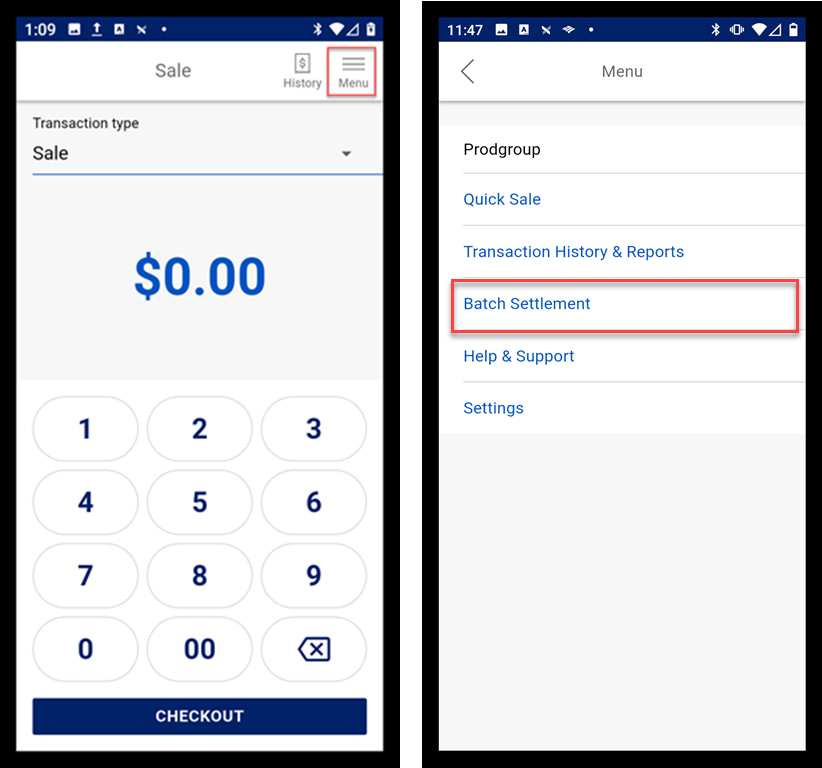
- Tap Menu > Batch Settlement.
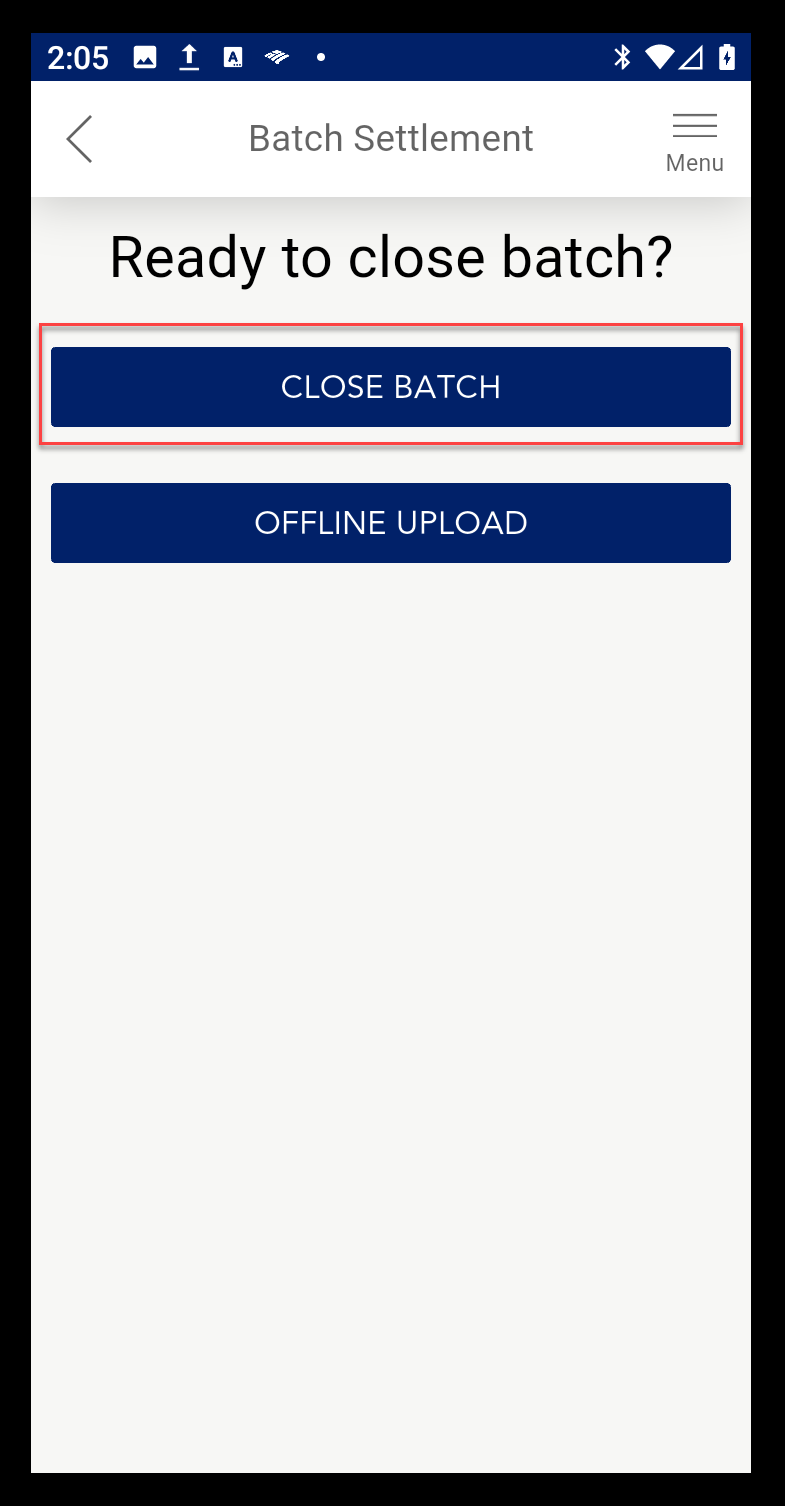
- Tap Close Batch. The batch will close and the Batch Report will print.
IMPORTANT! A warning message displays if there are open authorizations. If you choose to close the batch, you will not be able to post-authorize those transactions later.
- Tap the back arrow to return to the main page.