Basic Payment Solution - Medical Transaction History and Reports
Description
What's in this article?
Transaction history and reporting can be accessed from the History icon or by selecting Menu > Transaction History & Reports.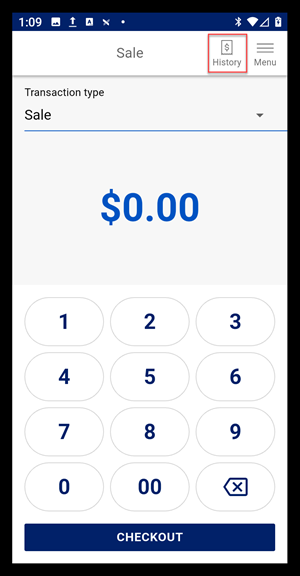
Transaction history
You can view transaction history for the Basic Payment Solution - Medical app, filtering by date, transaction type and the tender type.
The transaction history of the terminal is available until the batch settles.
- If your business is set up for automated batch, your terminal history will clear at the end of the business day.
- If your transaction history is no longer available, use your Merchant Services account transaction management options to view older transaction information instead.
View transaction history
- Tap History. The transaction history automatically appears.
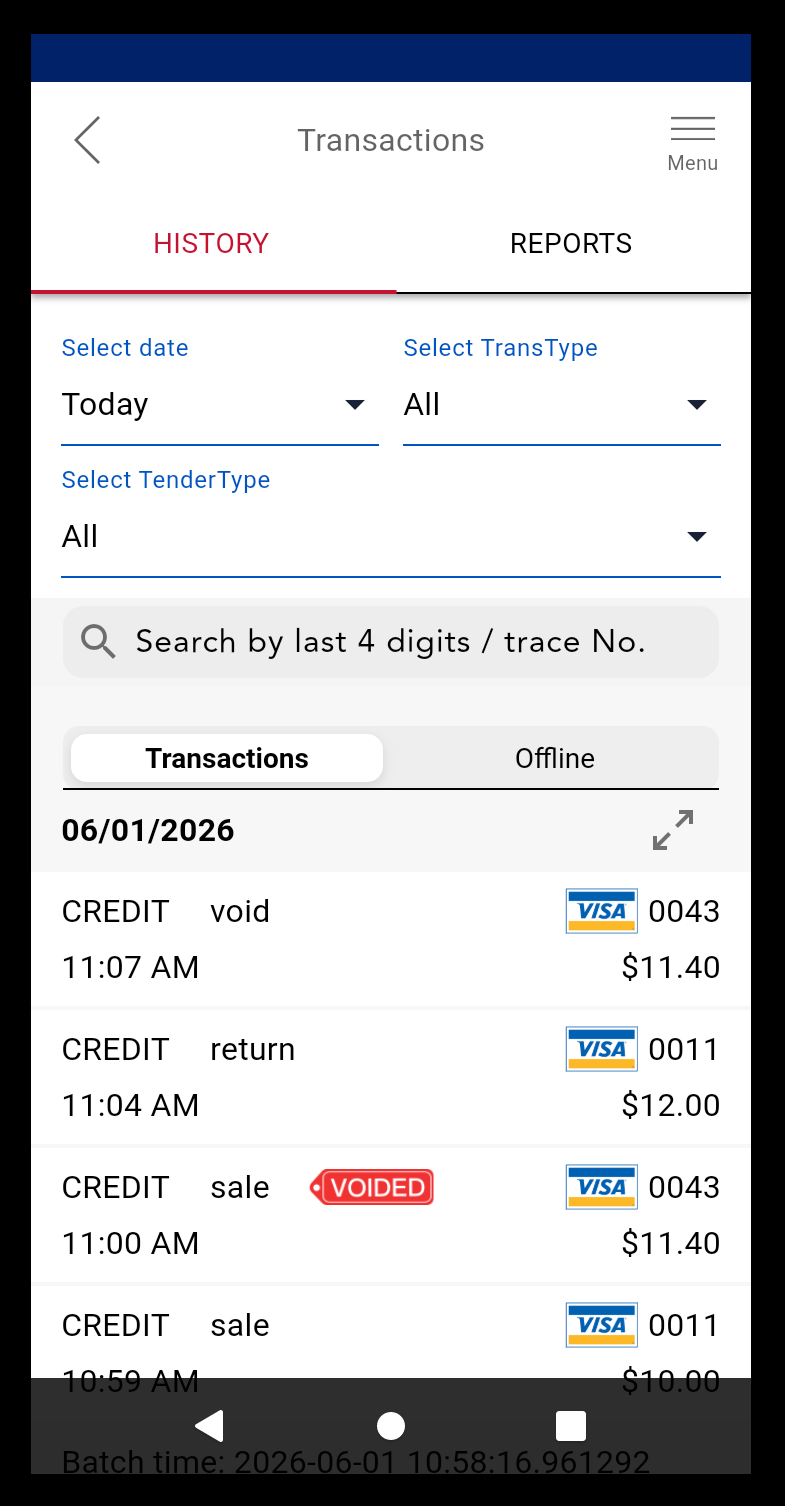
- (Optional) Filter the date range, if desired. The default is Today, but you can also select the Last 7 days, 1 Month, 3 Months, or enter a Custom date range.
- (Optional) Filter by transaction type from the dropdown list, if desired. The default is All or you can choose a specific transaction type such as Sale or Refund.
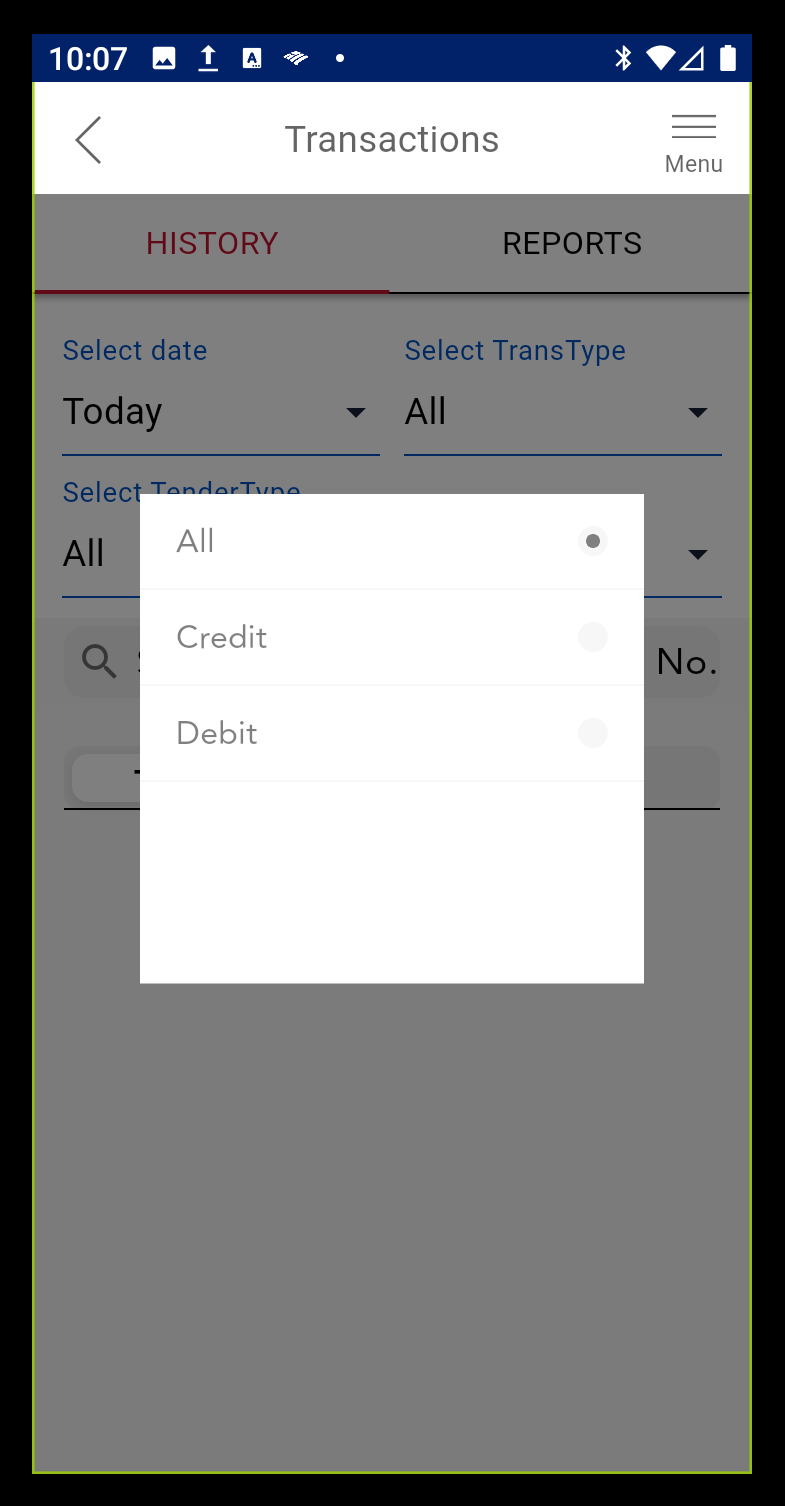
- (Optional) Filter by tender type, if desired. The default is All, but you can also select to view only Credit or Debit.
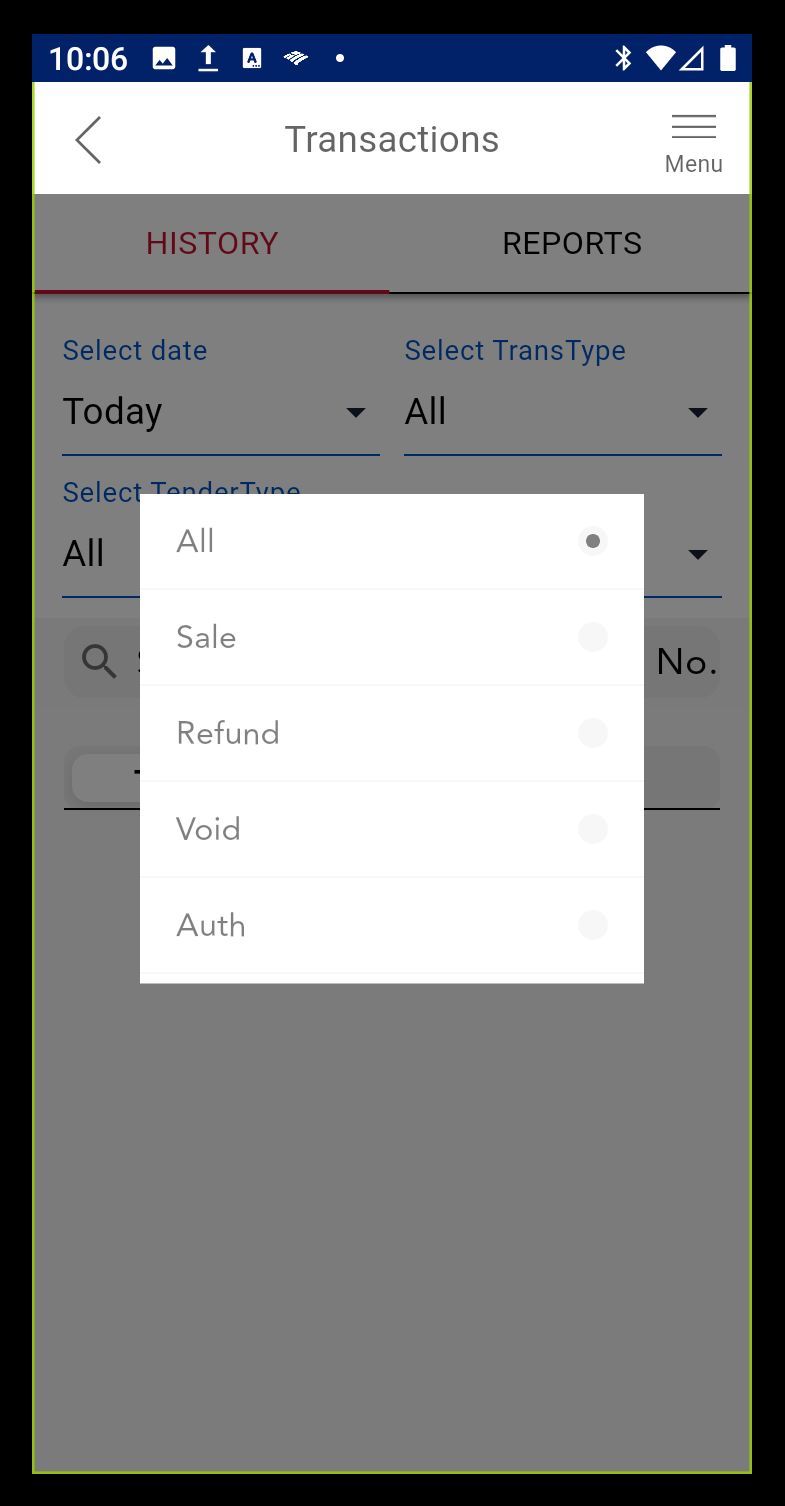
- Tap a transaction to view details, such as transaction number, the last four digits of the card number, amount, and what the authorization response was for that transaction.
- Tap Confirm to return to the history list to select a different transaction.
View offline transaction history
- Tap History.
- Filter the History, if desired, by date, transaction type or tender.
- Tap the Offline tab.
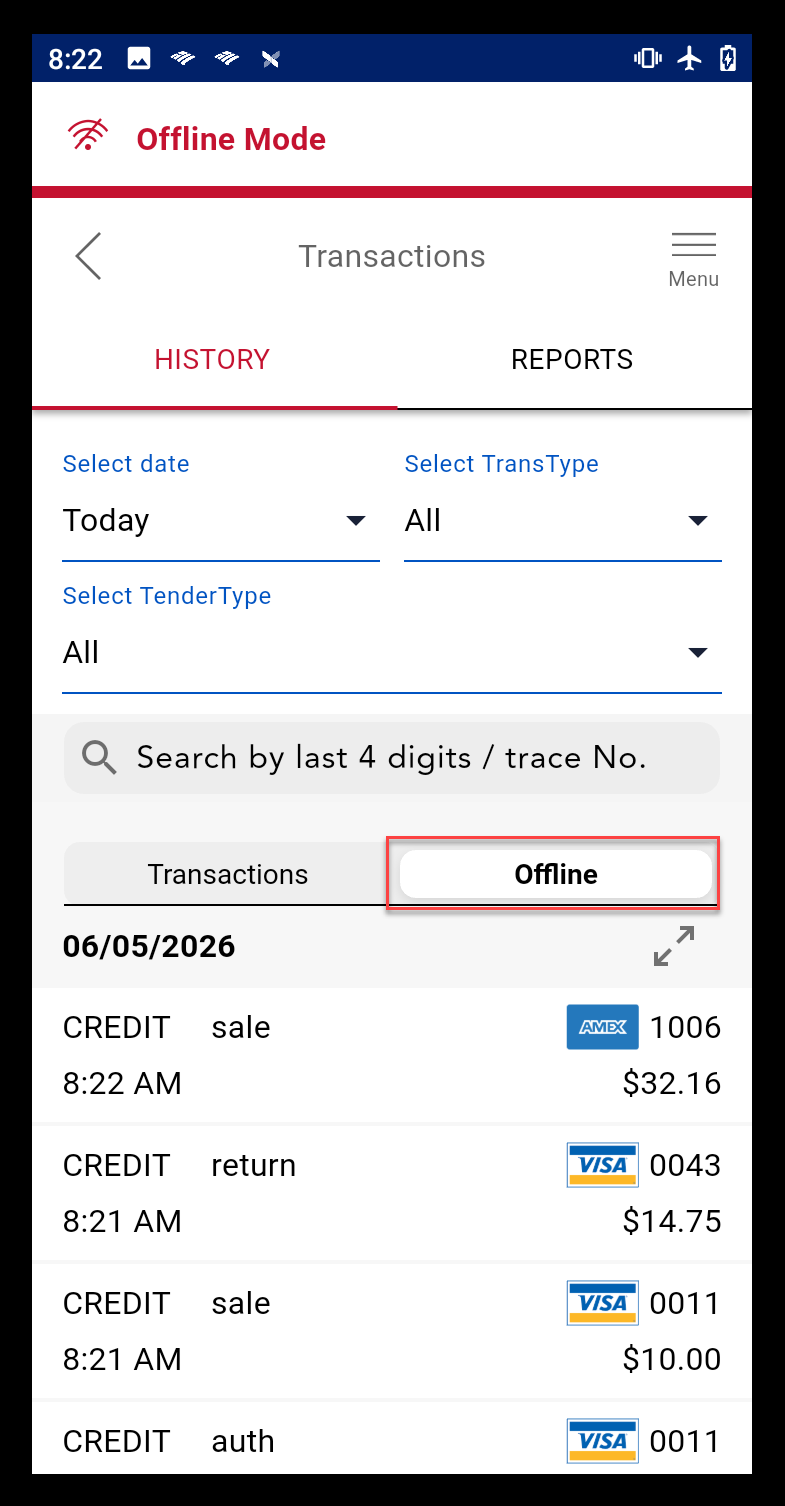
- Tap a transaction to view details, such as transaction number, the last four digits of the card number, amount, and what the authorization response was for that transaction.
Reports
Transaction reports are available to help you run your business. You can see a summary of all of the records created, the number of sales completed, total amount of discounts, credit and debit amount totals, the number of refunds performed and the amount of those refunds, the number of voids performed and the total amount of voids, number of pre-authorizations and the total, number of post authorizations and the total, and the number of offline transactions and the total.
NOTE:
No printing or export is available. When you batch the terminal at the end of the day, a paper report will automatically print for the batch.
View reports
- Tap History.
- Select the Reports tab.
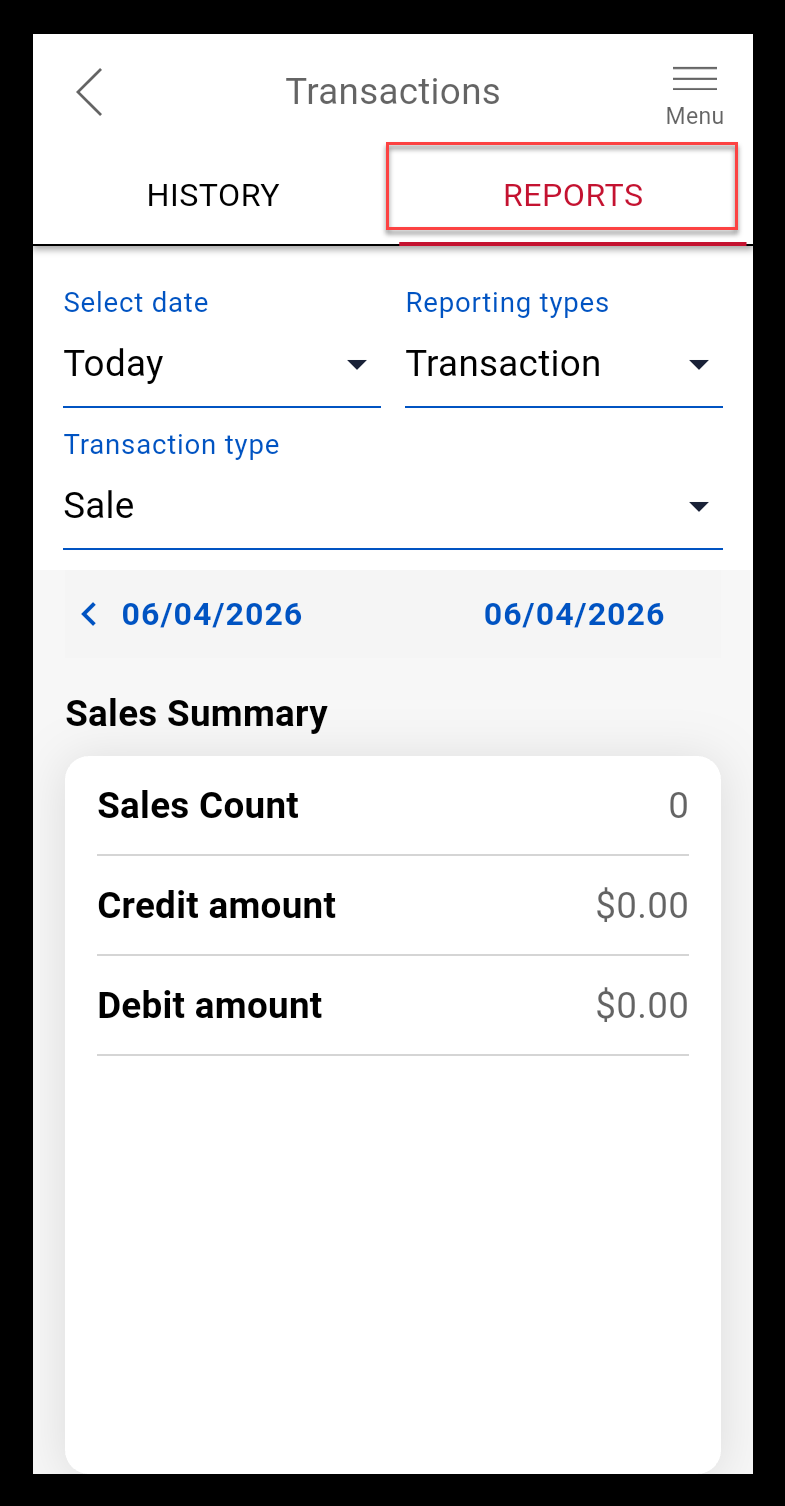
- (Optional) Select the date range for the report. The default is Today, but you can also select the Last 7 days, 1 Month, 3 Months, or enter a Custom date range.
- (Optional) Select a Reporting type, either by Transaction or by Employee.
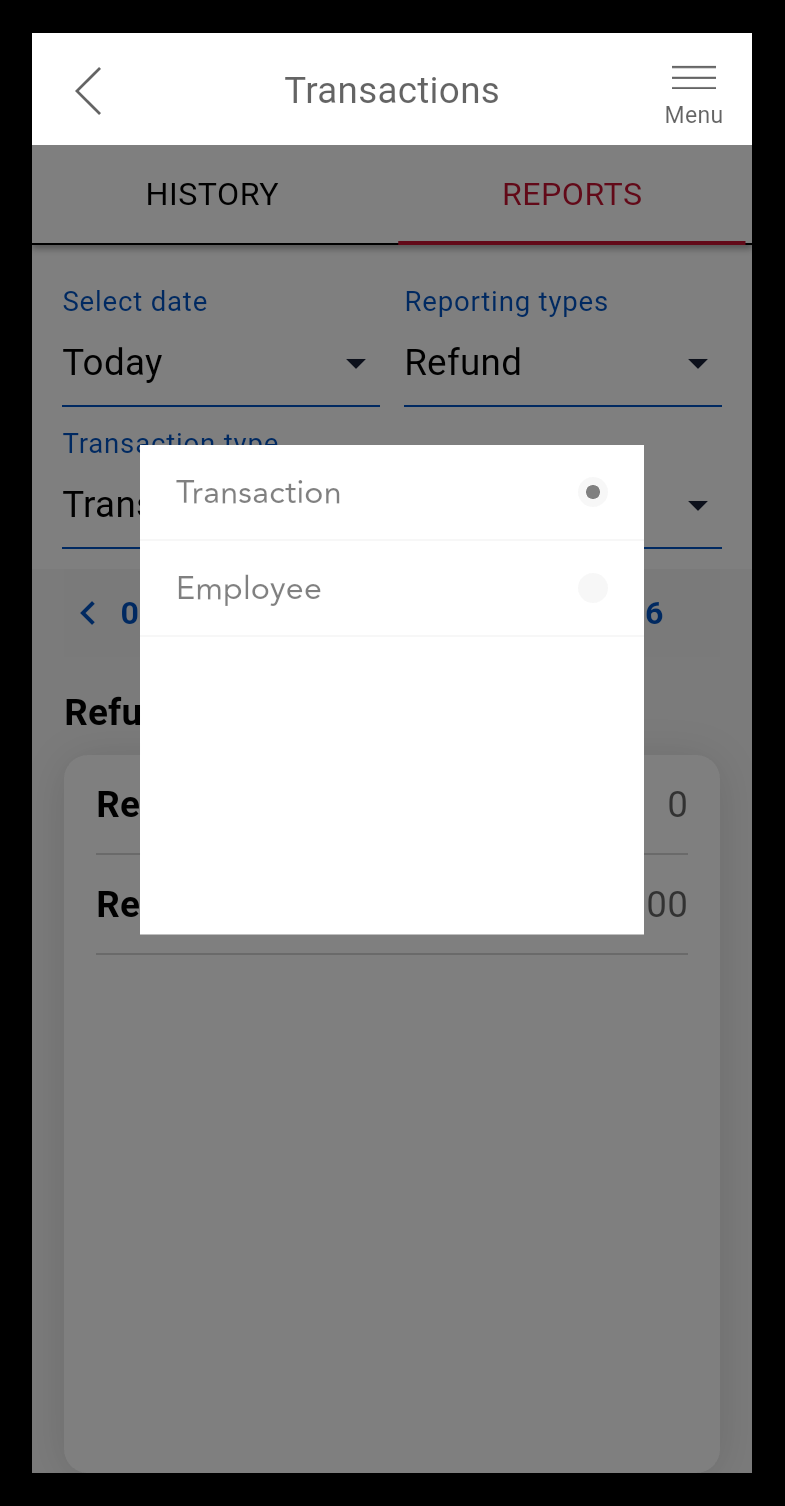
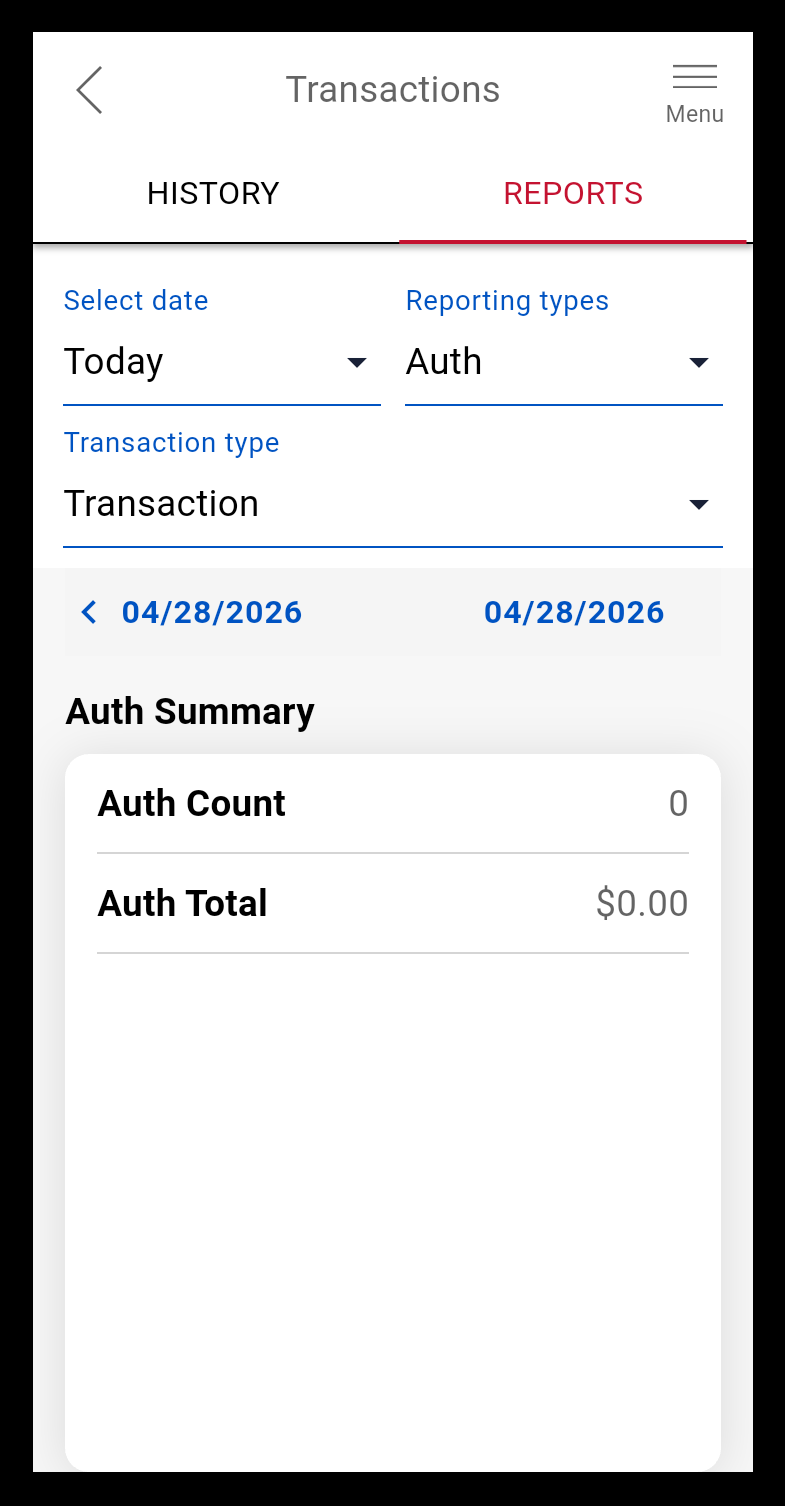
- (Optional) Select the Transaction type from the dropdown list. The default is All. The report will automatically appear:
All
Sale
Refund
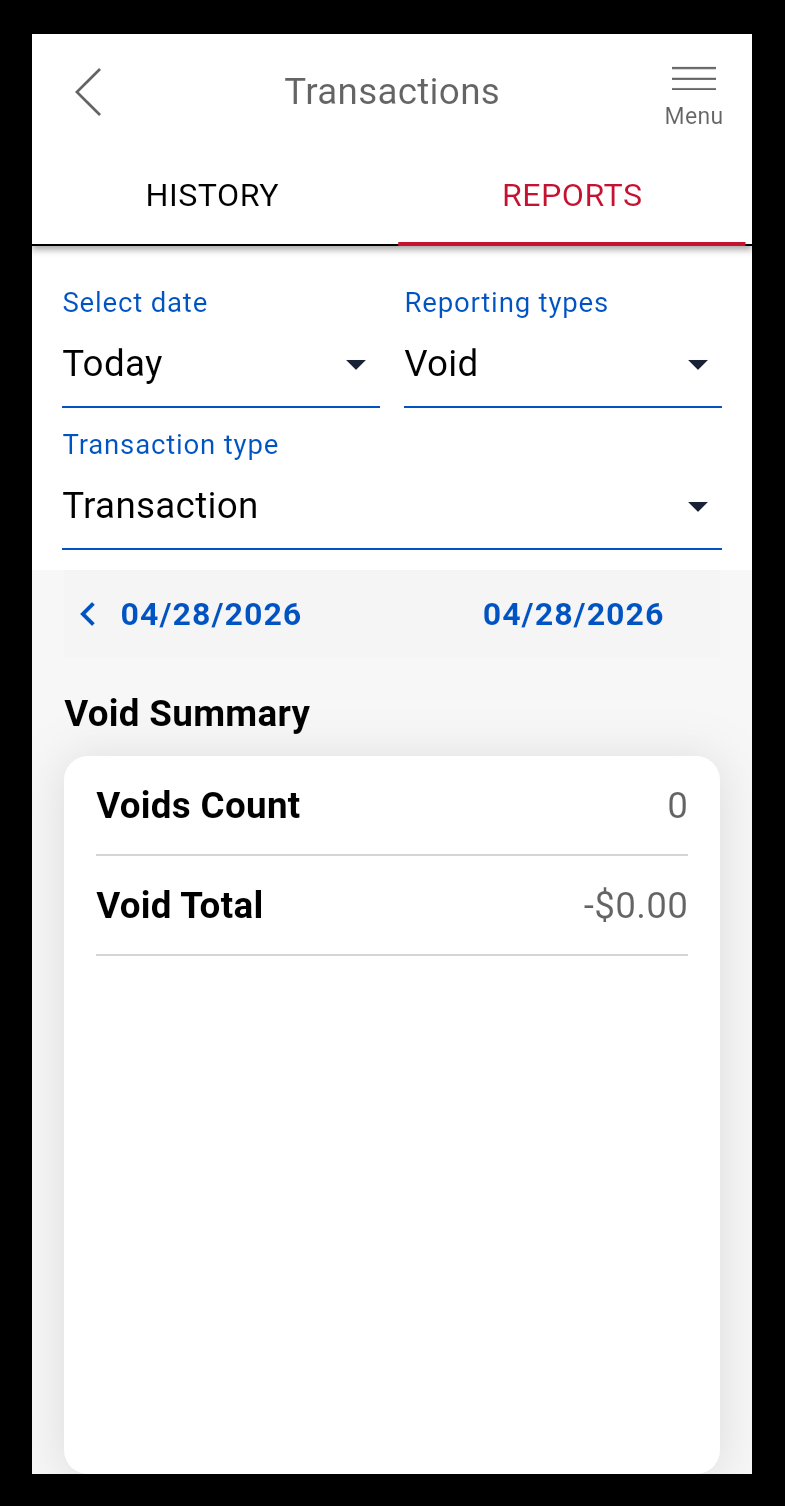
Void
Auth
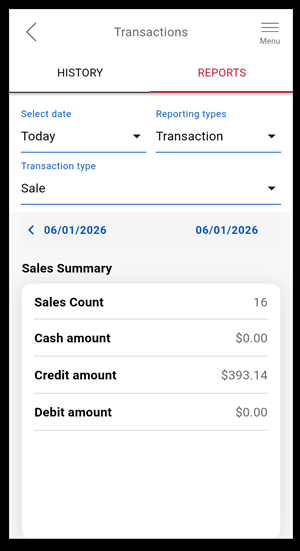
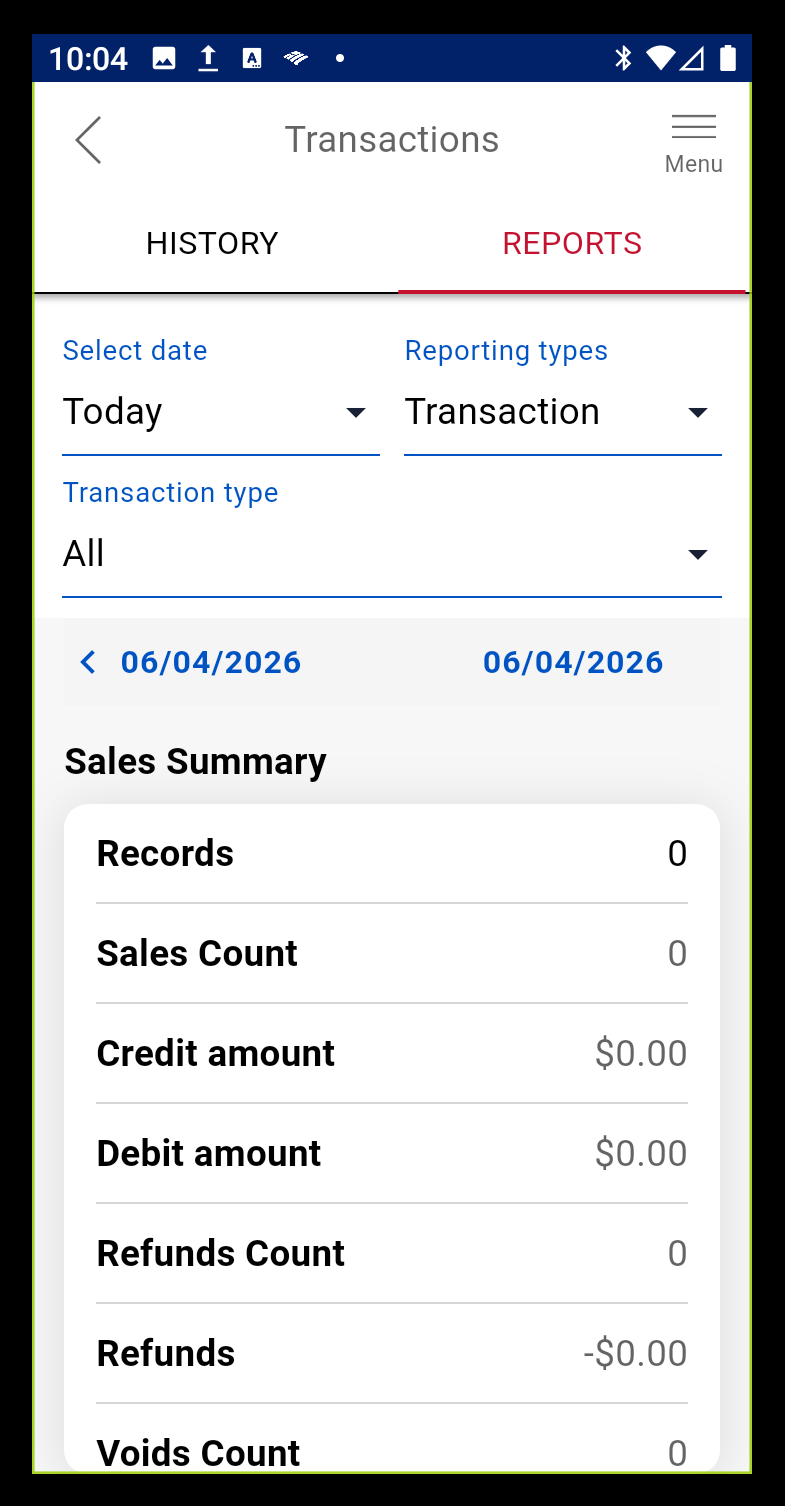
View all reports. This report includes the total number of records, sales count, credit and debit amounts, plus counts and total dollar amounts for refunds, voids, pre- and post-authorizations, and SAF (offline) transactions.
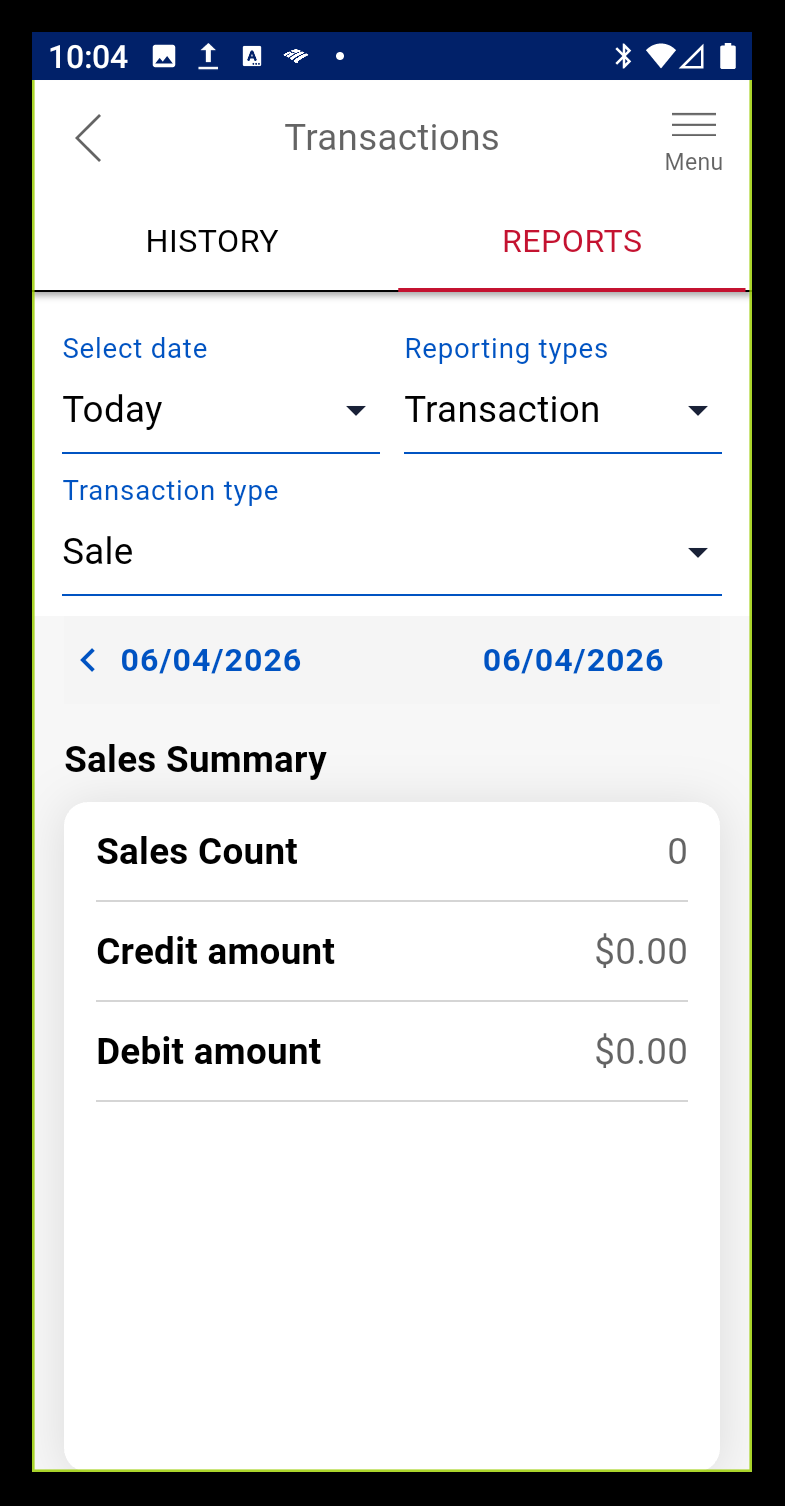
Sales Summary reporting provides the count of sales transactions and credit and debit totals for the date range selected.
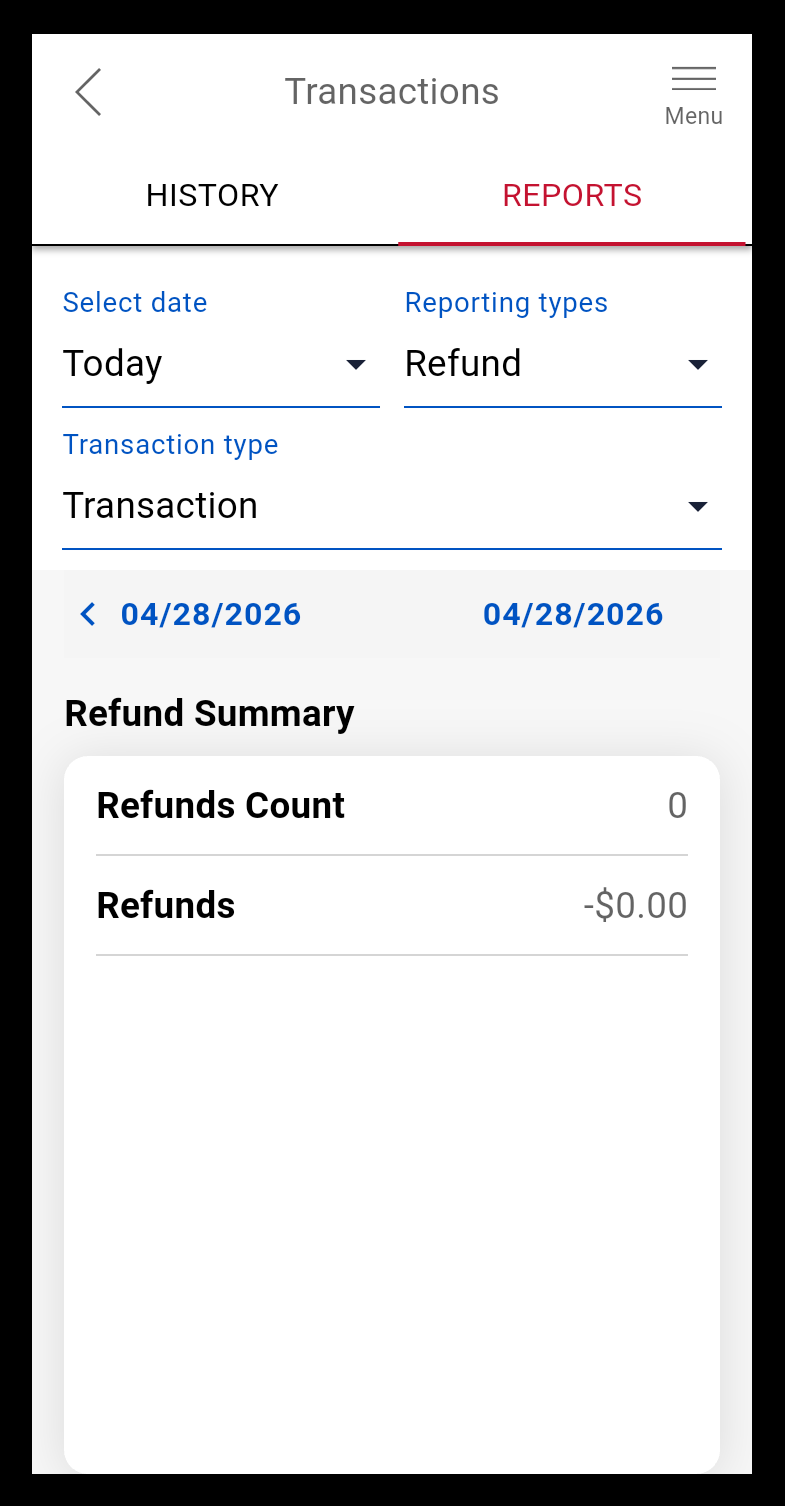
The Refund Summary includes a count of refund transactions and the total refunded amount.
The Void Summary includes a count of voids and the total amount.
The Auth Summary includes a count of authorizations and the total amount.