Point of Sale Solution Back Office Marketing Campaigns
Description
What's in this article?
Text and email campaigns can help you stay connected to your customers. Target messages can let customers know about upcoming events, welcome them, touch base with them if they haven't visited recently, and include special offers to entice a return visit to your business.
You can review your monthly budget for messages in your Back Office Marketing Overview. If you do not use the Growth or Pro software plan and wish to change your plan so you can can create email/text marketing campaigns, or if you wish to purchase additional monthly email/text packages, contact us or your Merchant Consultant directly. Unused messages roll over to the following month.
- *music*
- This video covers how to create a marketing campaign in the Point of Sales Solution Back Office.
- To create an email or SMS marketing campaign, click Marketing in the menu, then Campaigns.
- Click Create campaign to get started. Enter a campaign name and select the customer segment you'd like the campaign to be sent to.
- The marketing message can be sent through SMS text message, email, or both channels. Click Next.
- The campaign can be completely custom-made, built off a template, or be a modified duplicate of an existing campaign. Make a selection, then click Next.
- For an email campaign, create an email subject line. The elements on the right side of the screen can be dragged and dropped according to how you want them to appear on the screen. You can adjust font, size, and color, add interactive buttons and videos, include your social media platforms, and more.
- To preview how the content will appear on a desktop or mobile device, click the Preview icon.
- You can save your draft to finish at a later date, or click Next when you're ready to continue.
- If you're also including an SMS campaign, click the Edit icon under SMS preview.
- The SMS message cannot exceed 200 characters, including spaces. After entering your message, click Send now to send out both your email and SMS campaign.
- Your unfinished campaign drafts are saved and displayed for you to edit or delete.
- You can also view your most recent campaigns, including details like their campaign name, the channel they were sent through, the date sent, total messages delivered, total customers, and the option to delete.
- *music*
View campaigns
The Marketing > Campaigns dashboard provides details on recent campaigns and those in draft. From the dashboard you can view your campaign history, work with campaigns in draft and delete campaigns.
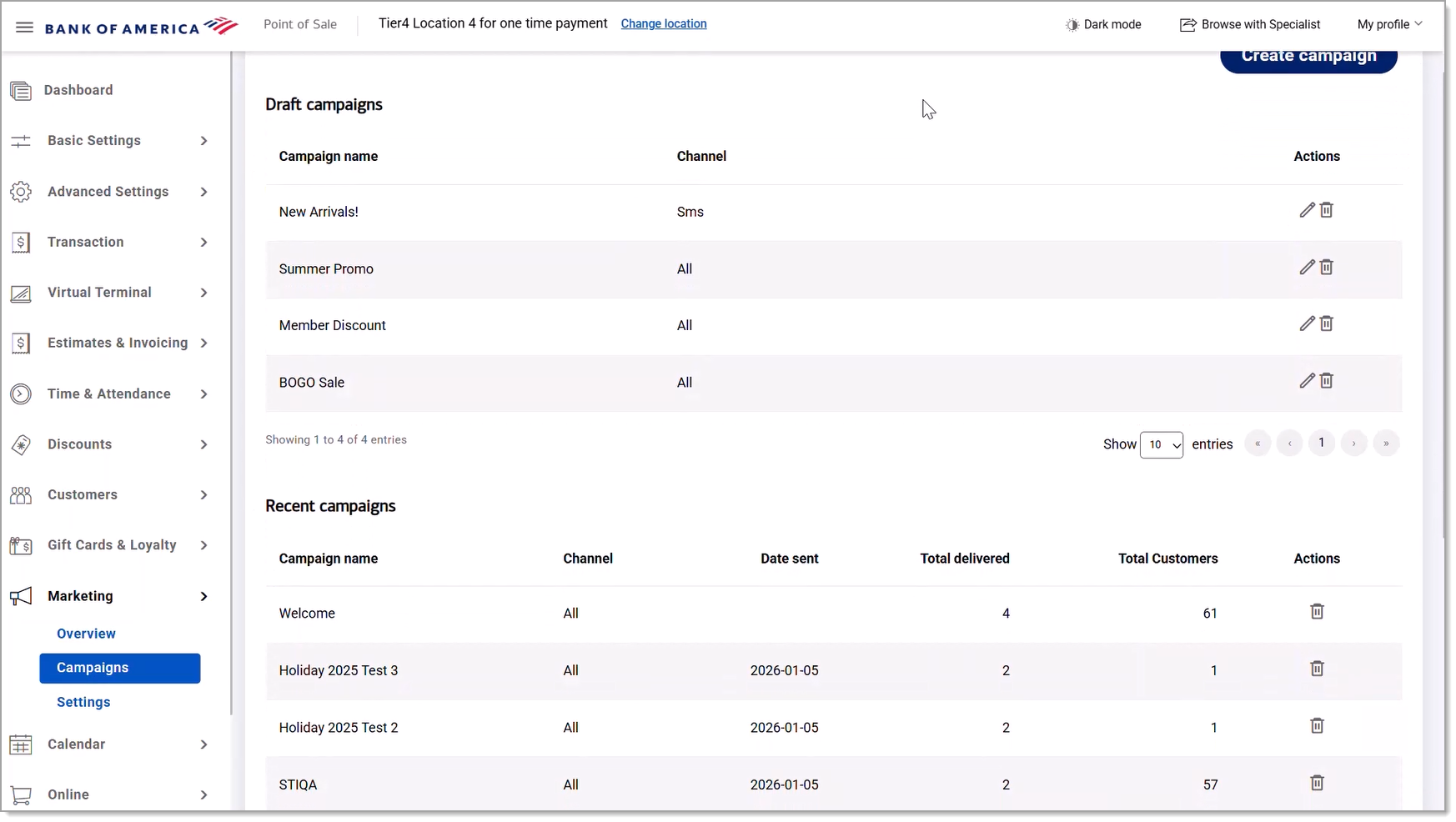
| Campaign dashboard detail | Description |
|---|---|
| Campaign name | Campaign title. |
| Channel | Communication method for the campaign: Email, SMS, or All. |
| Date sent | Date that messages were sent. |
| Total delivered | Total number of messages sent after subtracting the number of OptOut customers. |
| Total customers | Total number of customers in the segment. |
| Action icons | Edit a campaign draft or delete a campaign. |
Create and send a new campaign
From the Campaigns dashboard you can also initiate a new campaign using a custom template, one from a library, or one from a prior campaign. Campaigns are sent to target customer segments that you set up in the Back Office in your Marketing Settings or Marketing Overview. Campaigns messages can be sent by email, text, or both, depending on what is approved for your marketing account.
NOTE:
To ensure you are adhering to email marketing laws, make sure you have the customer's permission to email them before including them in any email marketing campaigns.
To create a marketing campaign
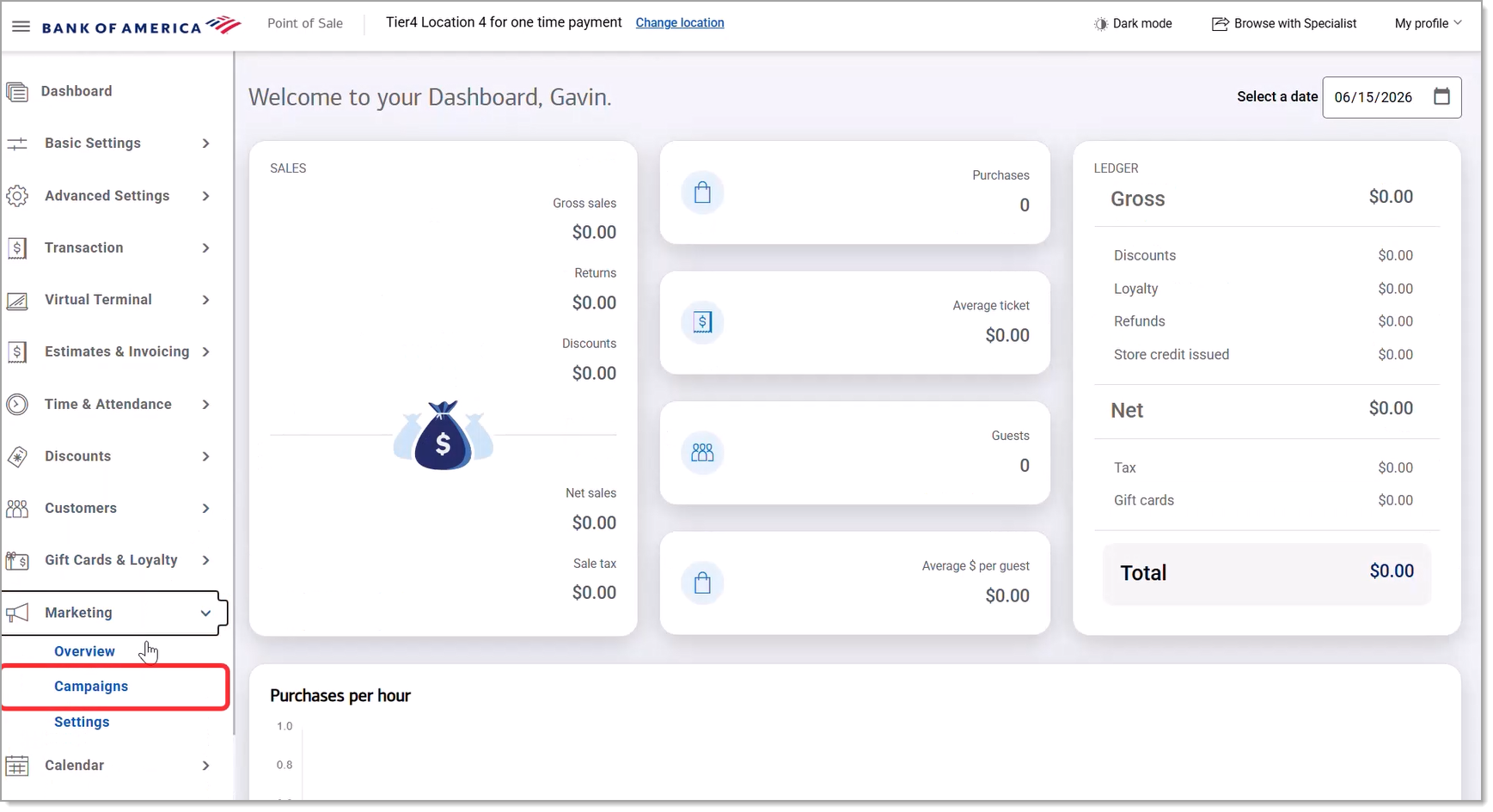
- In the Point of Sale Solution Back Office, select Marketing > Campaigns.
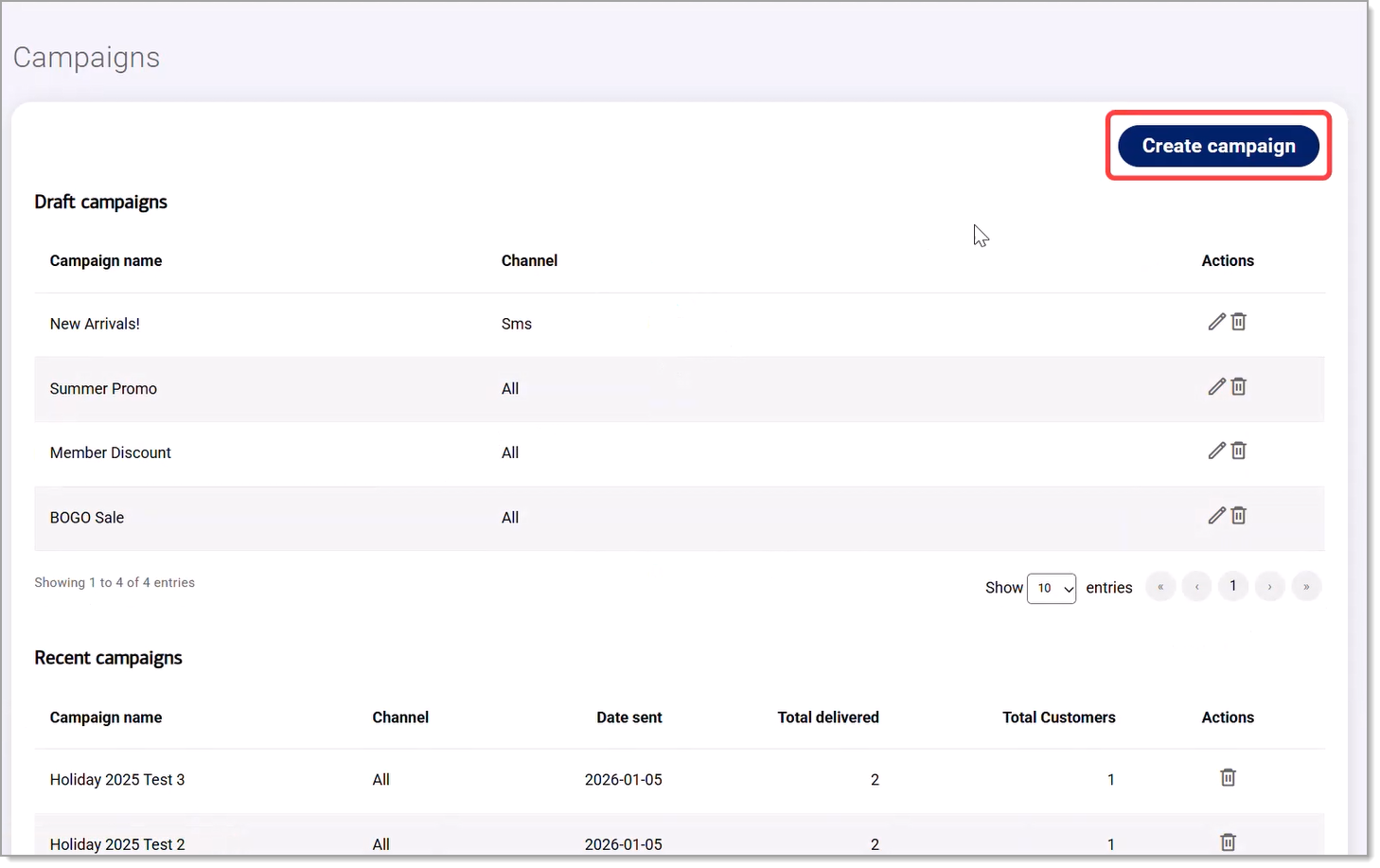
- Click Create campaign.
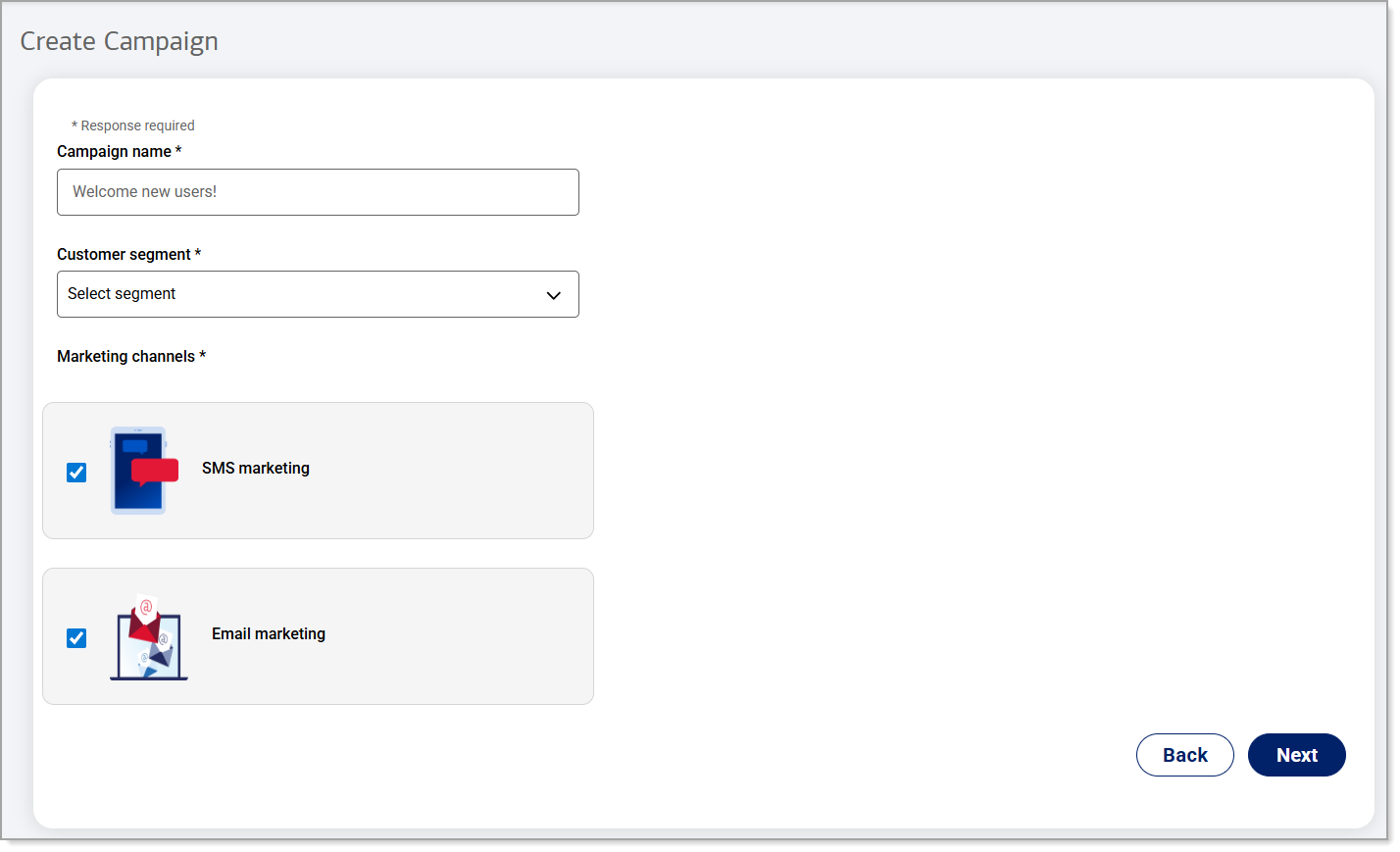
- Type in a Campaign name and select the Customer segment you wish to send the campaign to. The number of customers that you have in that segment will appear as a count next to the Customer segment name. Deselect any Marketing channel you do not wish to use. Select any channel you do wish to use, if not already selected. Click Next.
Create and send an SMS text marketing message
SMS messages can contain up to 160 characters per message (including spaces). Messages containing more than 160 characters are charged as additional messages based on the total number of characters. Note that messages with prohibitive language may be blocked.
- Add text to create your marketing message. A preview will appear.
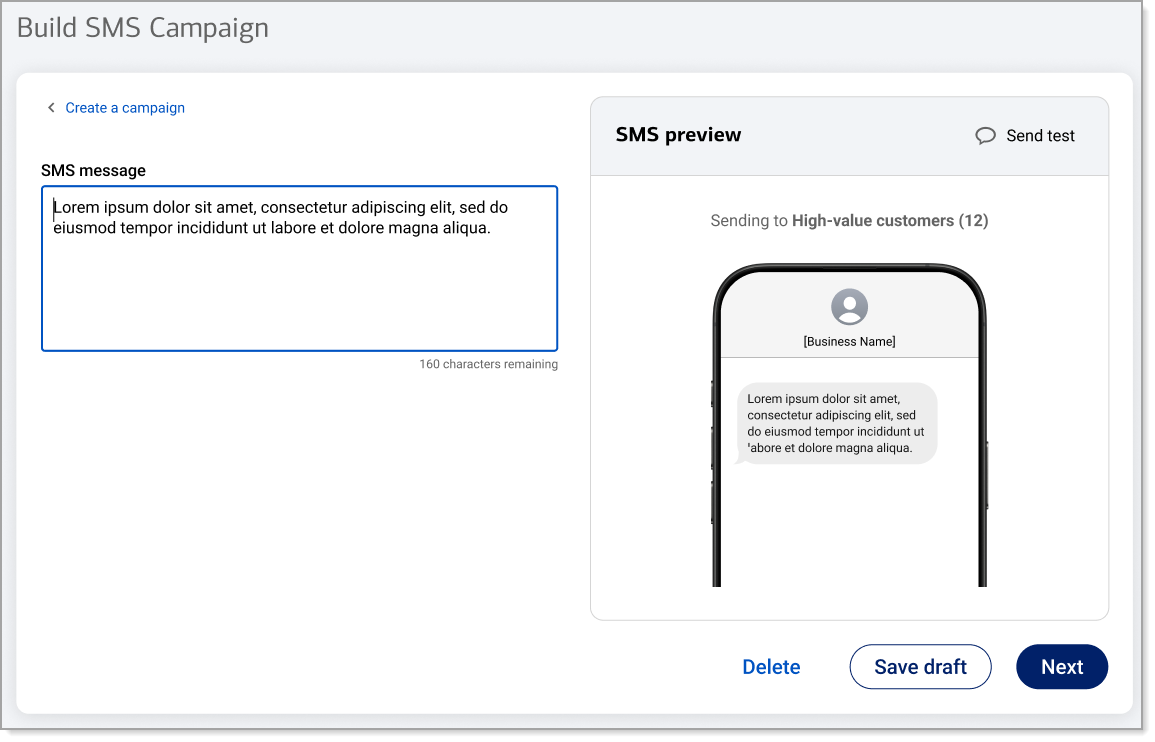
- Once your text message has been created you can send a test prior to sending the message to customers, click Next to send it to customers or click Save draft if you would like to save your draft and return to it later. Drafts can be found on your Campaigns dashboard when you are ready to work with it again.
Create and send an email marketing message
Email messages are easy to build by dragging and dropping different design elements into the email template – and editing the design elements.
- For an email campaign, select whether you wish to Create a custom campaign with a template you create, Start with a template from a library of templates, or, if you've already created a campaign/campaign template you would like to use again, Duplicate an existing campaign. Click Next.
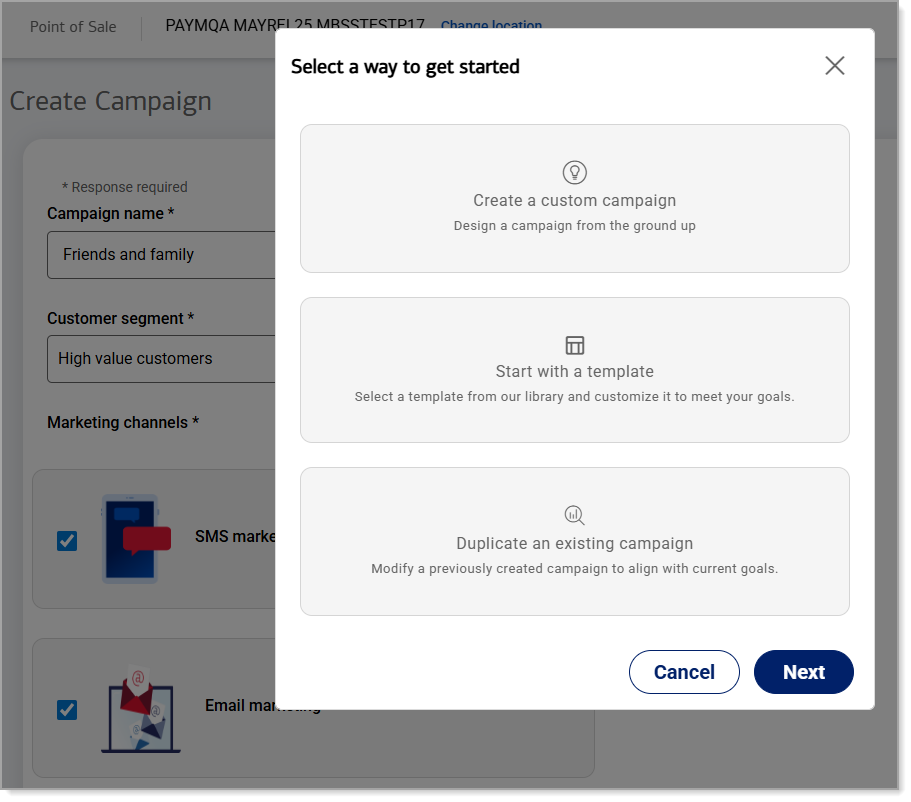
- Build your new email campaign using one of three options:
- Create a custom campaign: Enter the Email subject line. Create an email message.
- Start with a template: Choose a template and click Next. Enter the Email subject line. Create an email message.
- Duplicate an existing campaign: Click on the Select link next to the name of the campaign you wish to duplicate. Click Duplicate. Enter the Email subject line. Create an email message
- To create an email message, choose from different format options like like columns, buttons, dividers, headings, text, images, social media links and custom HTML code. Delete a design element by selecting it in the template and clicking the trash icon.
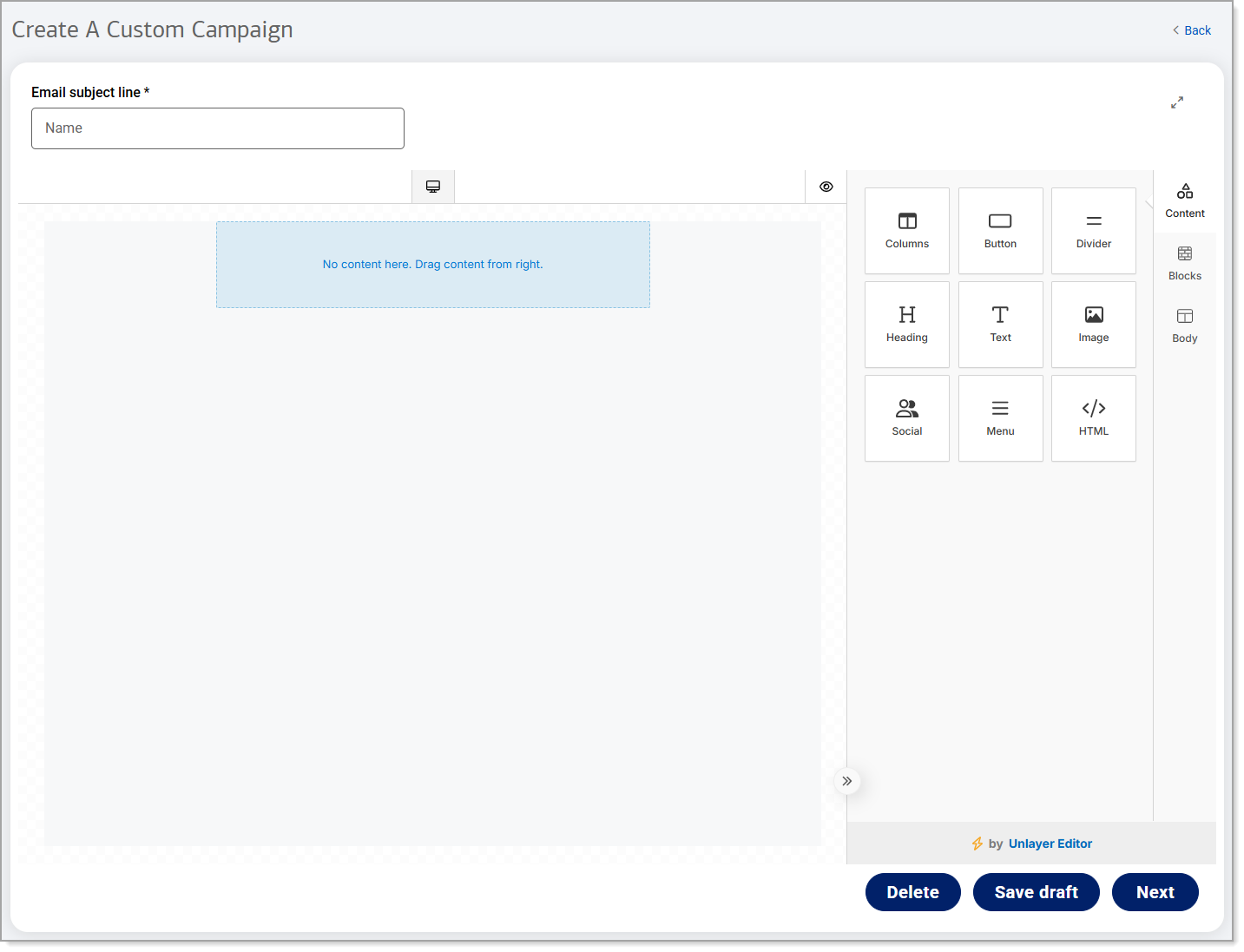
Design elements and descriptions Design element Description Columns Set up multiple columns that your content can be placed into. Select from different layout options. Button Set up interactive buttons that can be linked to URLs or different tabs. Divider Create a divider to separate content and create sections within your layout. Heading Create a header to introduce topics in your marketing message. Text Insert a text box to enter your marketing message. Image Upload and edit images like your logo and product photos. Social Add social media and email contact icons. Menu Set up a navigation menu for customers to interact with. HTML Customize content by generating or pasting HTML code. - Further customize the message by adding content. Use the right-hand menu elements to rearrange the layout, change column and color settings, and more:
- Content: Click and drag elements to rearrange them in the design space.
- Blocks: From the right hand-hand navigation, set the widths of a multiple column design element, and add additional ones.
- Body: From the right-hand navigation, set overall design preferences such as background color and link settings.
- Once your email message been created and customized for your campaign, click Next. (Optional) Click Save draft if you would like to save your draft and return to it later; find the draft in your Campaigns dashboard when you are ready to work with it again.
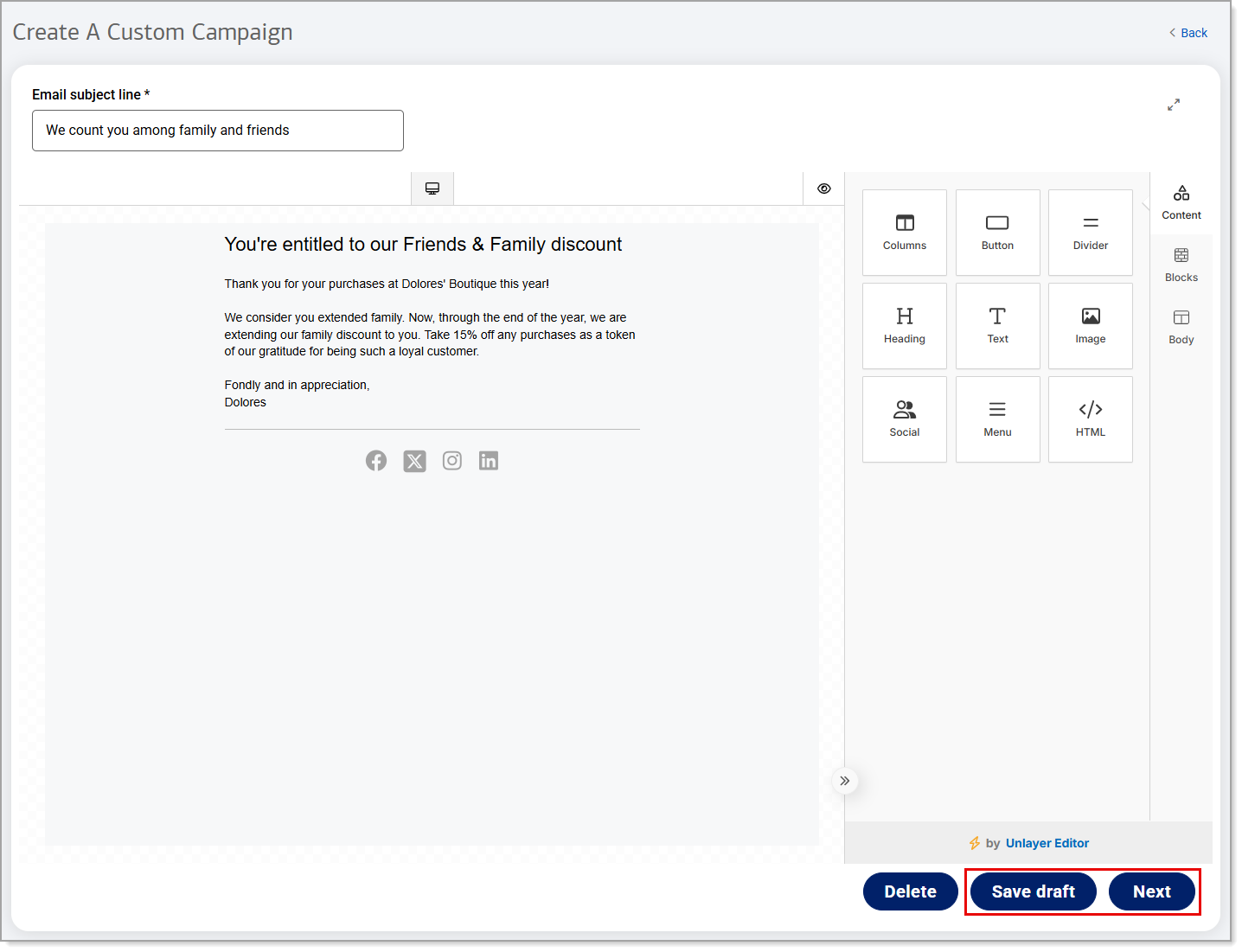
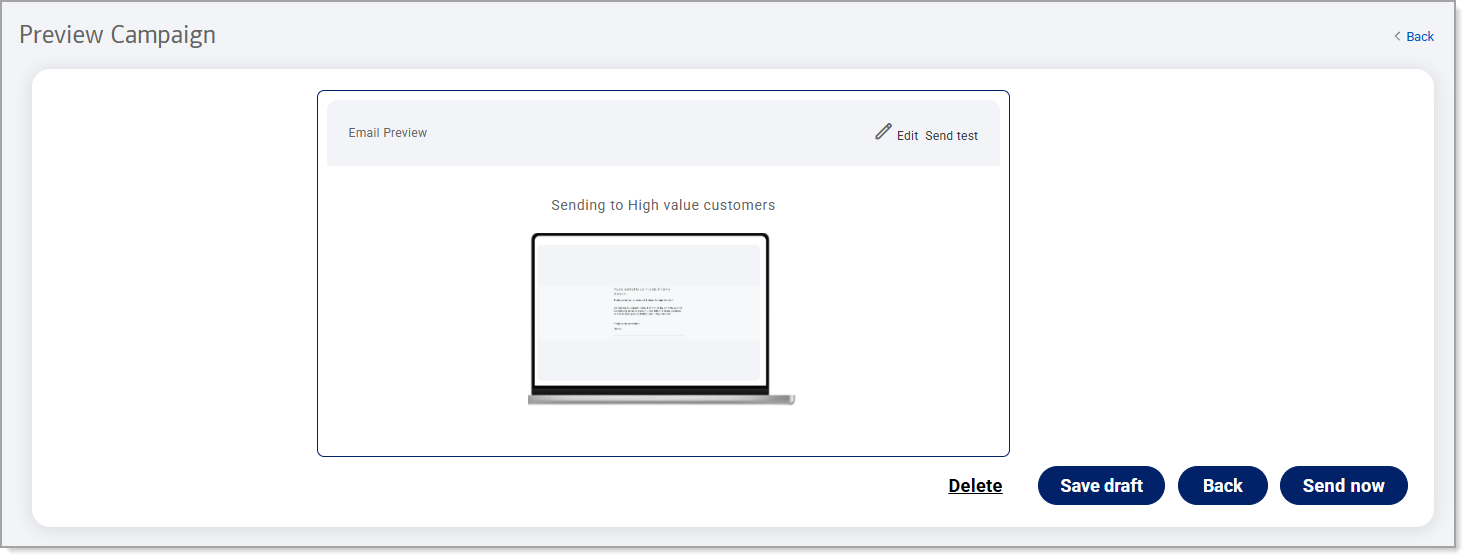
- Preview the campaign message.
- Edit it, send a test prior to sending the message to customers, save it as a draft, or click Send now to send it to your customers.
Work with draft and delivered campaigns
A campaign that is in draft can be edited, previewed, saved as a draft again, tested and/or sent to customers. A campaign that has been delivered can be deleted. Campaigns can be accessed in the Back Office from both the Marketing Campaigns dashboard as well as the Marketing Overview dashboard for these actions.
To work with campaigns
In either the Marketing Overview or Marketing Campaigns dashboard, click on the Edit campaign icon or Delete campaign icon, depending on the action you'd like to take, next to the name of the campaign you would like to work with. Follow the prompts.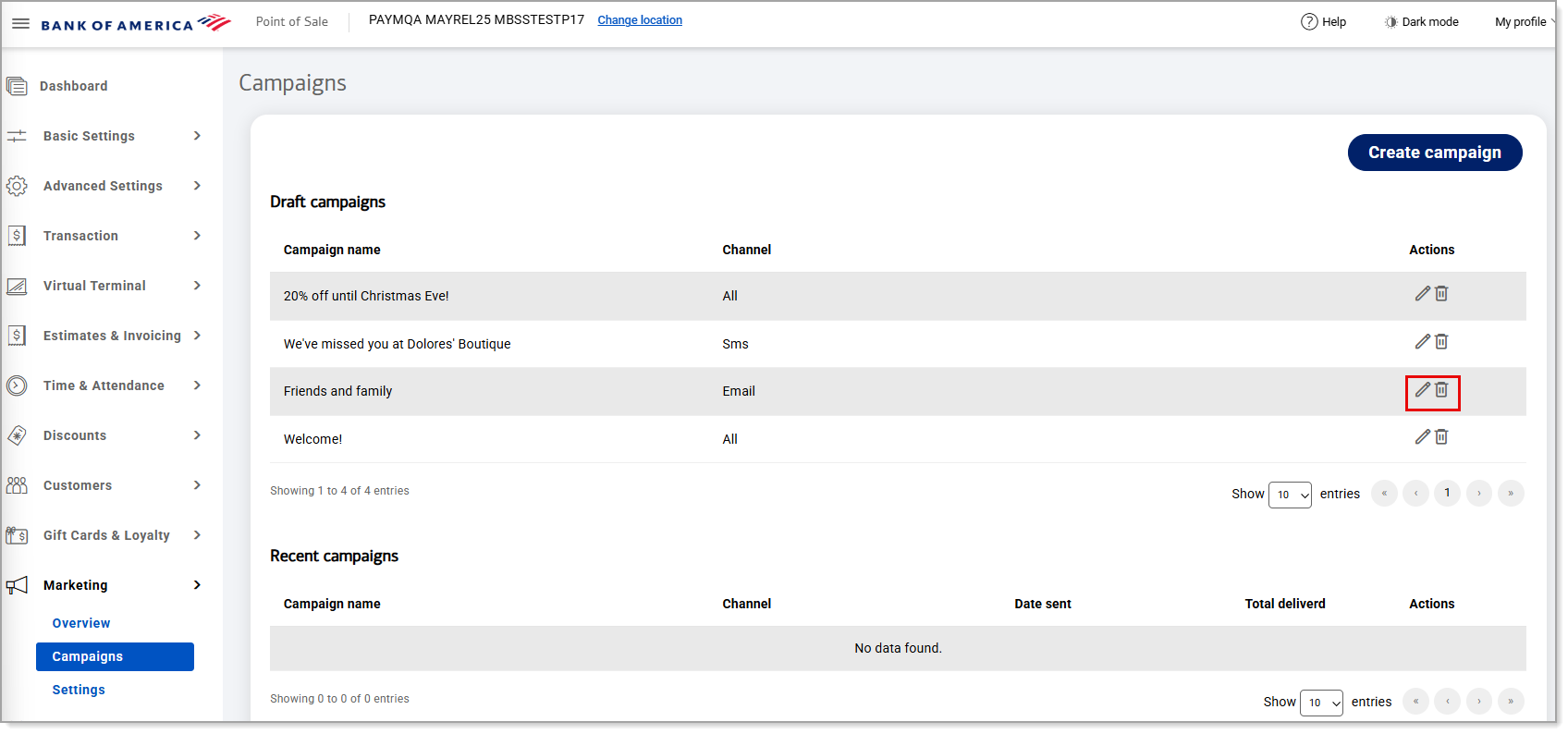
Opt a customer out of marketing campaigns
Customers can opt out of marketing campaigns by clicking on the opt out link that appears in SMS text and email marketing messages.