Hybrid A800 Setup for Basic Payment Solution - Medical
Description
What's in this article?
NOTE:
If you are setting your Hybrid A800 up for use with Point of Sale Solution, see this guide.
Learn how to set up your Hybrid A800 for the Basic Payment Solution - Medical, including how to connect to the optional Communications Hub A800 and the PIN Pad A35.
What's in the box?
When you receive your terminal, the box will include the Hybrid A800 terminal, a power adapter and cable, and extra thermal receipt paper rolls. A separate box contains the Communications Hub A800. 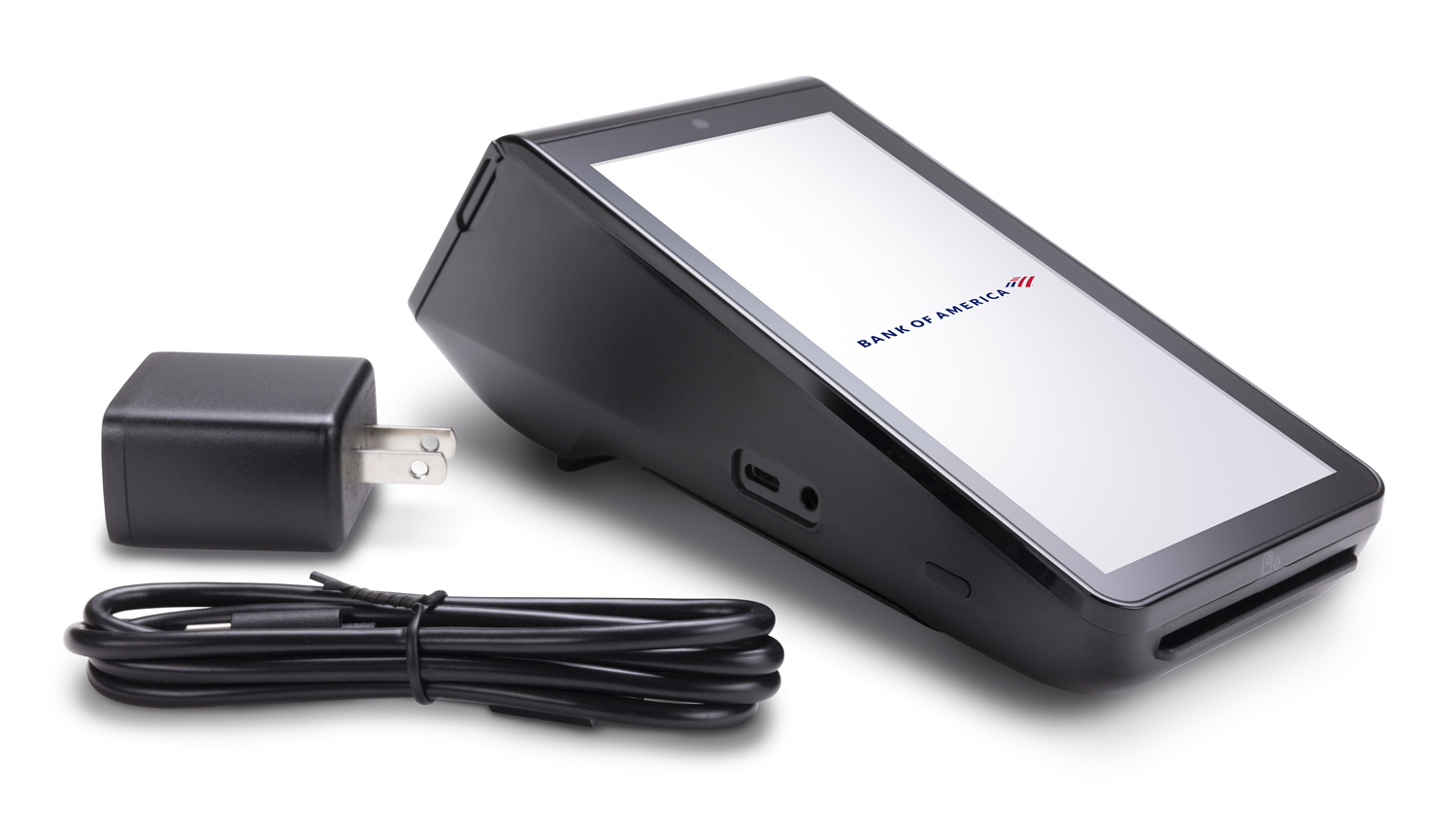
1 Set up the Hybrid A800
Connect the Hybrid A800 to the Communications Hub and to power.
To connect the Hybrid A800
- Connect the Communication Hub to either the port on the back of the A800 or to the side port.
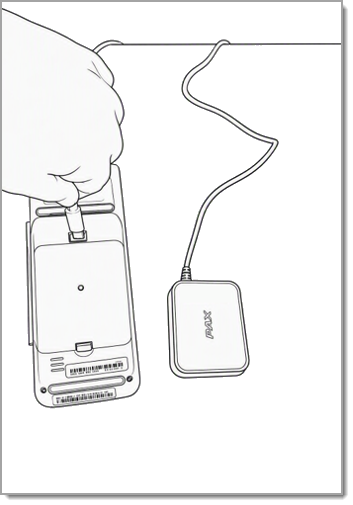
- Plug the Hybrid A800 USB-C power cord into the Communication Hub Power port on the back of the A800 or in the left side port.

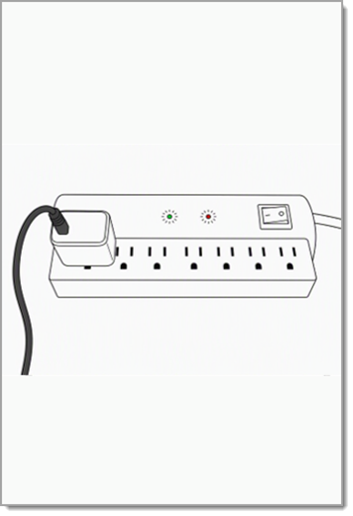
- Plug the power cable into the power adapter, then insert the power adapter into a power strip or outlet.
2 Set up the PIN Pad A35
If you are using the optional PIN Pad A35, you will receive the PIN Pad A35 with a large Y-cable, a back plate, a USB-C cable and a power adapter. The USB-C cable is not required for this installation. 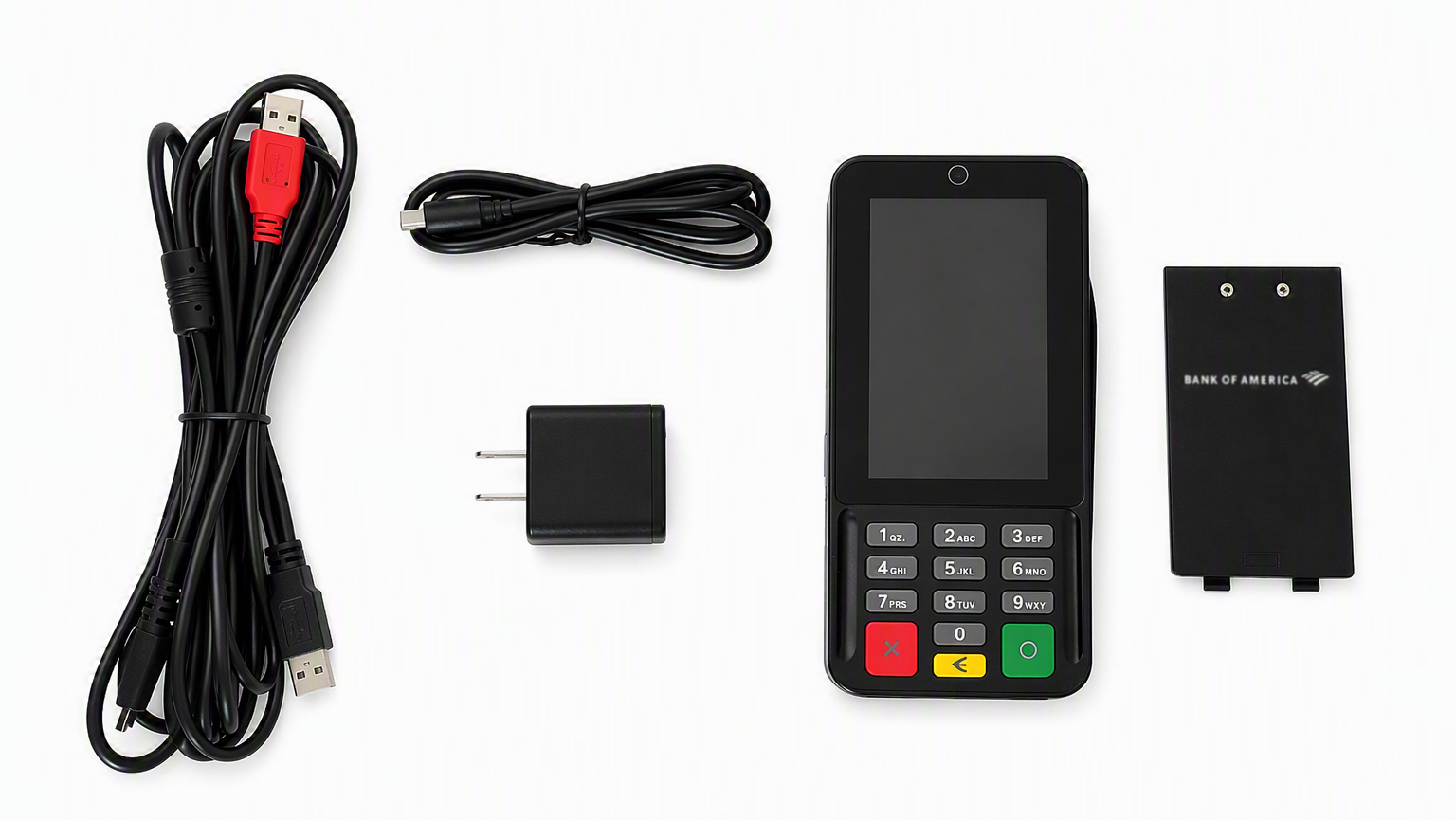
To connect the PIN Pad A35
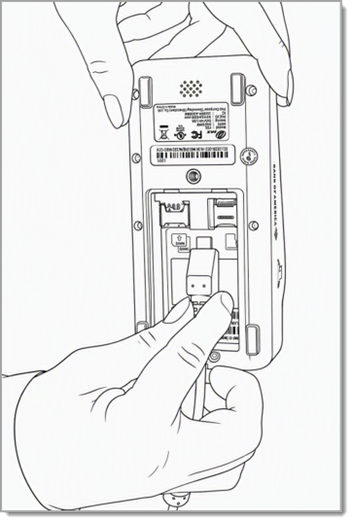
- Insert the flattened USB-C end of the Y cable into the port on the back of the A35.
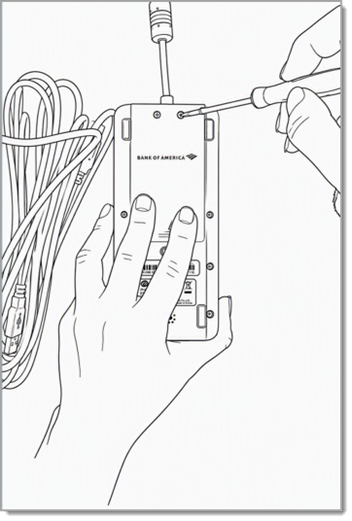
- Attach the back plate to the A35 using a small Phillips-head screwdriver.
- Plug the USB-A end of the Y cable into any USB-A port on the Communications Hub.

You final connections should look like this: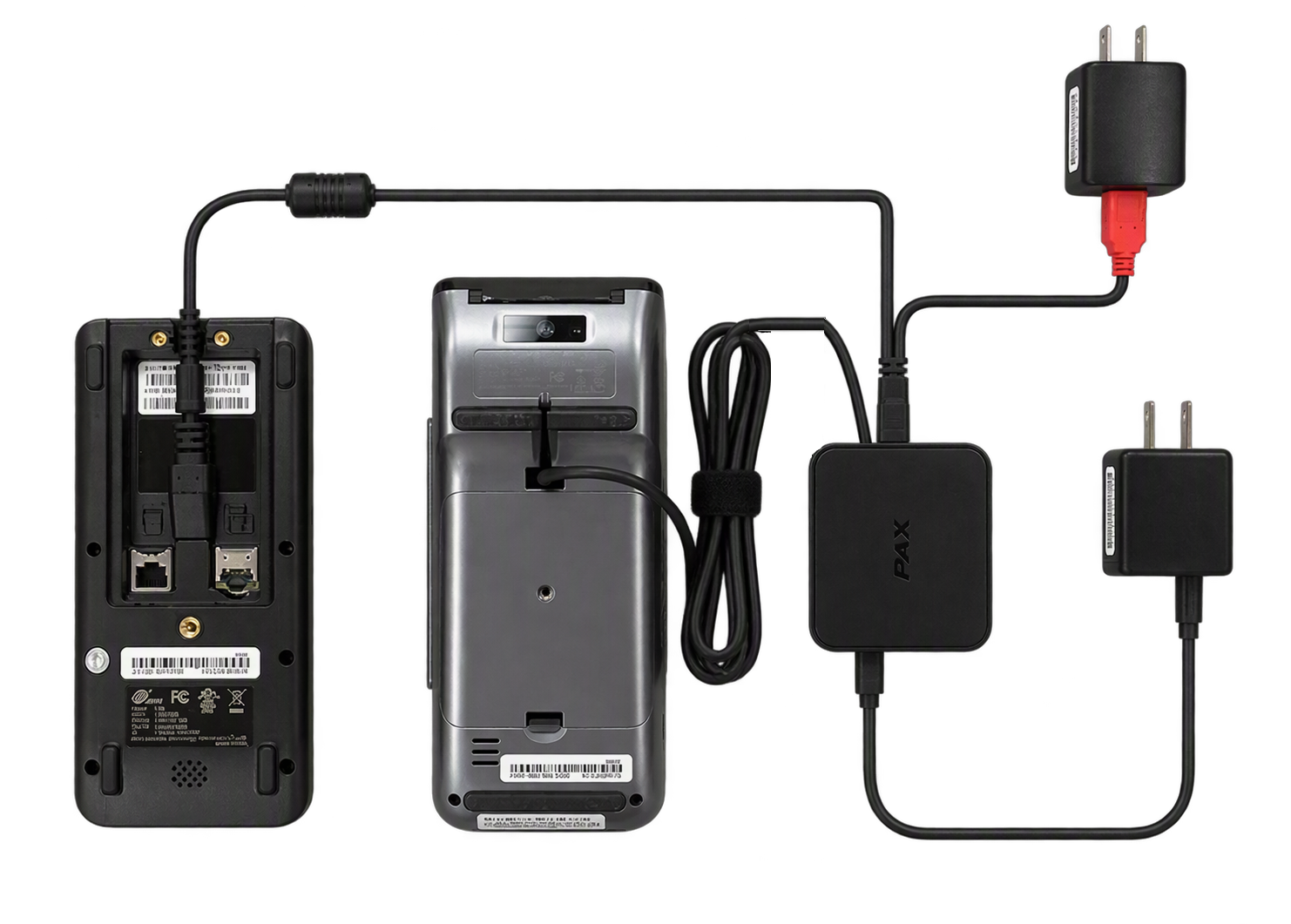
3 Power up
Whether you have a PIN Pad A35 or not, the terminal will power up when it's plugged in for the first time, and the Bank of America payment application will open automatically.
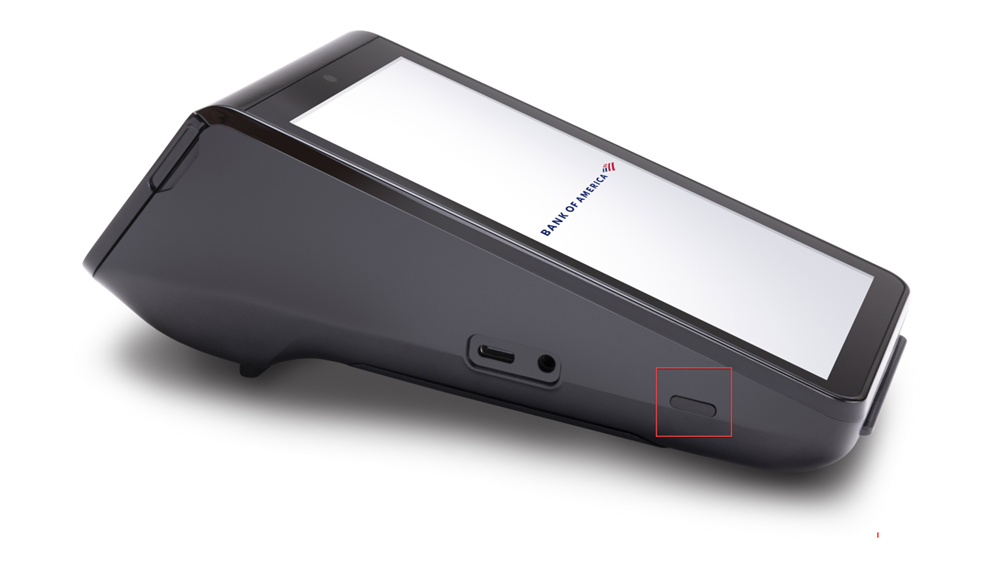
- To power off, press and hold the Power button until the shutdown menu appears, then select Power Off to shut down.
- To power on, press and hold the Power button on the left side of the A800 until the LCD backlight turns on.
4 Connect to the internet
You can use a Wi-Fi network and/or Ethernet cable connection to your router with your Hybrid A800. You will need to know the name of your network and the password. If you choose to use Ethernet, you will need the Communication Hub A800. Learn more about connecting the terminal to the internet through Wi-Fi.
- If you will be connecting to the internet using Ethernet, plug the Ethernet cable into the Ethernet port on the Communication Hub A800. Connect the other end of your Ethernet Cable into your router or other Ethernet port.
- If you have opted for the Cellular solution with your Hybrid A800, it will automatically connect to your local cellular tower upon powering up. Learn more about cellular connection.
6 Load printer paper
Your A800 comes preloaded with paper and also includes additional thermal paper rolls to get you started. When you need to order more paper, it may be purchased at most office supply stores or through Bank of America. Use thermal paper size 58mm.
- Pull open the paper door on the front of the terminal and remove the old roll.
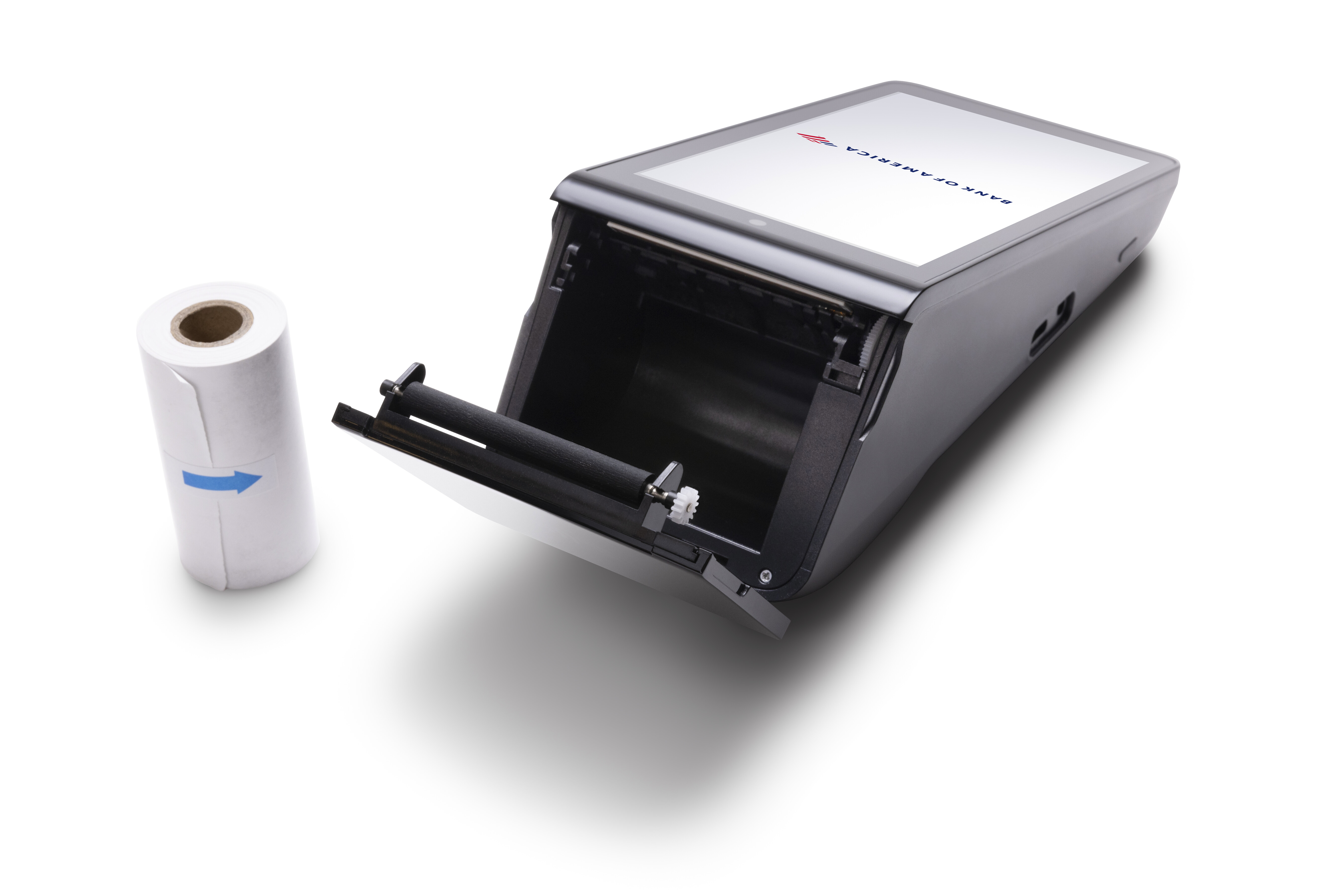
- Insert the new paper roll so that the paper pulls from the top of the roll, pulling out about two inches of paper.
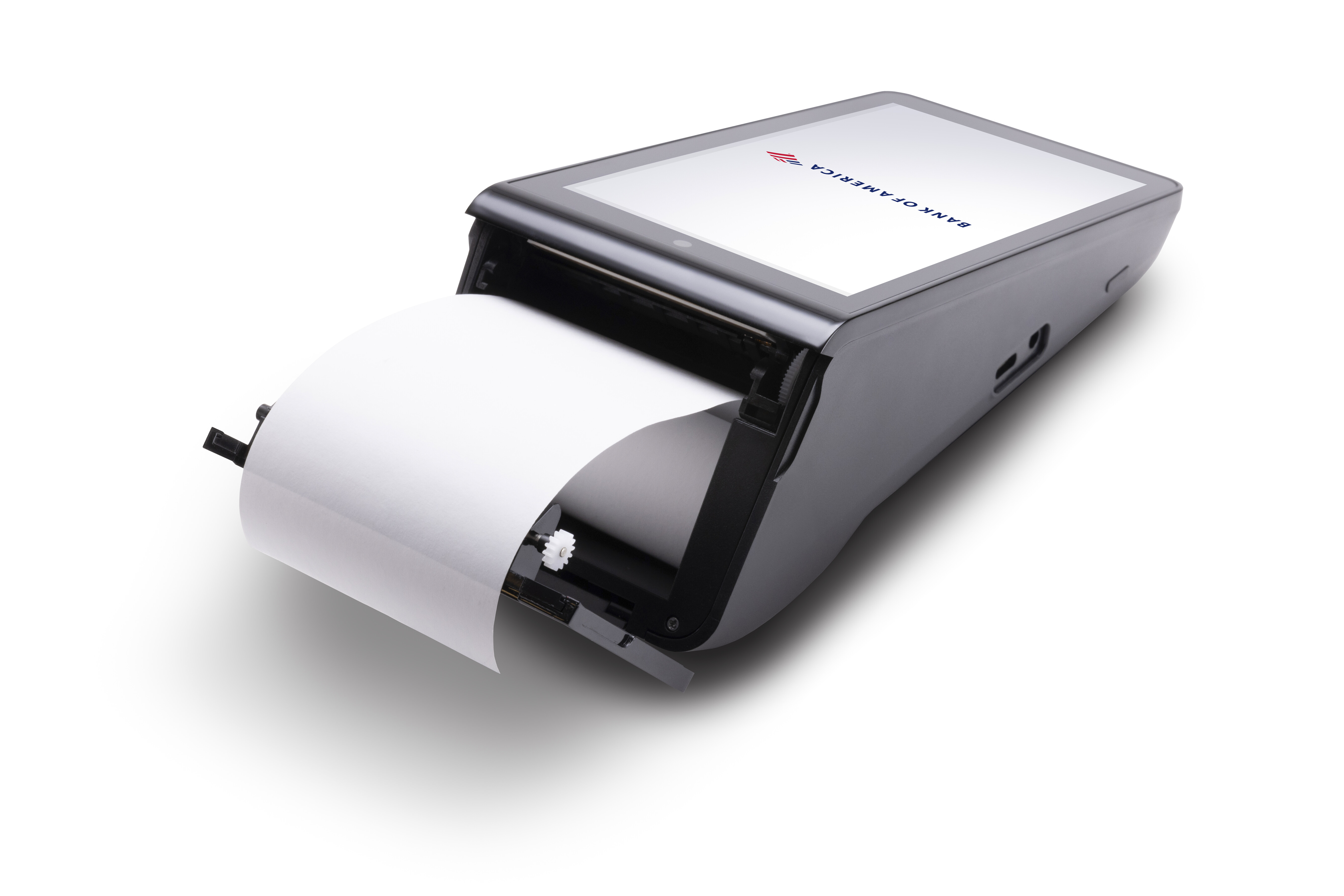
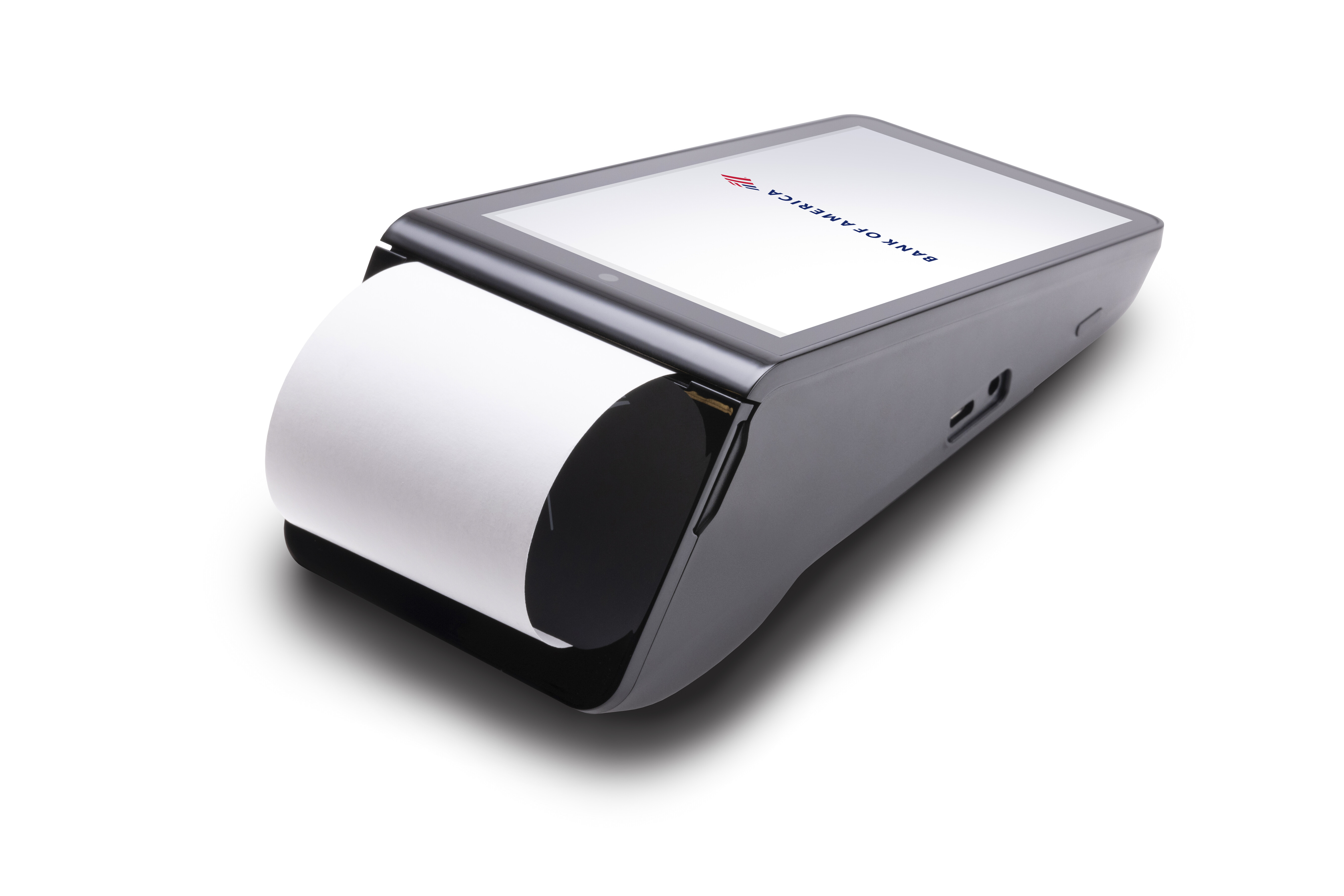
- Close the paper door until it snaps into place and tear off the excess paper.
IMPORTANT! Make sure you snap the paper door closed. The printer will not print if the paper door isn't securely latched.
Take a card payment on the Hybrid A800
The Hybrid A800 accepts chipped card insertions or contactless taps. Your customers can also swipe their cards or use a mobile or digital wallet on a device to make a payment. See Contactless Payments to learn more.
Smart Chip
Magnetic Stripe
Contactless
Mobile/Digital
Insert the card chip-side first and chip face up. When prompted, remove the card. 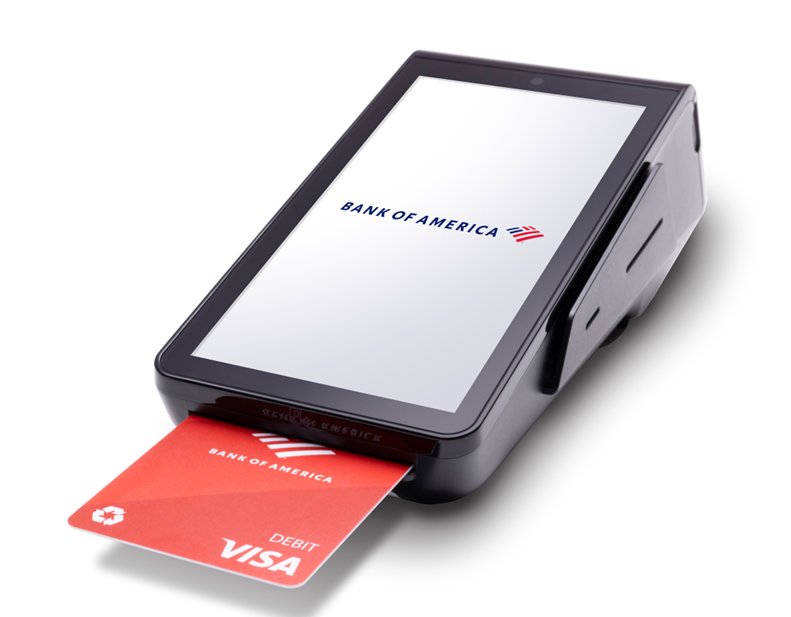
Swipe the card through the magnetic stripe reader with the strip toward the bottom of the terminal. 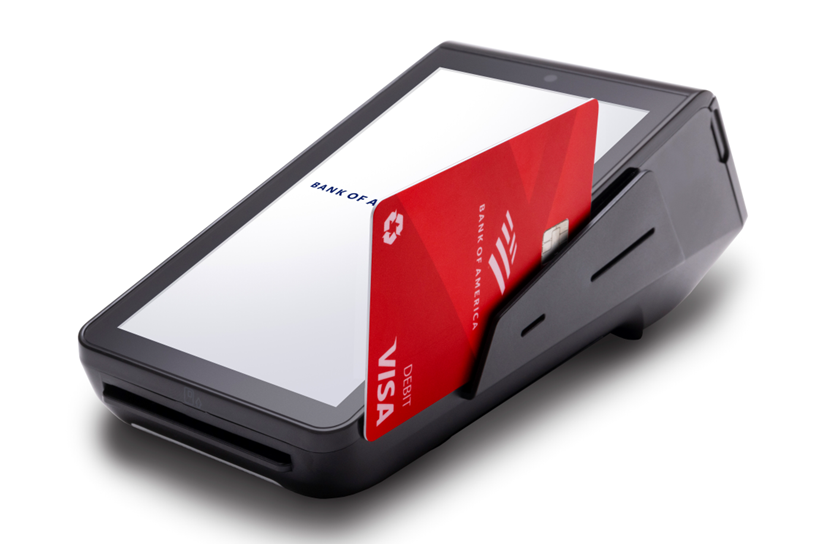
Hold the card/payment device 1-2 inches away from the NFC logo on the printer cover until a beep sounds. If successful, the terminal will beep once and the blue, yellow, and green indicator dots located near the top of the terminal display will illuminate.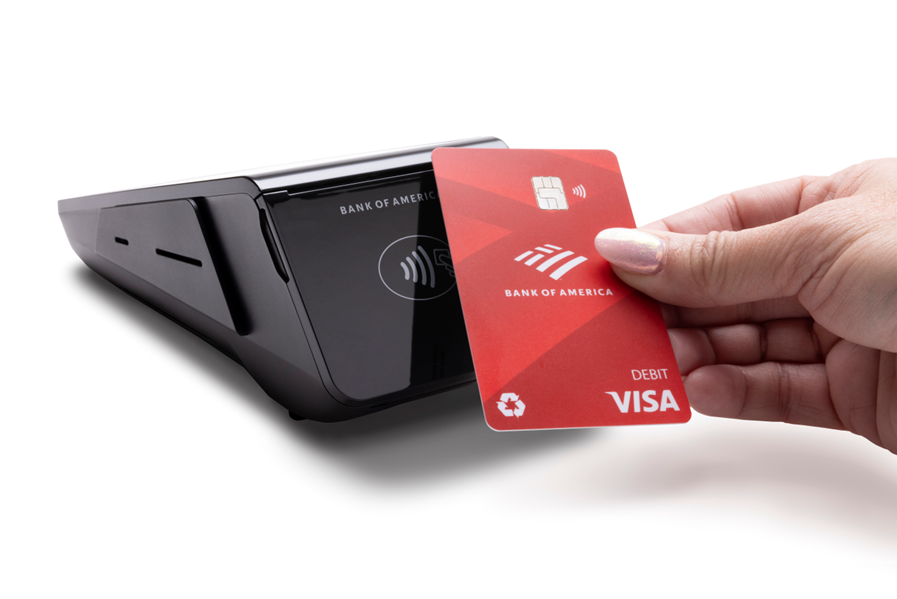
Hold the mobile phone/device within two inches of the top of the terminal. the customer will then need to approve the payment on their phone/device. 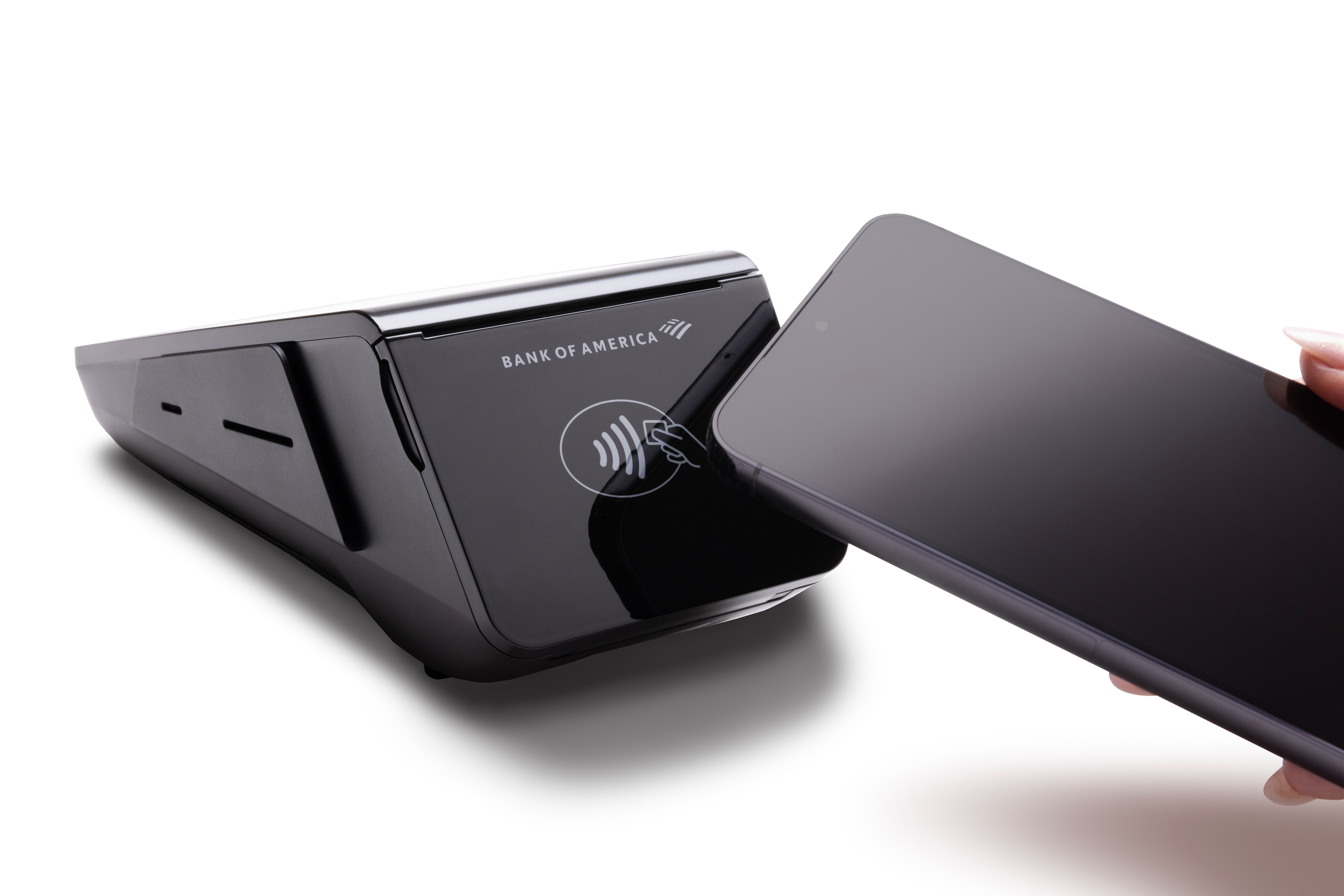
Take a card payment on the PIN Pad A35
The optional PIN Pad A35 accepts chipped card insertions or contactless taps. Your customers can also swipe their cards or use a mobile or digital wallet on a device to make a payment. See Contactless Payments to learn more.
Smart Chip
Magnetic Stripe
Contactless
Mobile/Digital
Insert the card chip-side first and chip face up. When prompted, remove the card. 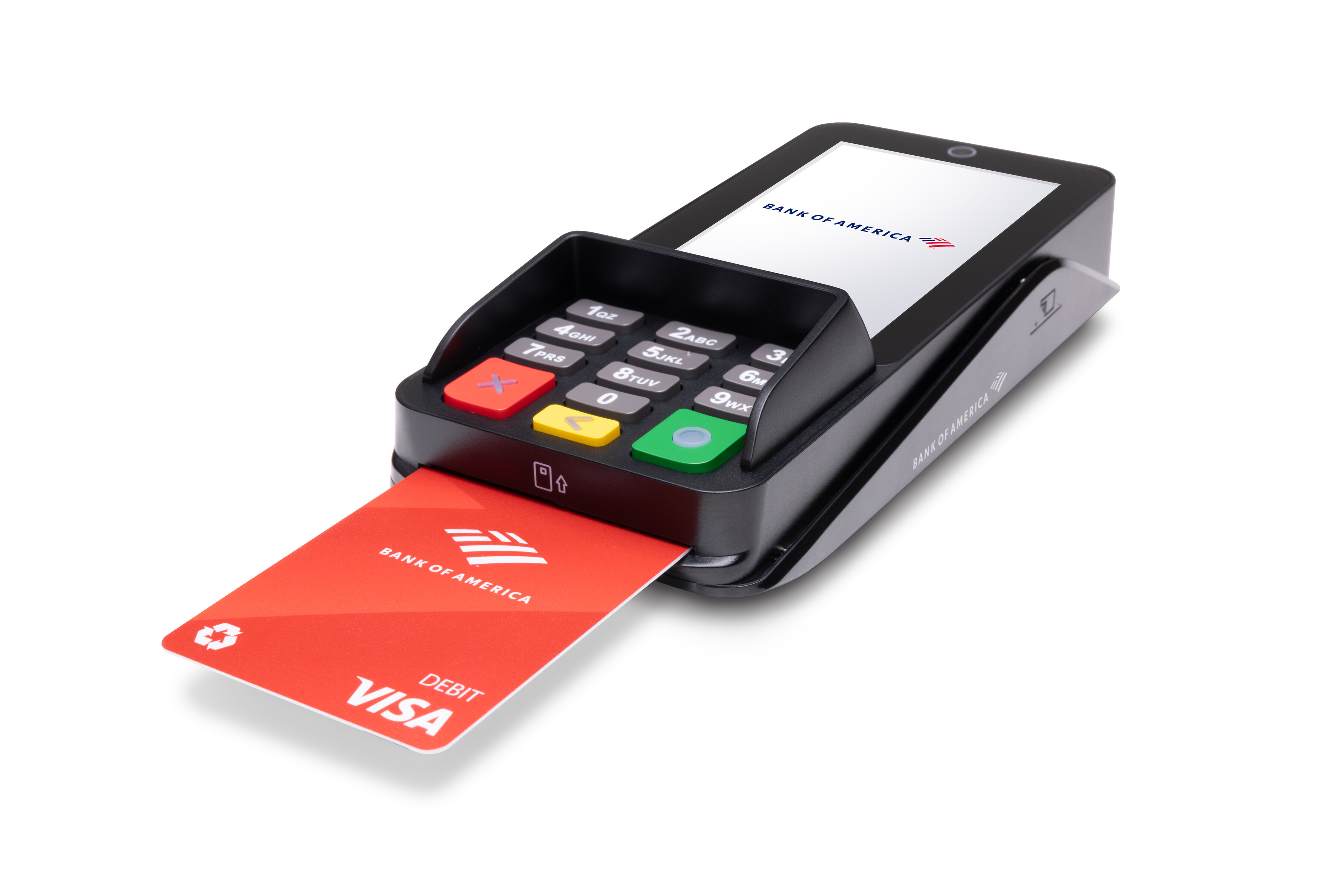
Swipe the card through the magnetic stripe reader with the strip toward the bottom of the terminal.
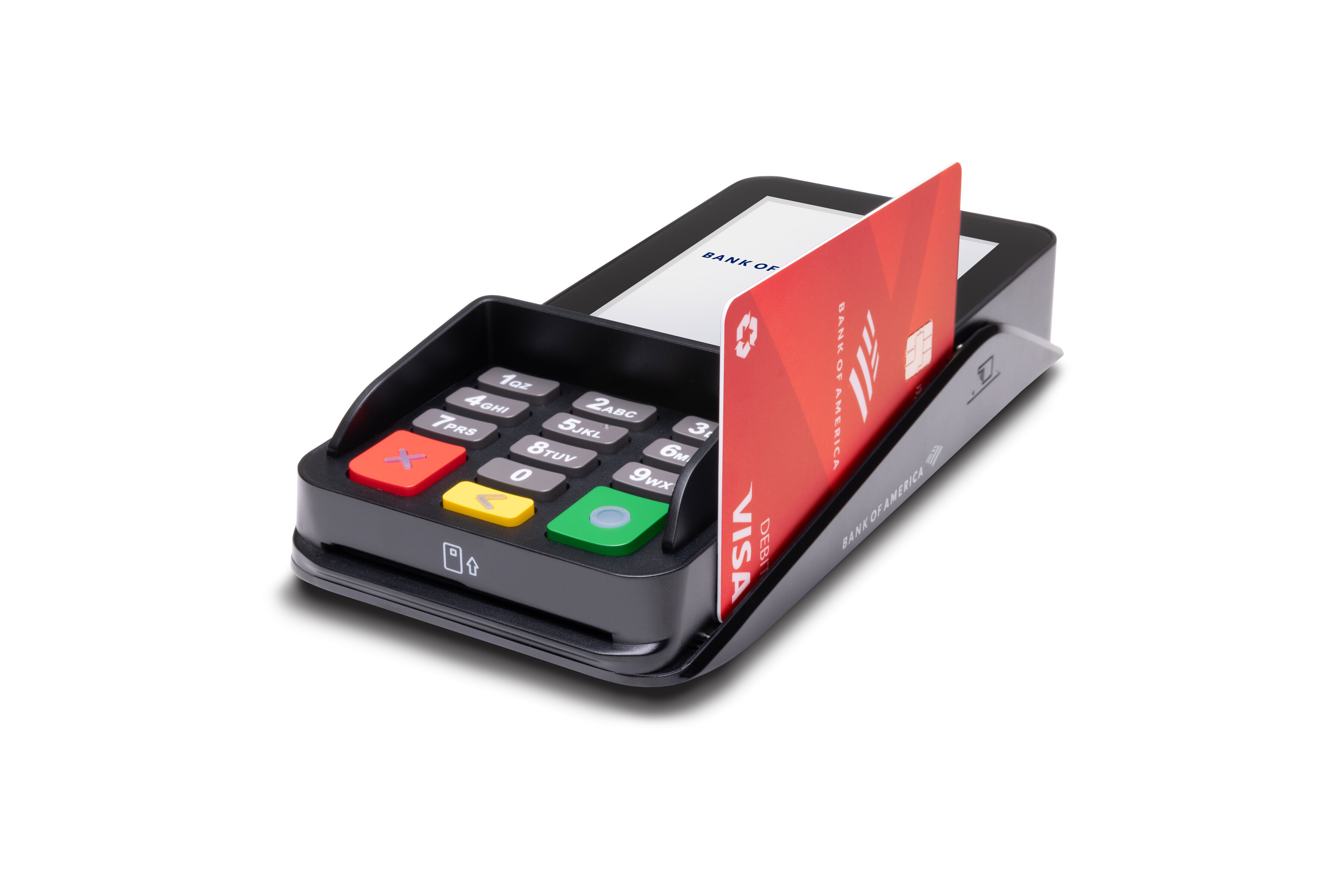
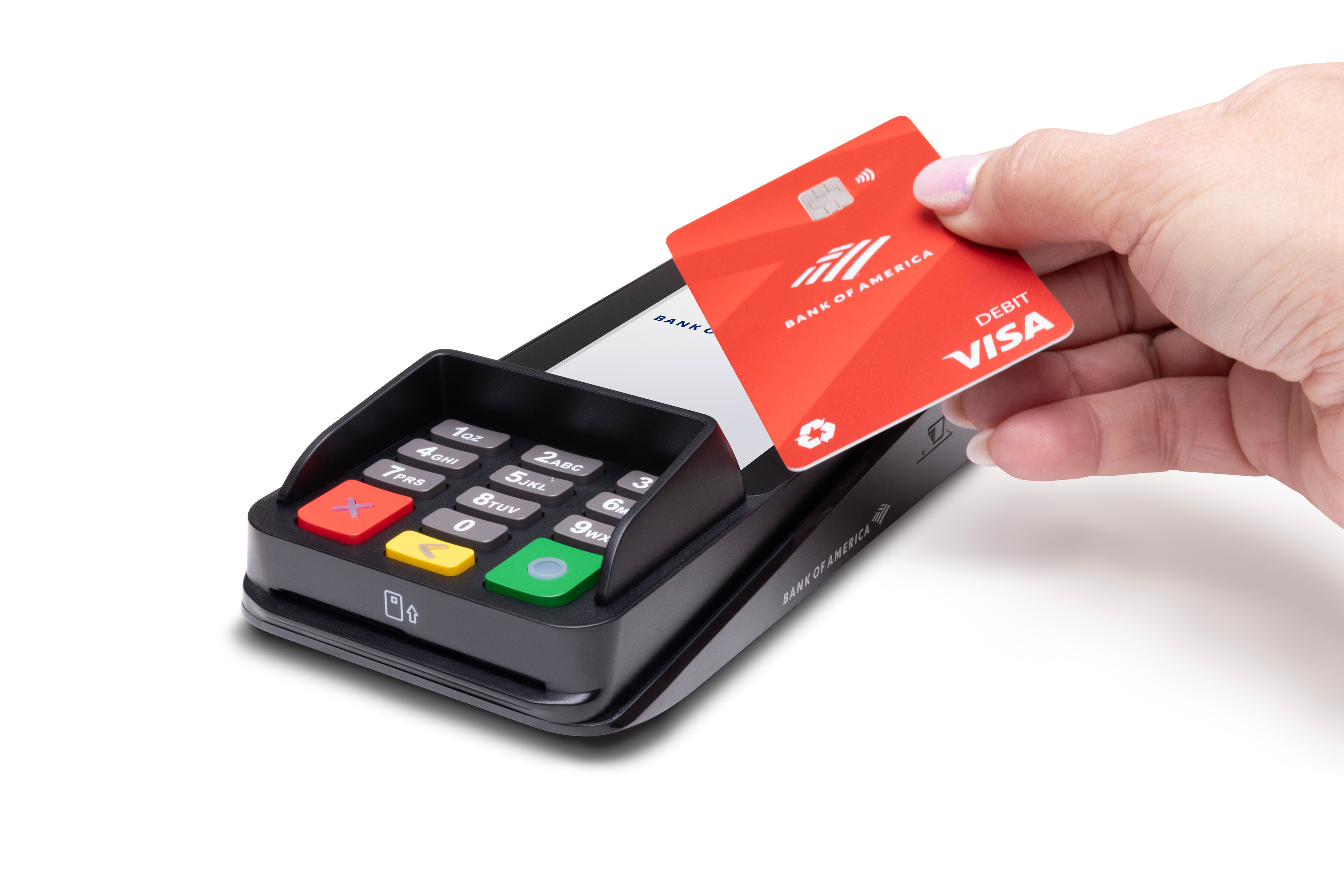
Tap or hold the card within two inches of the top of the terminal.
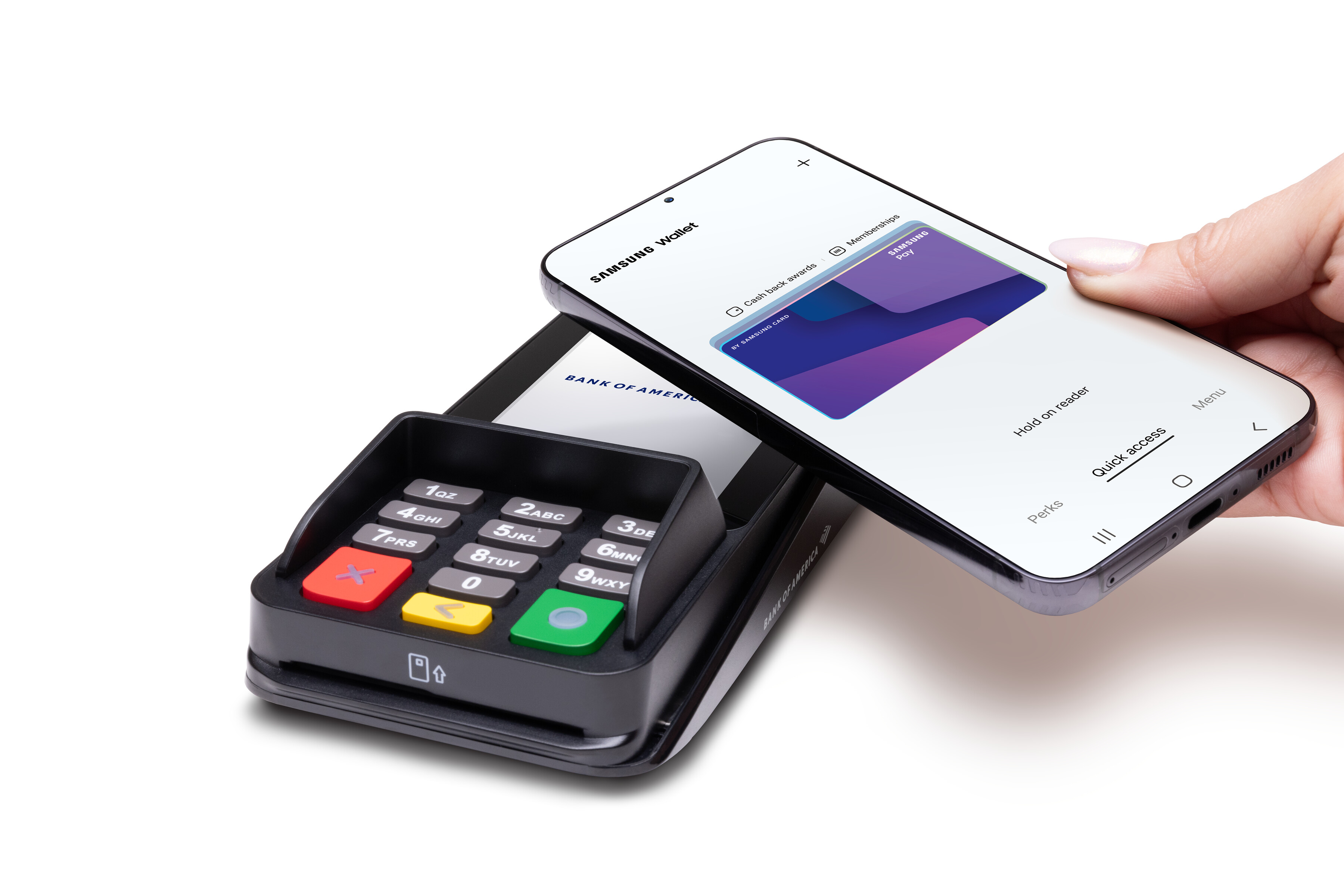
Hold the mobile phone/device within two inches of the top of the terminal. the customer will then need to approve the payment on their phone/device.
Terminal settings
You can adjust your device settings to your preference, including: terminal volume and key sounds, brightness, and timeout settings.
Terminal Care
For care guidelines, cleaning recommendations and other best practices, see Terminal Care.
Charging Base A800
If you are using the Hybrid A800 as a portable device, the optional charger makes docking and charging easy.
NOTE:
The charging base is only compatible with a standalone Hybrid A800.
To connect the optional Charging Base A800
- Install the dongle into the port on the back of the Hybrid A800.
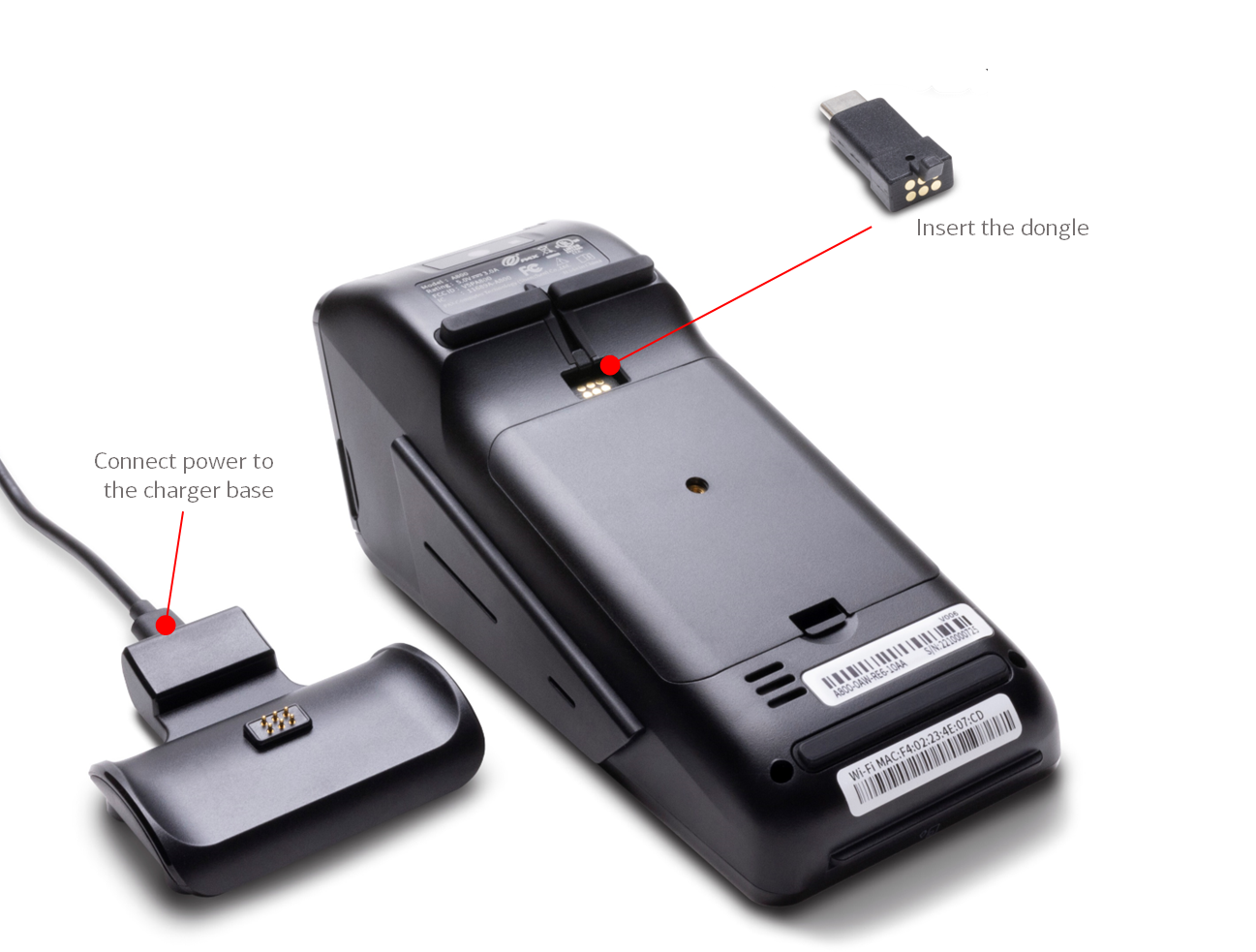
- Plug in the charger.
- To charge the terminal, place the terminal onto the base, making sure that the pins on the charging base and the dongle (inserted in the bottom of the Hybrid A800) make contact. If connected properly, a charging icon will appear at the top of the terminal's display.