Device Internet (Wi-Fi and Ethernet) Connection and Troubleshooting
Description
What's in this article?
Devices can connect to the internet through Wi-Fi and may also be able to connect directly to your router with an Ethernet cable, depending on your device.
Wi-Fi connection
If connecting using Wi-Fi, we recommend using a Wi-Fi that is dedicated to your business. You will need to know the name of your wireless network and the password to connect to it. Wi-Fi connection can be accessed by pulling down from the top of your screen or by opening Settings on the home screen. Accessing your Wi-Fi settings through the pull-down will not require the Settings password.
NOTE:
Screens may vary based on your device model.
To enable or disable Wi-Fi
- On your device, pull down from the top of the screen.
- Tap Wi-Fi to enable or disable the connected Wi-Fi network.
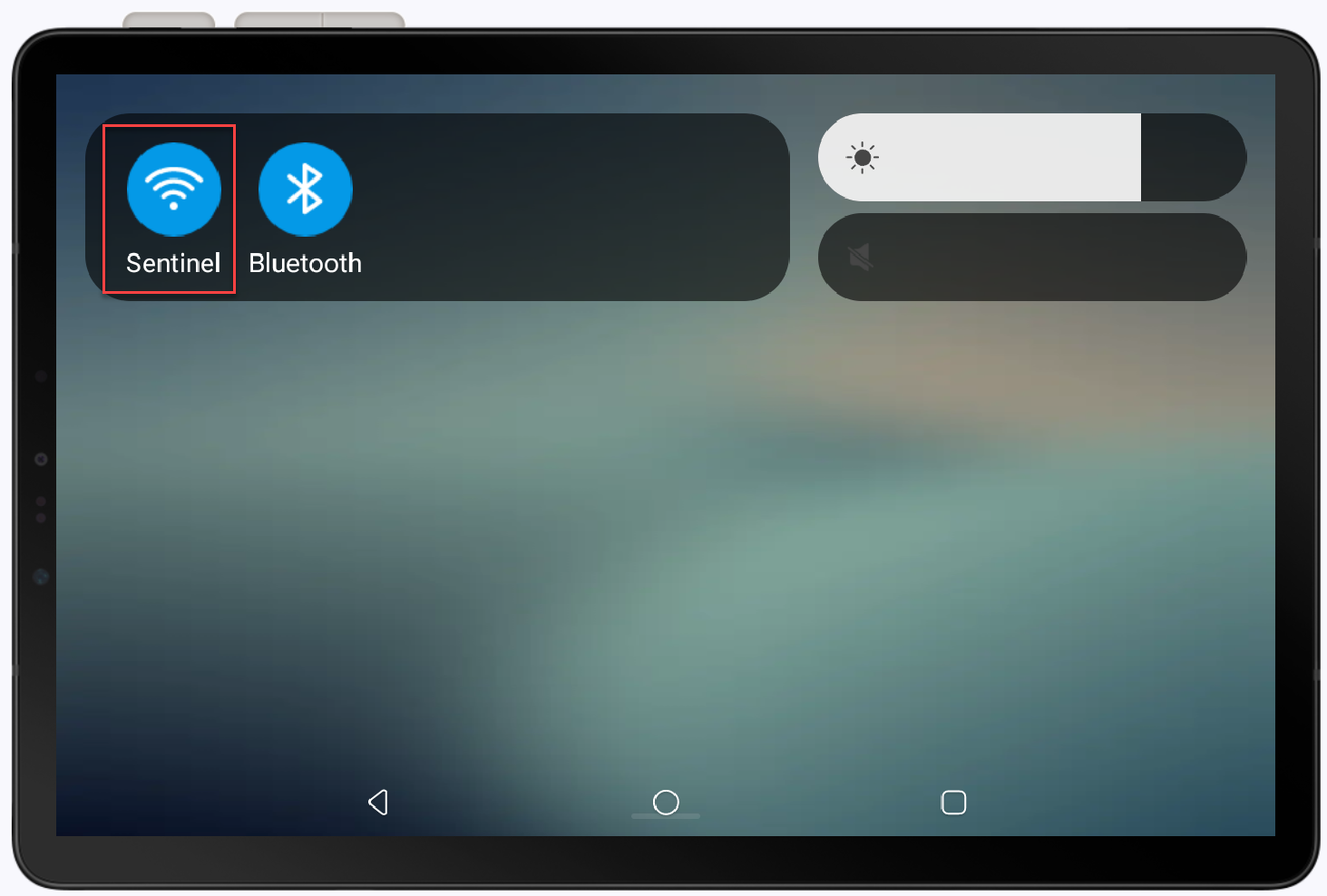
To connect to a Wi-Fi network
- On your device, pull down from the top of the screen.
- Press and hold on the Wi-Fi button to open the Wi-Fi settings screen.
- Tap a Wi-Fi network from the list of secure networks. If the desired network isn't listed, you can add a network.
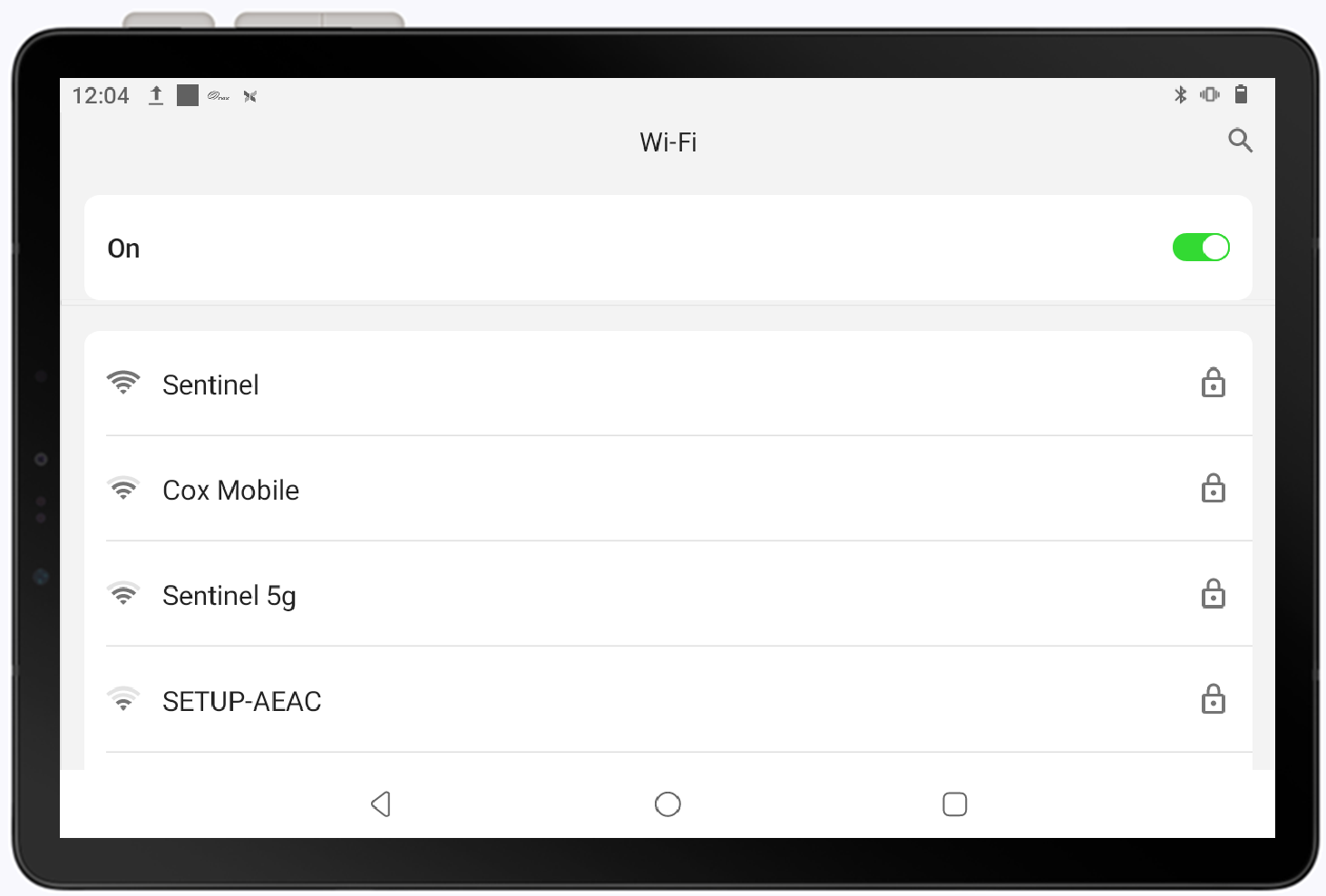
- Enter the Wi-Fi network password.
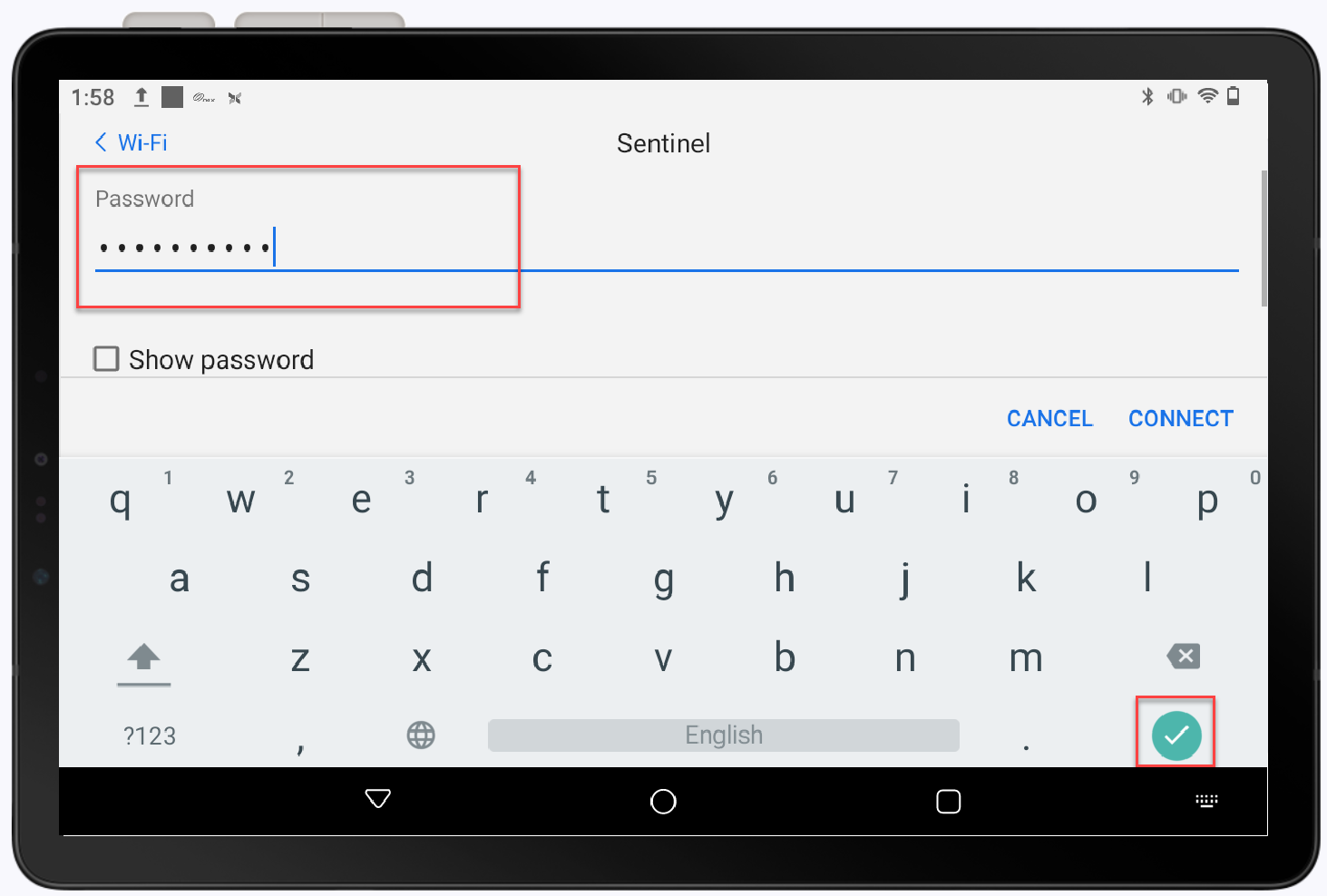
- Tap Connect.
To add Wi-Fi network
- On your device, pull down from the top of the screen.
- Press and hold on the Wi-Fi button to open the Wi-Fi settings screen.
- Scroll to the bottom of the available network list, then tap Add network.
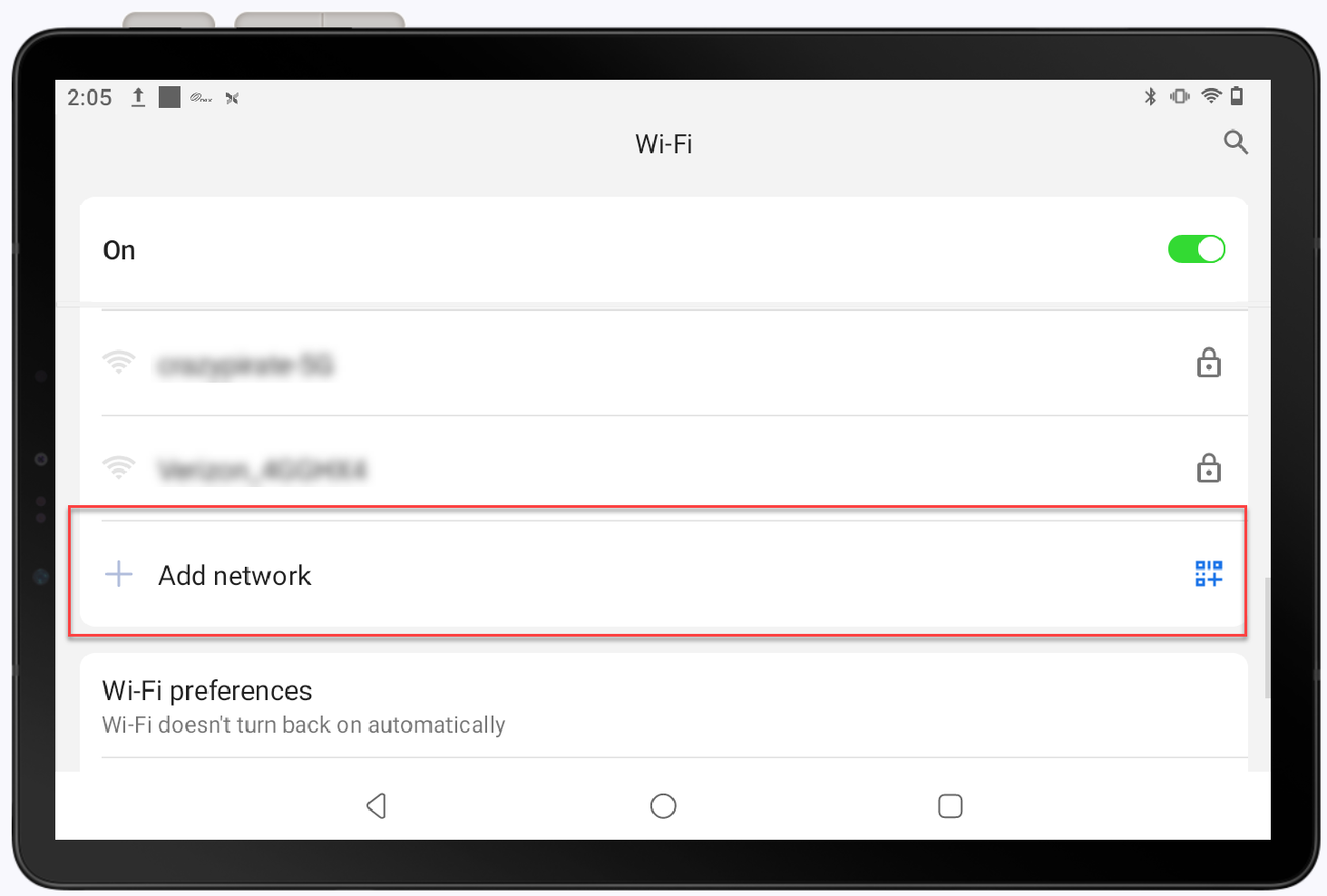
- Enter the network name (SSID) and then tap the green confirmation button on the keyboard.
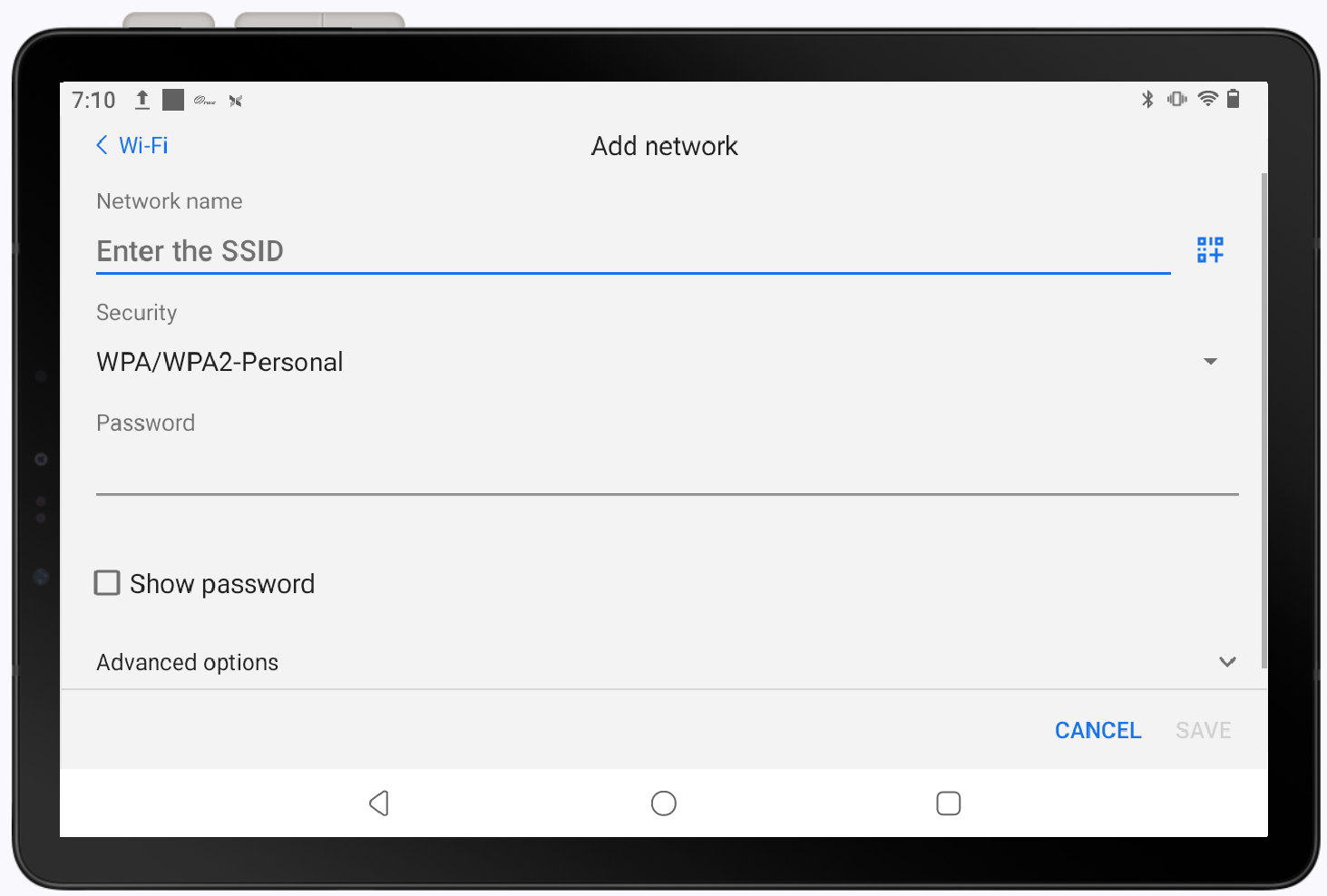
- Select a network security option from the dropdown list. The most common option is WPA/WPA2.
- Enter the network password.
- Tap the green confirmation button on the keyboard to connect.
To set up a static IP for Wi-Fi
- Using a static IP address for your device, such as a printer or scanner, can make connection more reliable. Since the device will always have the same IP address, it is easier to locate on a network. Static IP addresses can also provide enhanced network stability.
- On your device, pull down from the top of the screen.
- Press and hold on the Wi-Fi button to open the Wi-Fi settings screen.
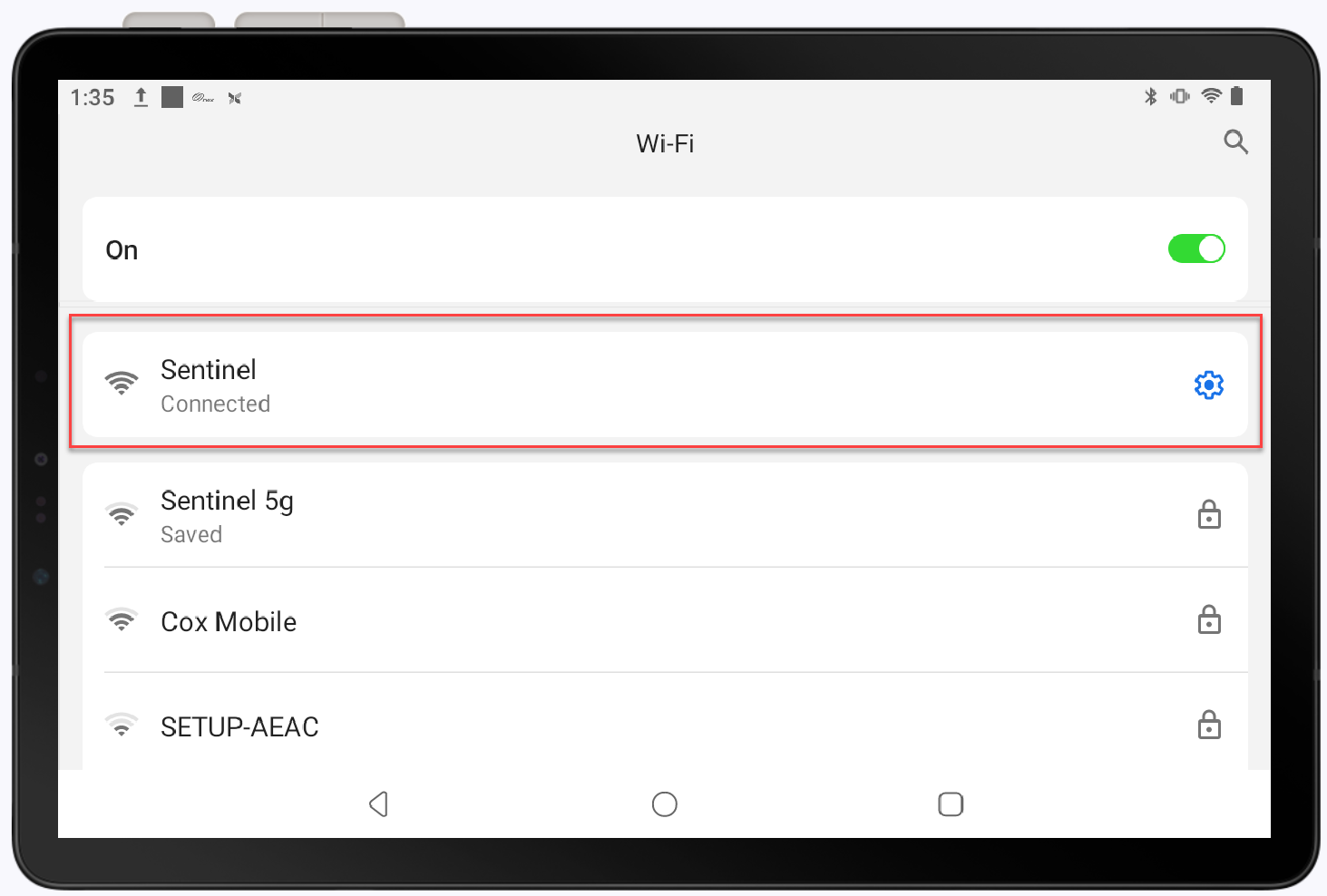
- Tap the Wi-Fi network you are currently connected to.
- Tap the Edit icon in the top right corner of the screen.
NOTE: If you device does not have an Edit icon, select the Forget icon, open the network again.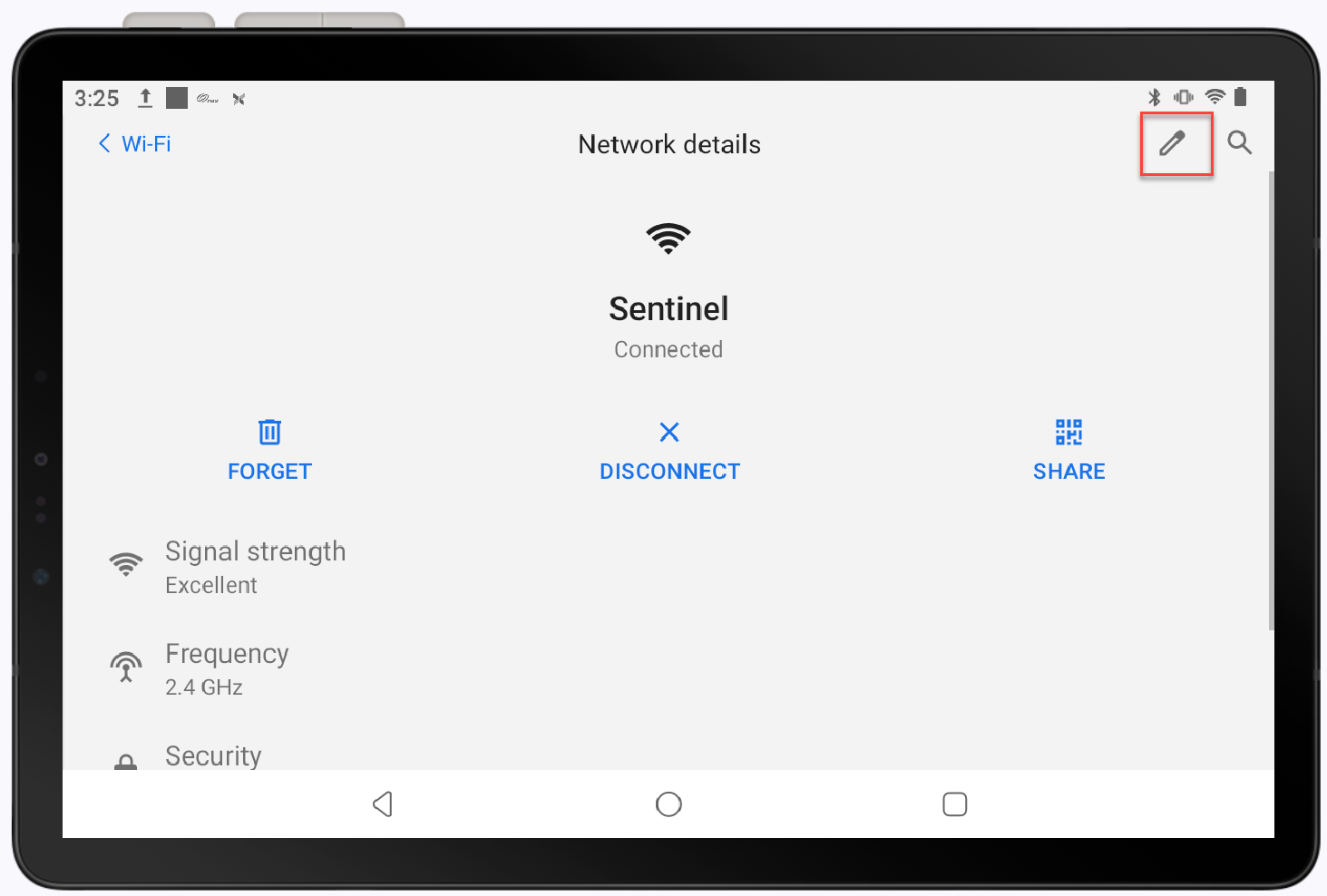
- Tap to open Advanced Options and scroll down the list.
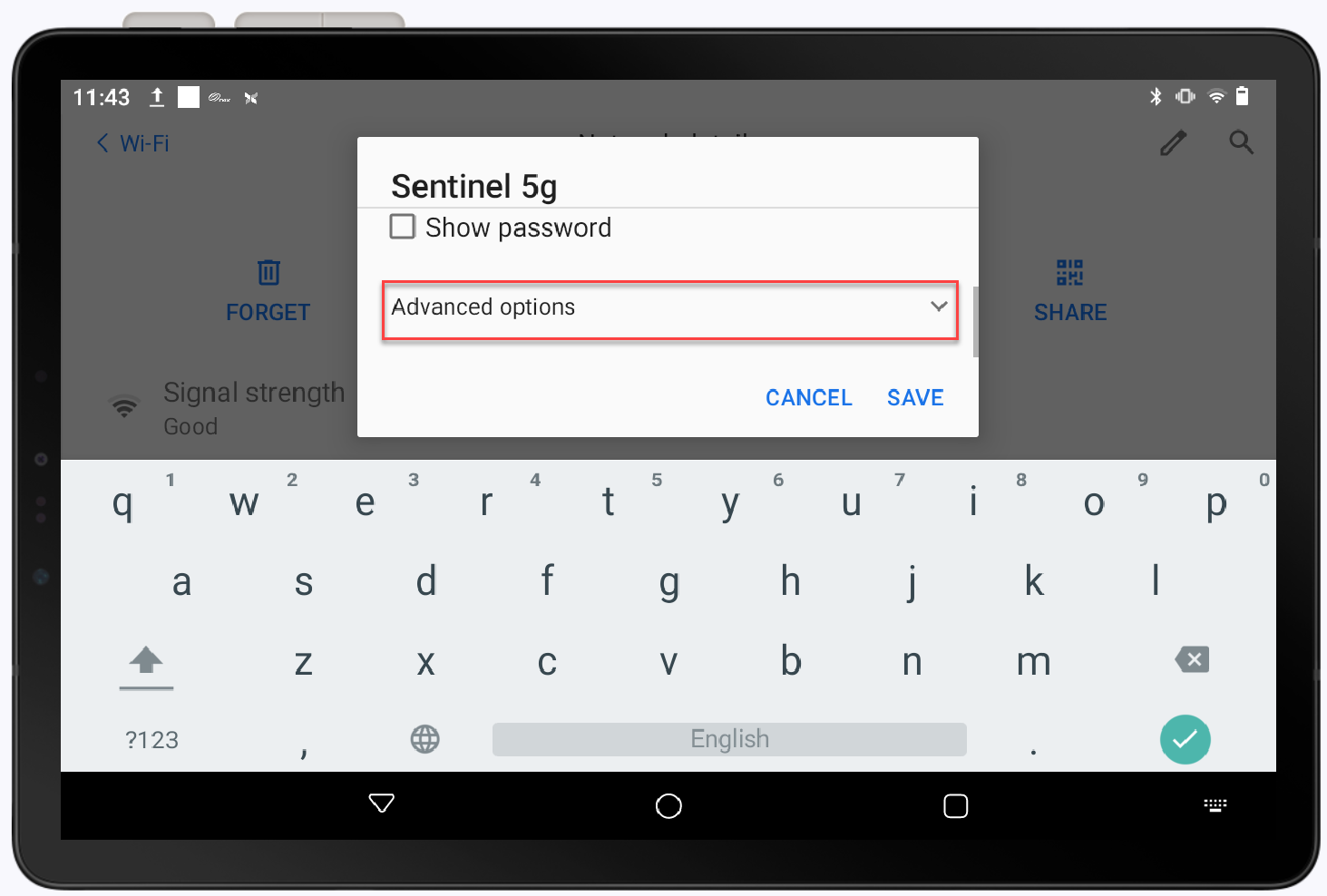
- Tap Proxy and select Manual from the dropdown list.
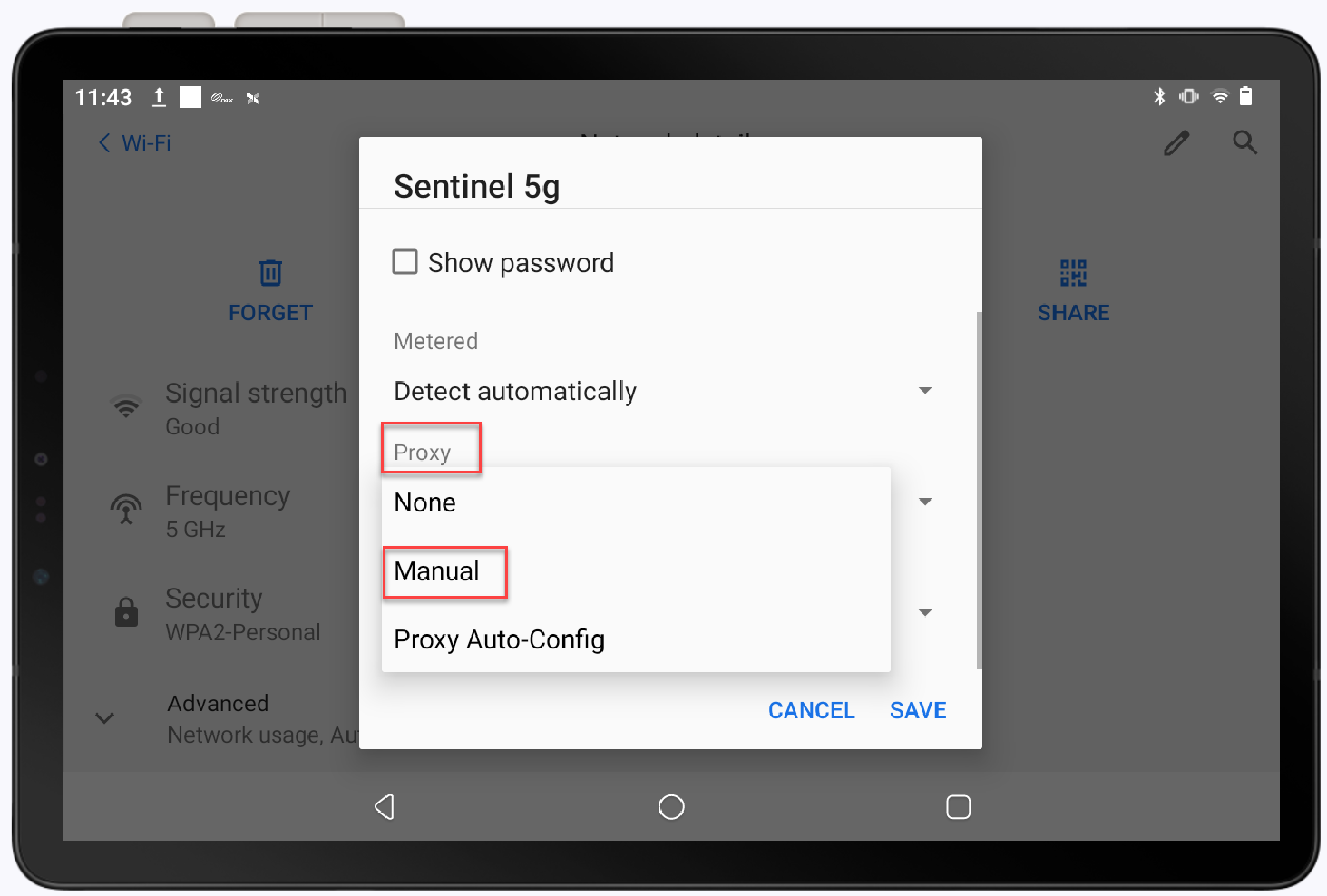
- Tap IP Settings and select Static from the dropdown list.
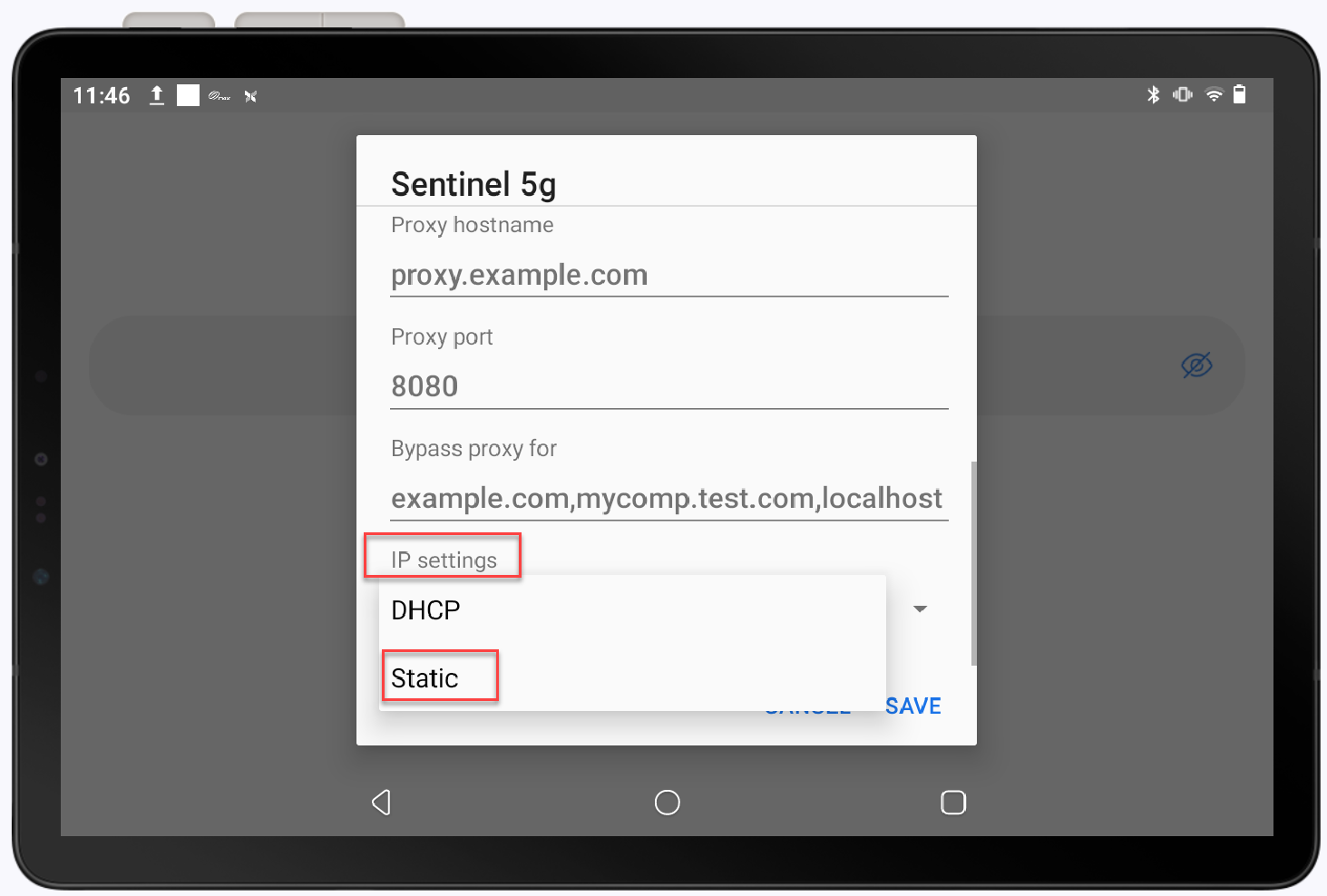
- Enter the Static IP information that is necessary to connect to the router, tap the green arrow button to accept each change.
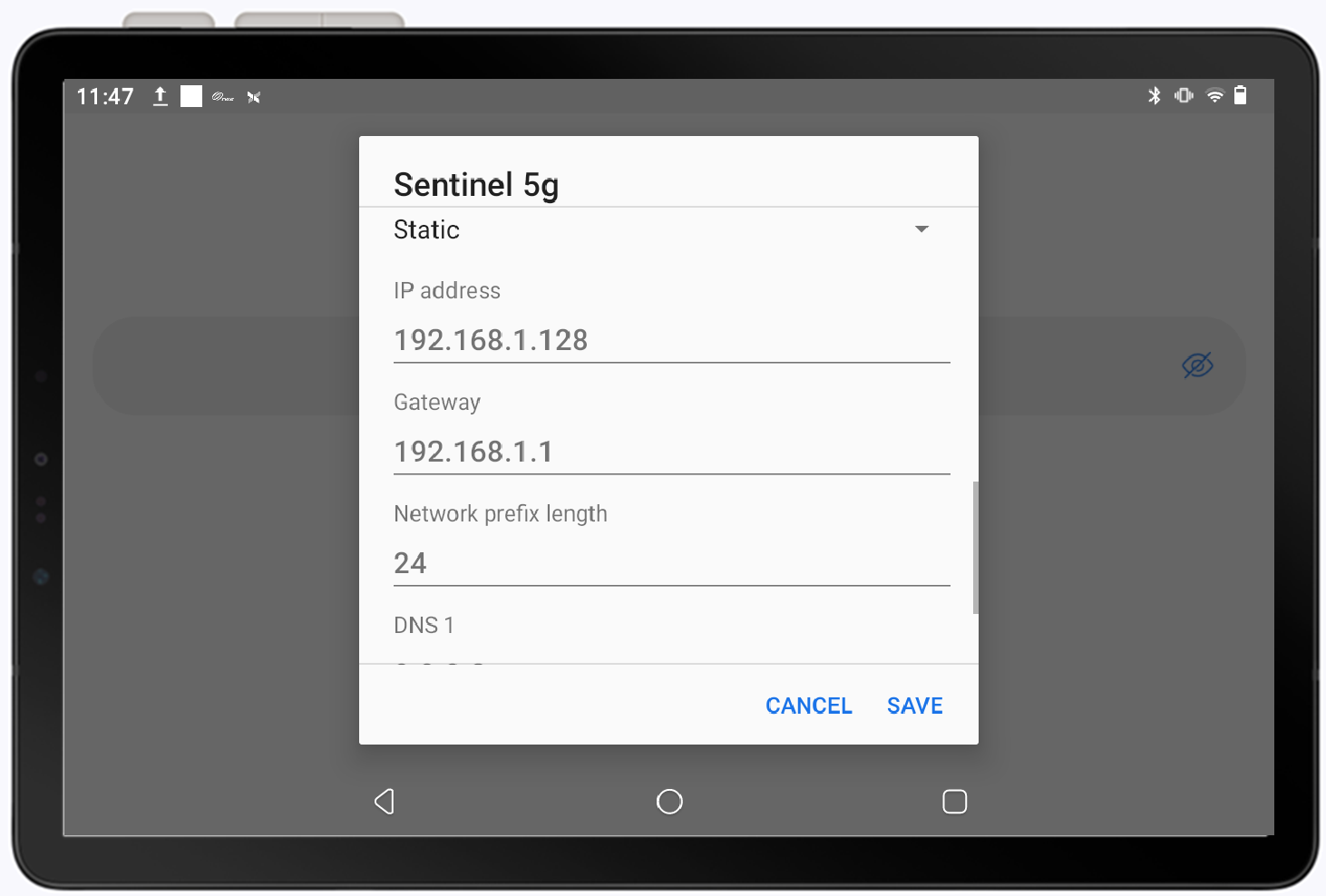
- Tap Save to finalize the static IP connection.
Trouble connecting?
If you are having trouble connecting to Wi-Fi, try the following first:
- Check that the Wi-Fi icon is visible and Wi-Fi connection is enabled, then try the transaction again.
- Power cycle the device and try the transaction again. If Wi-Fi is connected after the terminal is already powered up, the terminal should detect the connection upon the next communication attempt and does not require power cycle.
- Ensure the security protocols for your router are set to WPA or WPA2. You cannot use the older WEP or WAP formats.
- Ensure your terminal is connected to a secured network that requires a password. Unsecured networks will not appear in the available networks list and a terminal will not connect to an unsecured network.
If you still are having trouble, some common troubleshooting scenarios are provided below:
- Wi-Fi network appears but will not connect
If you can see the name of your wireless network on your list of available networks but are having trouble connecting:
- Check the network name: Confirm that the name of your network is entered correctly. Your router may have a sticker that lists the network name and/or password.
- Check the password: Make sure that you entered your password correctly. Most passwords are lengthy and a combination of uppercase letters, lowercase letters, numbers and symbols.
- If using an iPhone as a hotspot, ensure that you enter the dashes in the password. Hotspots are not recommended.
- Your wireless router may not be broadcasting at a frequency band that is compatible with the payment terminal or that doesn't work well for your environment. We recommend the 2.4GHz option in most cases. Change your router frequency band, following your router manufacturer's directions. If needed, refer to your router manufacturer's support for additional assistance.
- If your network and password are correct, but you still can't connect, try removing and reconnecting to the network:
- Remove and reconnect network
- On your device, pull down from the top of the screen.
- Press and hold on the Wi-Fi button to open the Wi-Fi settings screen.
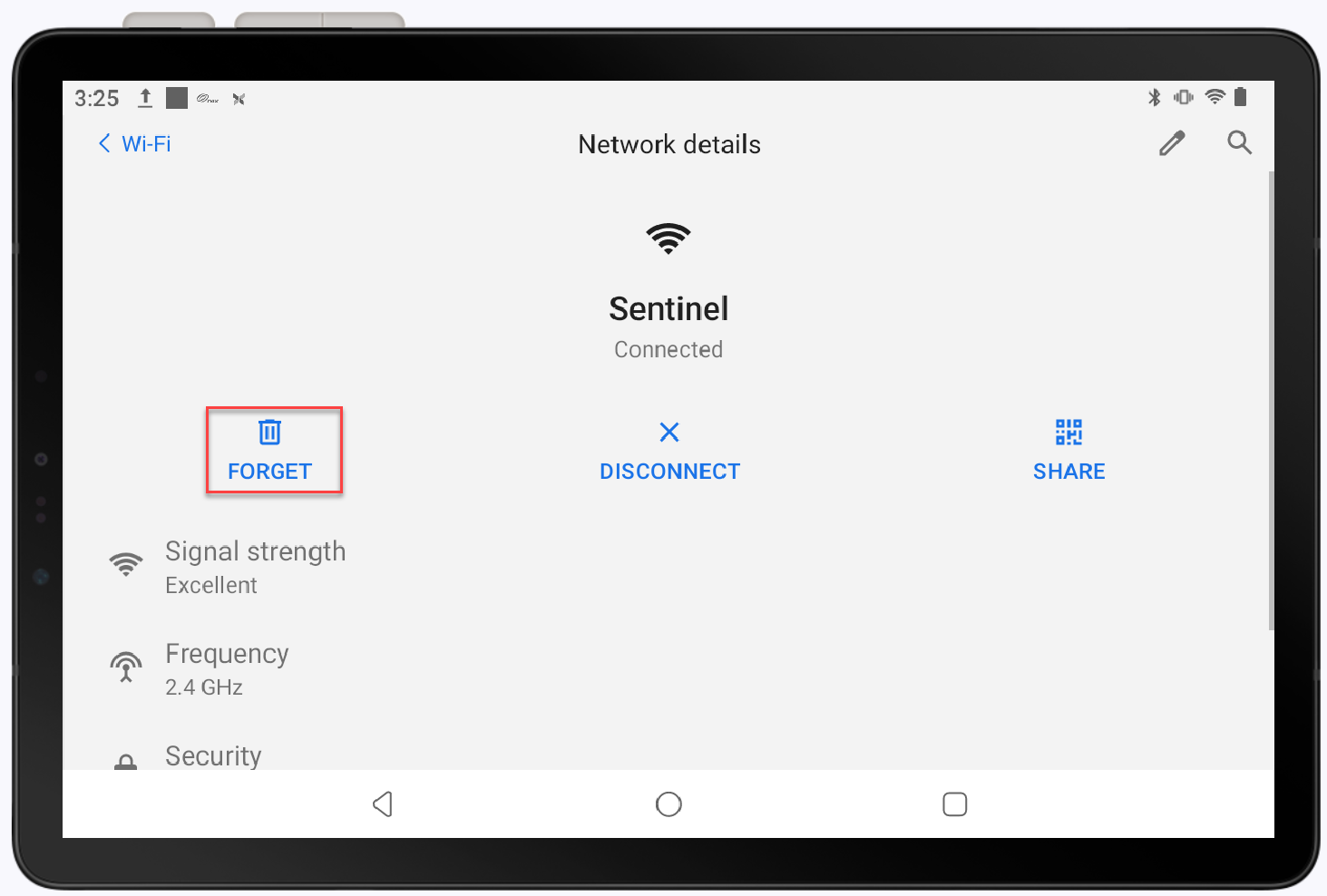
- Tap the Wi-Fi network you are currently connected to.
- Tap Forget.
- Tap On toggle to turn off the Wi-Fi.
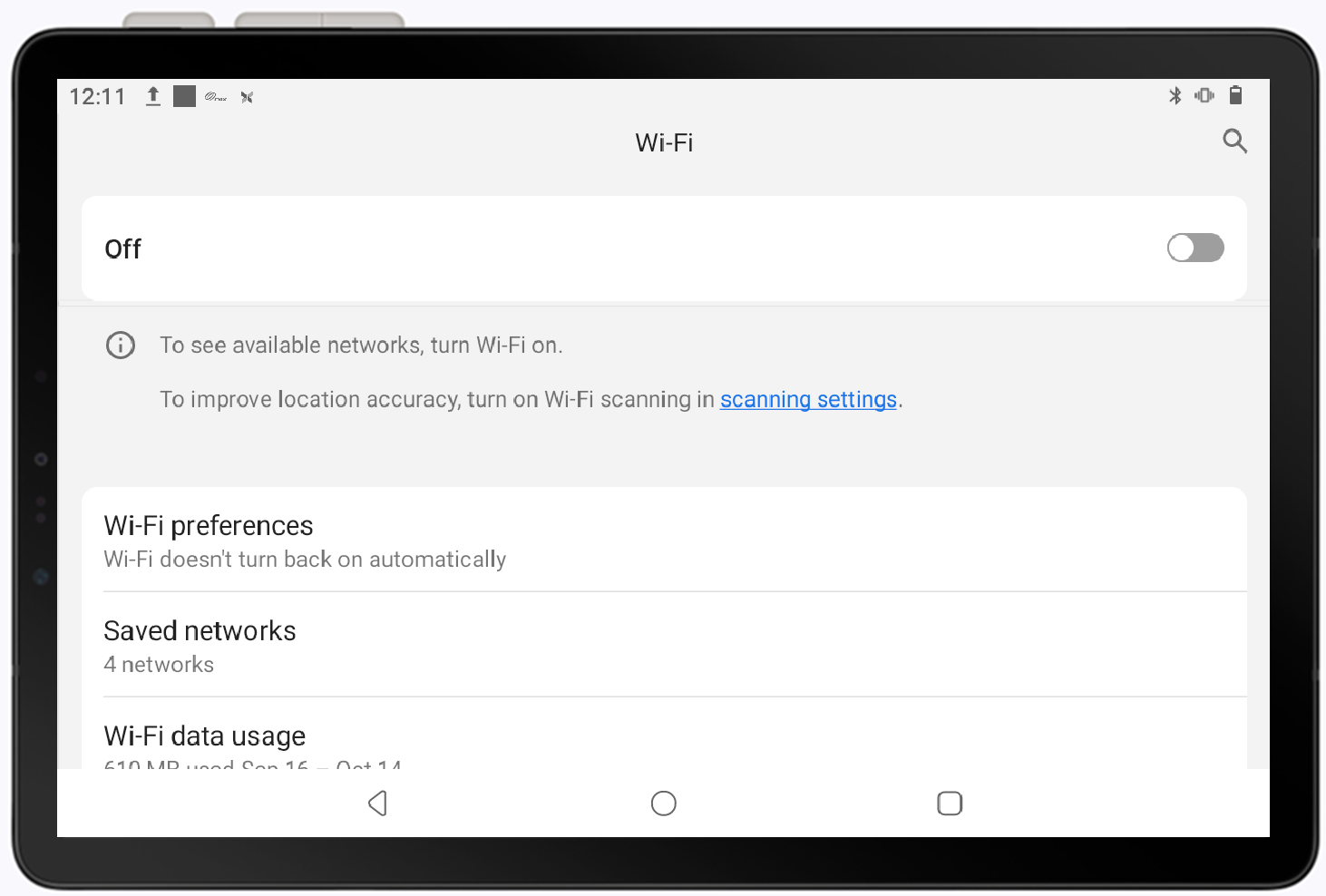
- Power the device off and then back on again.
- On your device, pull down from the top of the screen.
- Tap the Wi-Fi button to turn on the Wi-Fi.
- Select and connect to a known network name with a confirmed password.
- Remove and reconnect network
Ethernet connection
Connection to Ethernet will vary depending on your device. If your device has an Ethernet port, you can plug the Ethernet cable in directly. If your device uses a Communications Hub, the Ethernet cable can be plugged into the hub. The Ethernet connection should be enabled automatically.