Payments App V1.01.11 Sale
Description
What's in this article?
NOTE:
To learn how to check your Payments app version, see the Payments Application Version article.
IMPORTANT!
EBT chip card functionality is not currently supported. Insert the card three times to activate the fallback to swipe the card per standard EMVCo regulations. We are working with our hardware and platform partners to support these newly issued cards.
Depending on the features you choose to enable for your business and the method of payment tendered, the process for making a sale will vary. Features that may be enabled include tipping (inline during the sale or adjusted after the sale), requiring an invoice number or entering your own invoice number, or requiring a Server ID. Partial payment is enabled by default, allowing a customer to use the balance on a card and the present a different card for the remaining amount. You can choose to disable this feature. If the card presented is a purchasing card, additional fields will display. Contact Technical Support for assistance with features. Cash back is not supported at this time.
- To make a sale using the Payments app
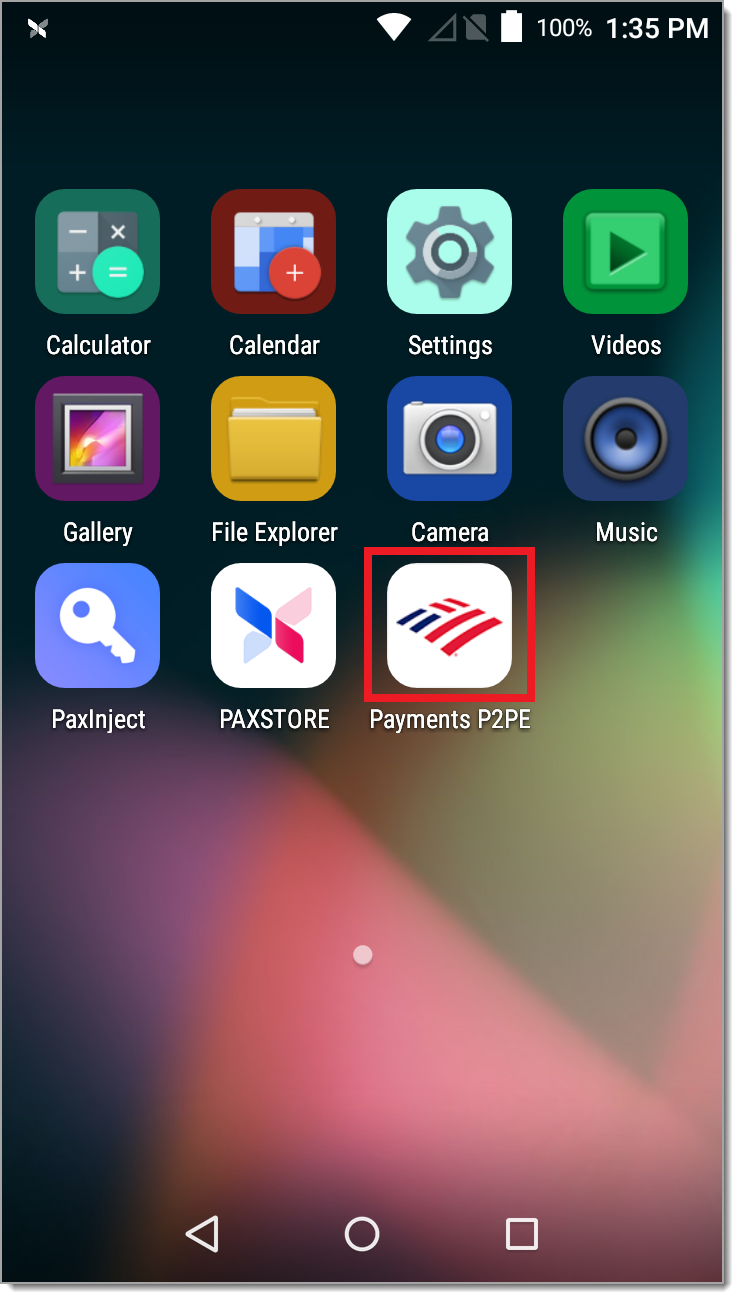
- Open the Payments app.
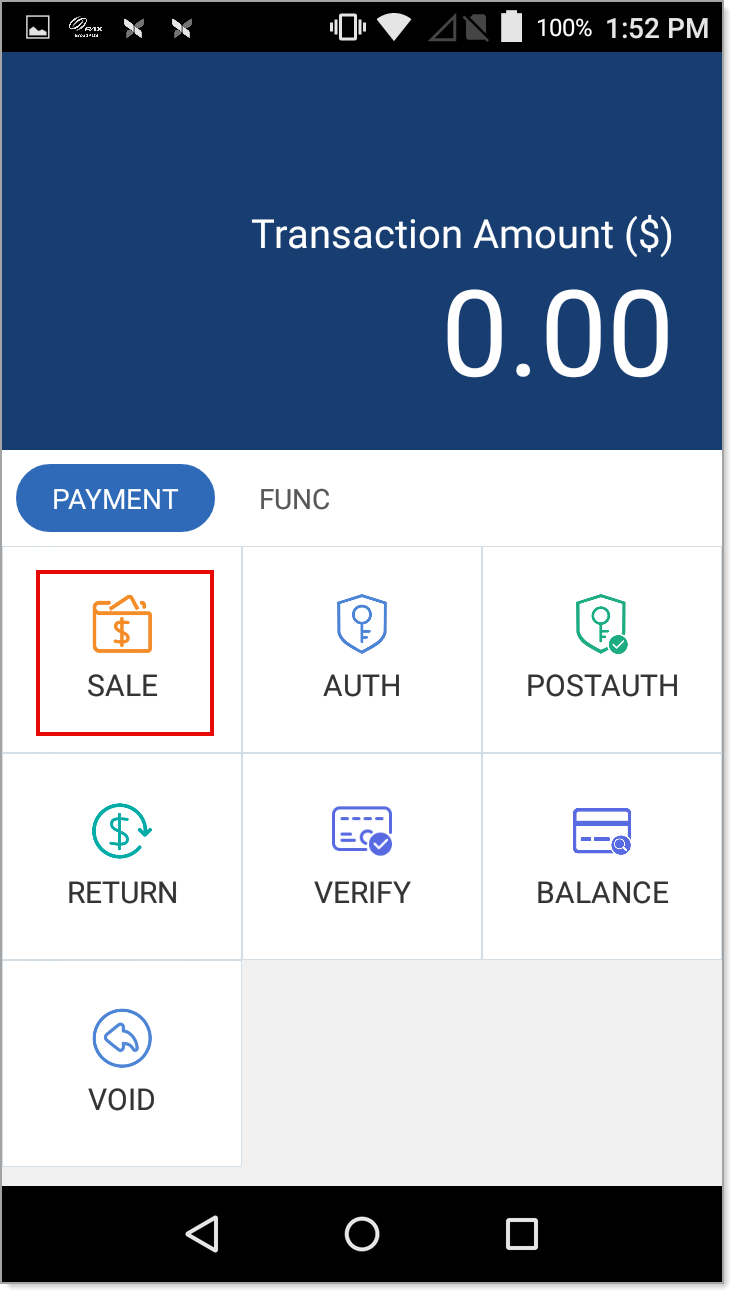
- Tap Sale.
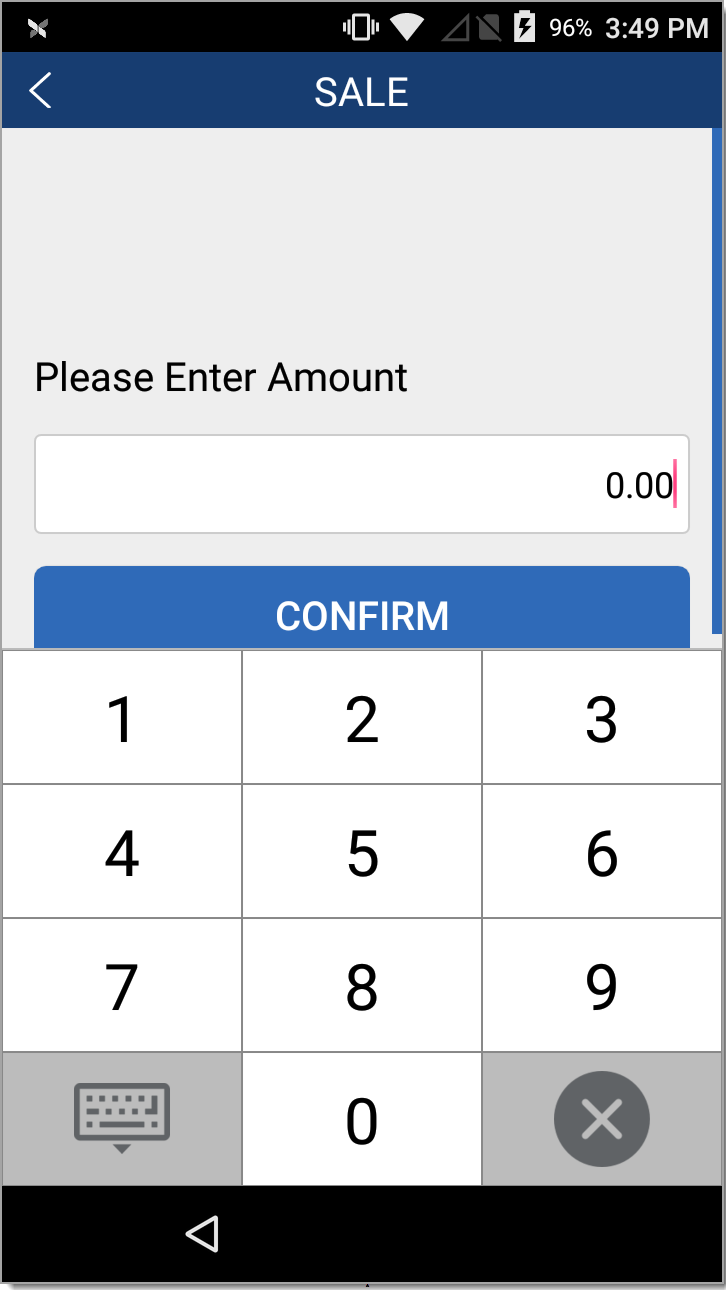
- Enter the total amount of the sale including tax, and tap Confirm.
- (If tipping enabled) Do one of the following:
- If prompted with a preset tip option, select a preset tip option or tap Other to enter a different amount.
- If your business is enabled for tip adjustment, tap Confirm to bypass tip entry and then adjust the tip later. The receipt will include a tip line for the customer to add the tip.
- If prompted for tip amount, enter a tip amount and tap Confirm.
NOTE: The tip amount must be entered in the Payments App and cannot be entered on the PIN Pad SP30.
- Swipe, insert, or tap the credit card.
- (If enabled) Enter the Invoice number and tap Confirm.
NOTE: By default, invoice numbers are auto-generated. Contact Technical Support to enable manual invoice numbers.
- (If enabled) Enter the Server ID and tap Confirm.
- (If debit) Instruct the customer to enter the PIN number and tap Confirm.
- If the amount of sale exceeds the balance on a prepaid card, the approved amount and balance due (amount owed by customer) display. Accept another form of payment for the balance due. If the customer wants the entire balance on a single card, void the sale and process it again with a different form of payment.
NOTE: Contact Technical Support if you would like to disable partial approvals.
- (Purchase card only) If a purchasing card was used for the payment, enter a Purchase Order number for the sale and press Enter, then enter the tax amount for the sale and press Enter.
- (Purchase card only) Choose a tax status and press Enter.
- If an additional receipt is needed, tear off the receipt and press OK to print a second copy; otherwise, tap Cancel. The customer will be prompted to remove the card, if inserted and the sale will complete, returning to the idle prompt.
- Open the Payments app.
- To manually key a sale in Payments app
- Open the Payments app.
NOTE: Debit and EBT transactions are not supported for Manual Key entry. Cash back is not supported at this time.
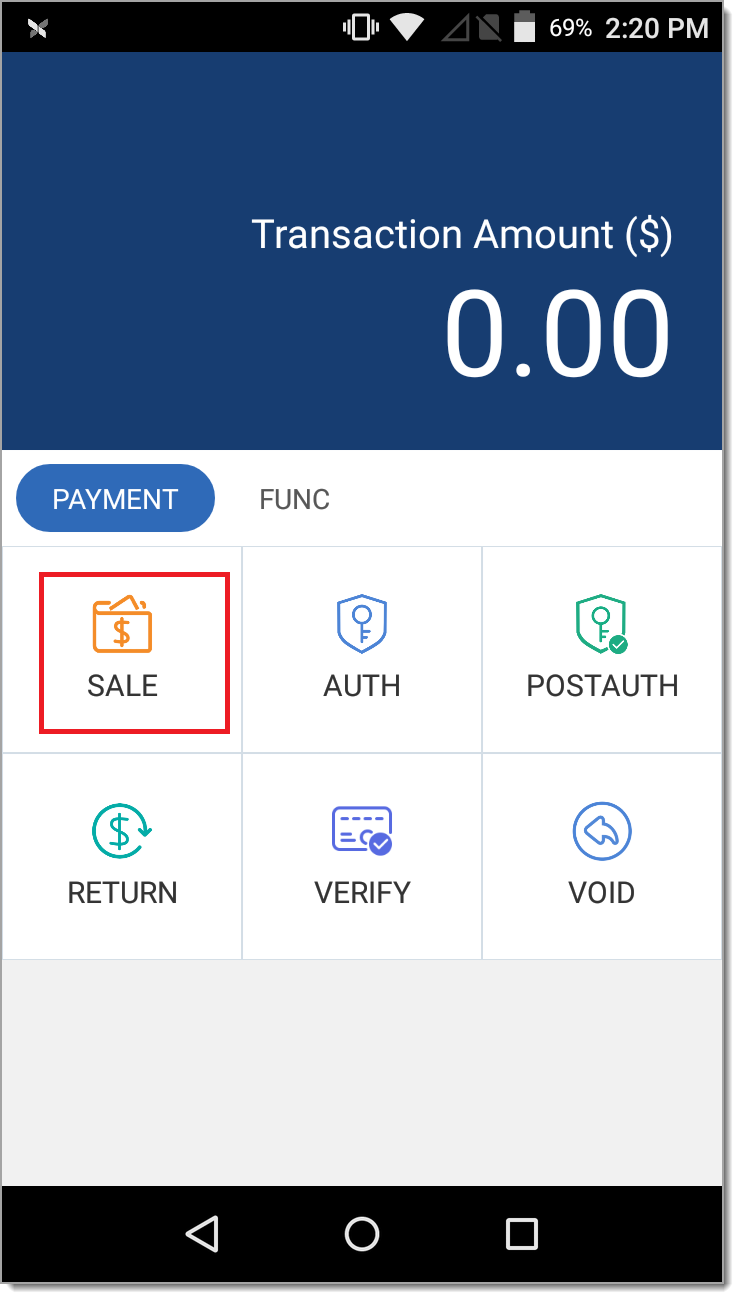
- Tap Sale.
- Enter the amount of the sale, including tax and tap Confirm.
- If tip is enabled, do one of the following:
- Tips captured in the transaction (inline): Select a preset tip option or tap Other to enter a different amount.
- Tip adjustments after the sale (tip adjust): Enter a tip amount and tap Confirm.
- If your business is enabled for tip adjustment, tap Confirm to bypass entry and then adjust the tip later. The receipt will include a tip line for the customer to add the tip.
- Tap the Please Enter Account field and enter the card number.
NOTE: Manually keying a card number may prompt for an Operator Password.
- Tap the keyboard icon in the bottom left of the screen, then tap Confirm.
- Enter the expiration date on the card and tap Confirm.
- Choose whether the card is present or not, then continue based on your selection:
- (If enabled) Enter the Invoice number and tap Confirm.
NOTE: By default, invoice numbers are auto-generated. Contact Technical Support to enable manual invoice numbers.
- (If enabled) Enter the Server ID and tap Confirm.
- (If debit) Instruct the customer to enter the PIN number and tap Confirm.
- (If enabled) If the amount of sale exceeds the balance on pre-paid card a prepaid card, the approved amount and balance due (amount owed by customer) display. Accept another form of payment for the balance due. Initiate void to cancel transaction and return the approved amount to card.
NOTE: Contact us if you would like to disable partial approvals.
- (Purchase card only) If a purchasing card was used for the payment, enter a Purchase Order number for the sale and press Enter, then enter the tax amount for the sale and press Enter.
- (Purchase card only) Choose a tax status and press Enter.
- If an additional receipt is needed, tear off the receipt and press OK to print a second copy. The customer will be prompted to remove the card, if inserted and the sale will complete, returning to the idle prompt.
- The transaction will complete after entry indicating the "Credit Sale Success" then the terminal will return to the idle prompt on the home screen.
- Open the Payments app.