Basic Payment Solution - Medical Void or Refund
Description
How to void or refund a transaction in the Basic Payment Solution - Medical app
What's in this article?
Solution: Basic Payment Solution - Medical
Voids and refunds can be accessed from the Quick Sale view by selecting the transaction type from the dropdown list or through Transaction History.
Void a sale
You can void a sale, pre-authorization or post-authorization if the transaction hasn't moved to settlement. You will need the receipt number from the receipt or Transaction History to void a transaction.
To void a sale
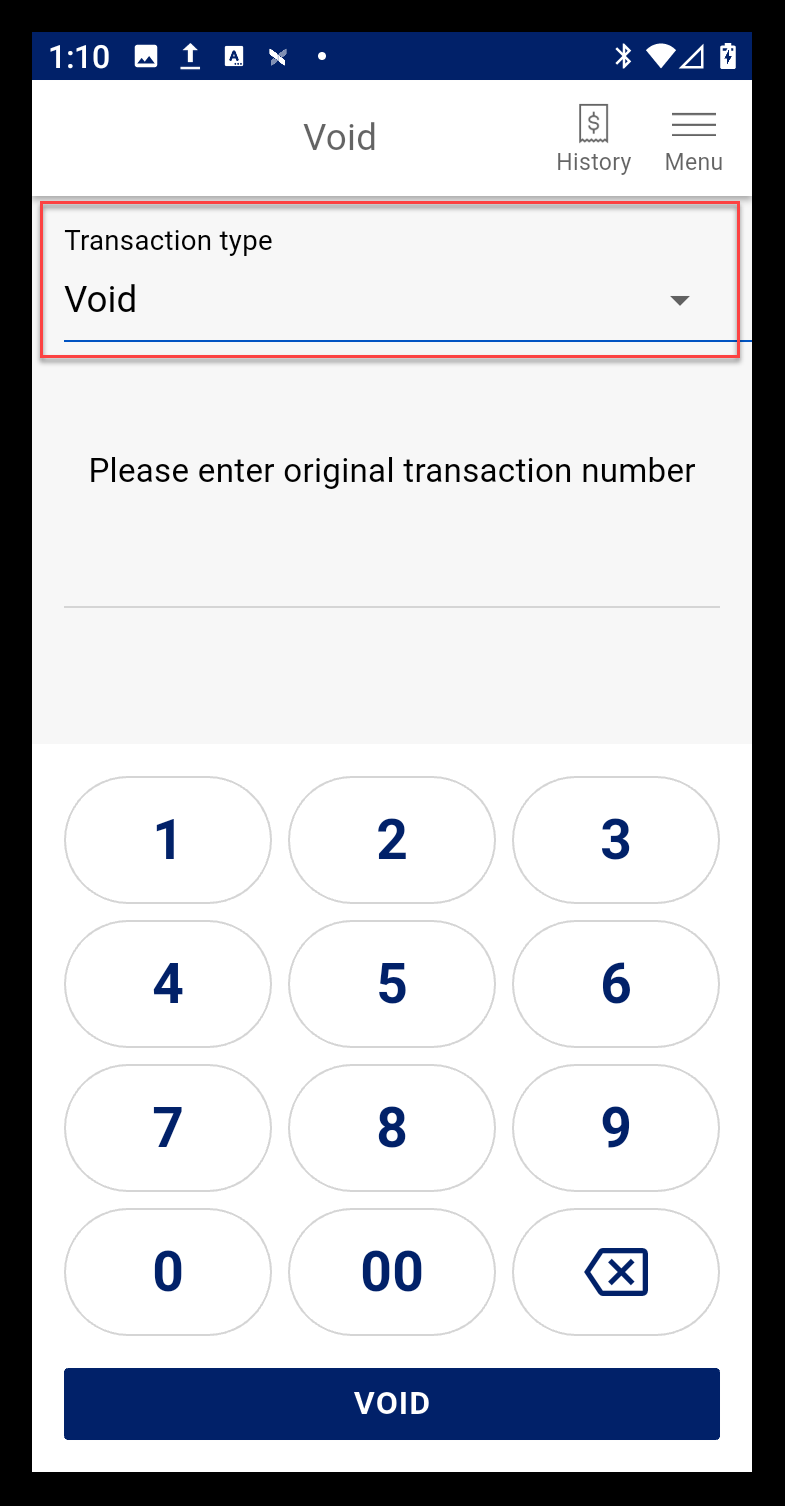
- In the Quick Sale view, select Transaction type > Void.
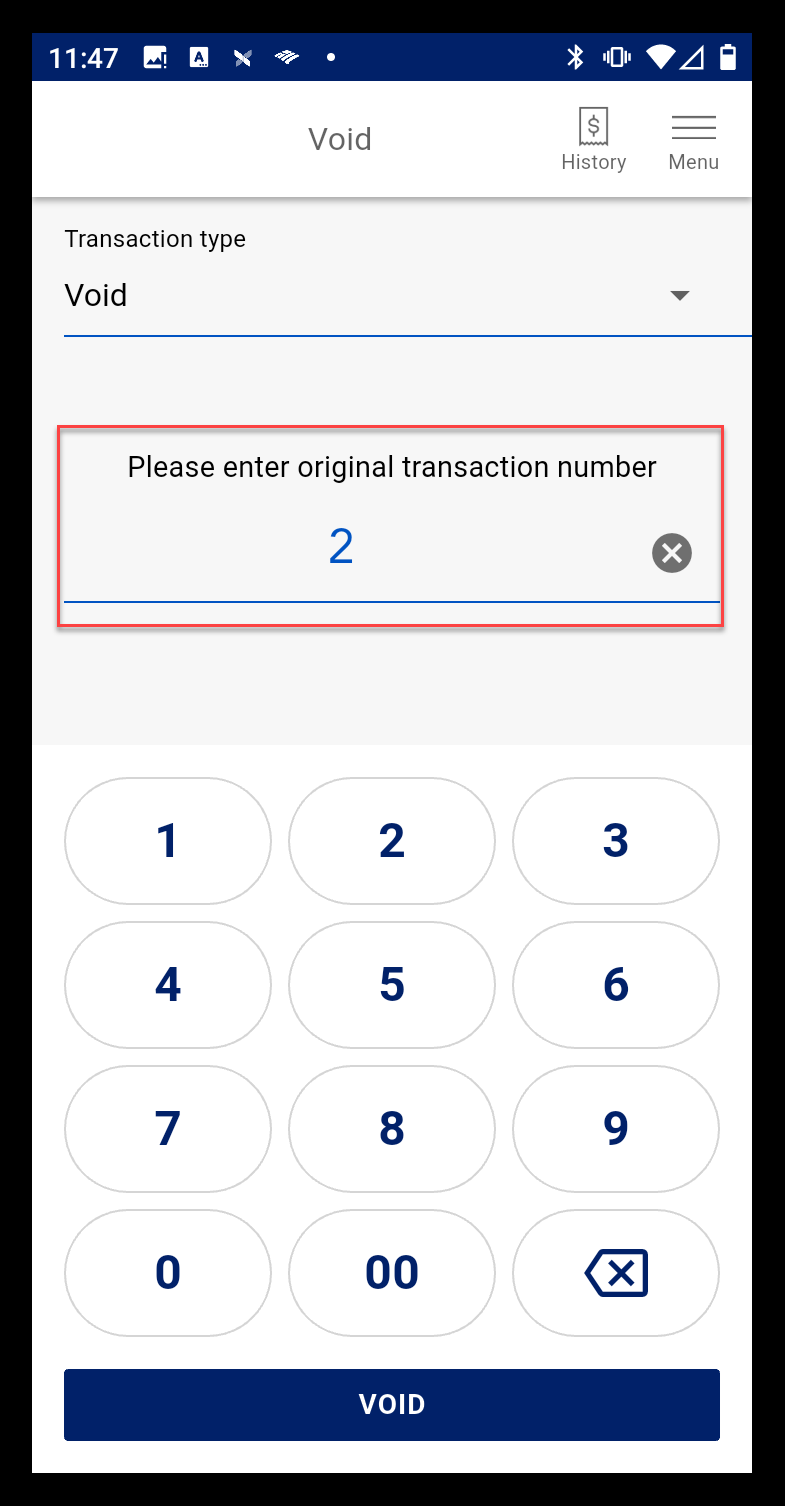
- Enter the original transaction number. This number appears on the receipt as Transaction # at the top of the receipt or may be found in your Transaction History.
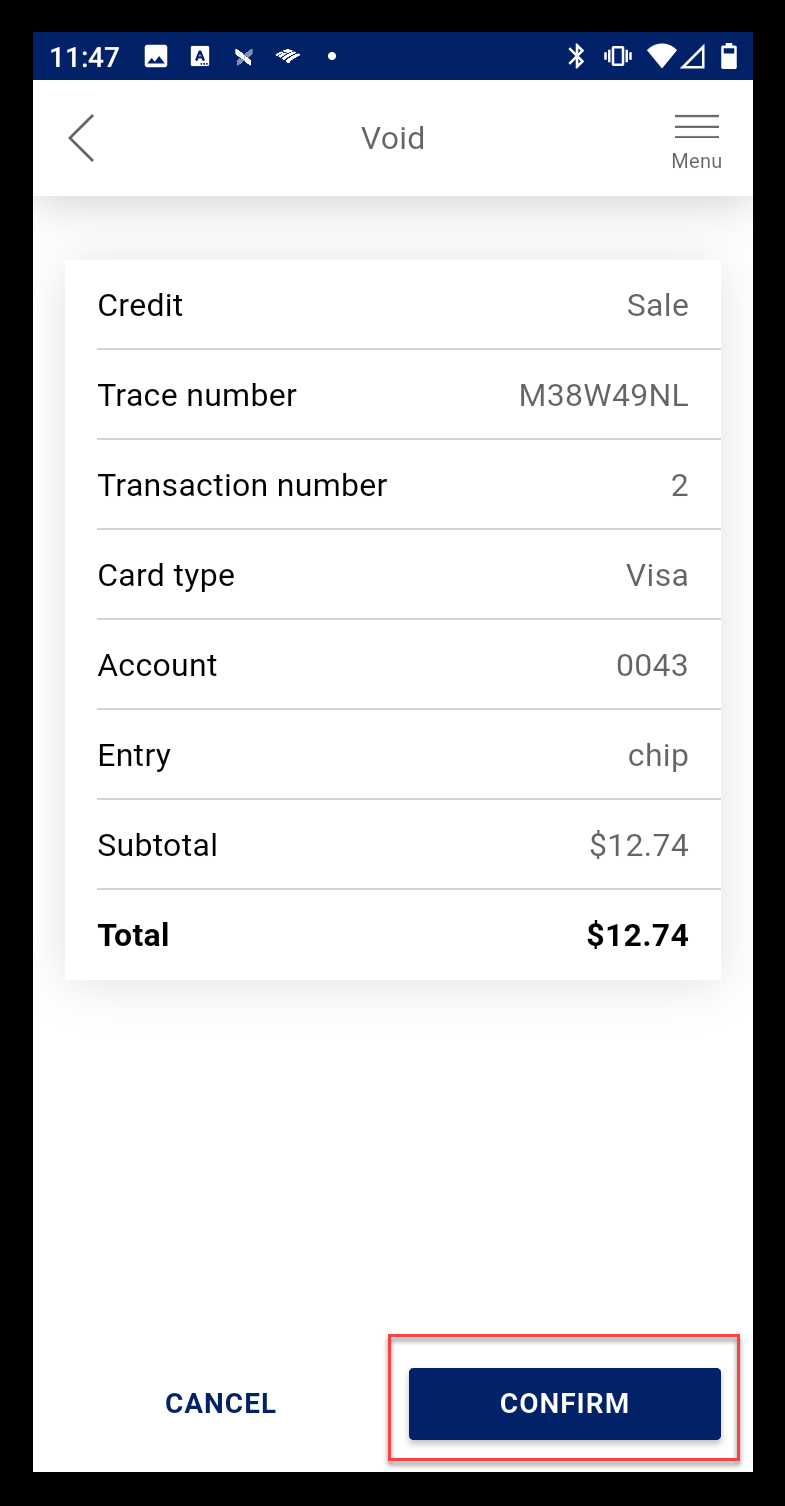
- Tap Void.
- Tap Confirm.
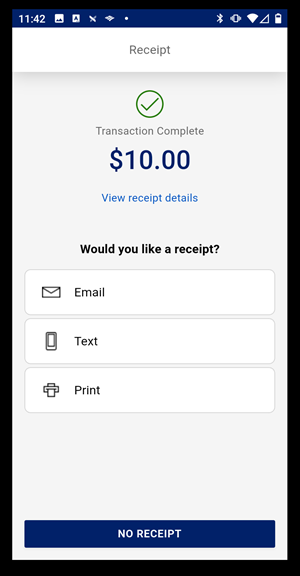
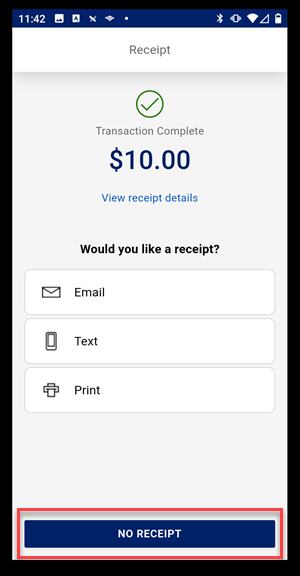
- Choose a receipt option or tap No Receipt to return to the main screen.
Refund a sale
If the transaction is not available to void, you will receive a "Transaction Not Found" message. Perform a refund instead. A refund can be performed without an original receipt or sale.
To refund a sale
- Select Transaction type > Refund.
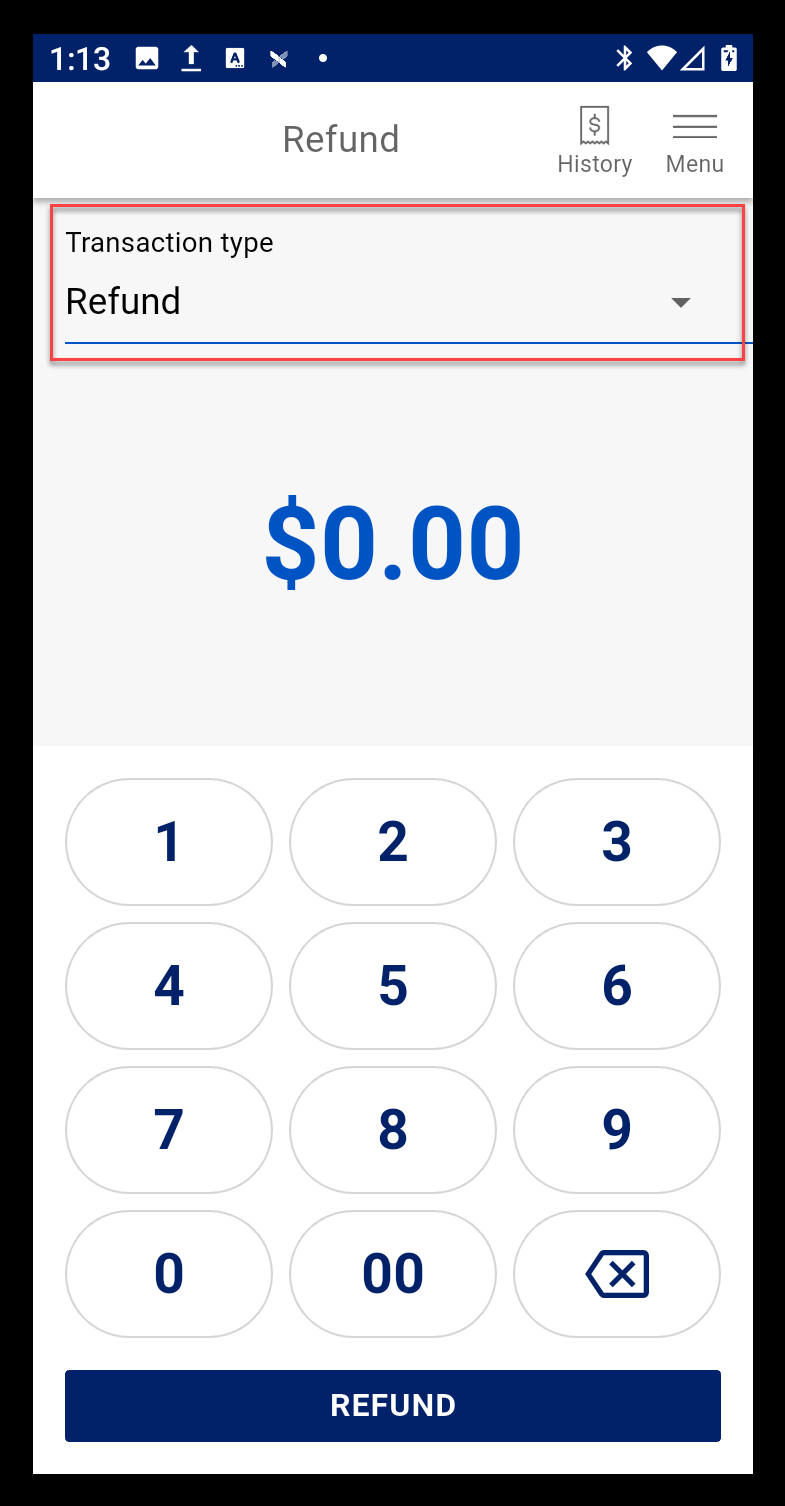
- Enter the amount of the refund, then tap Refund.
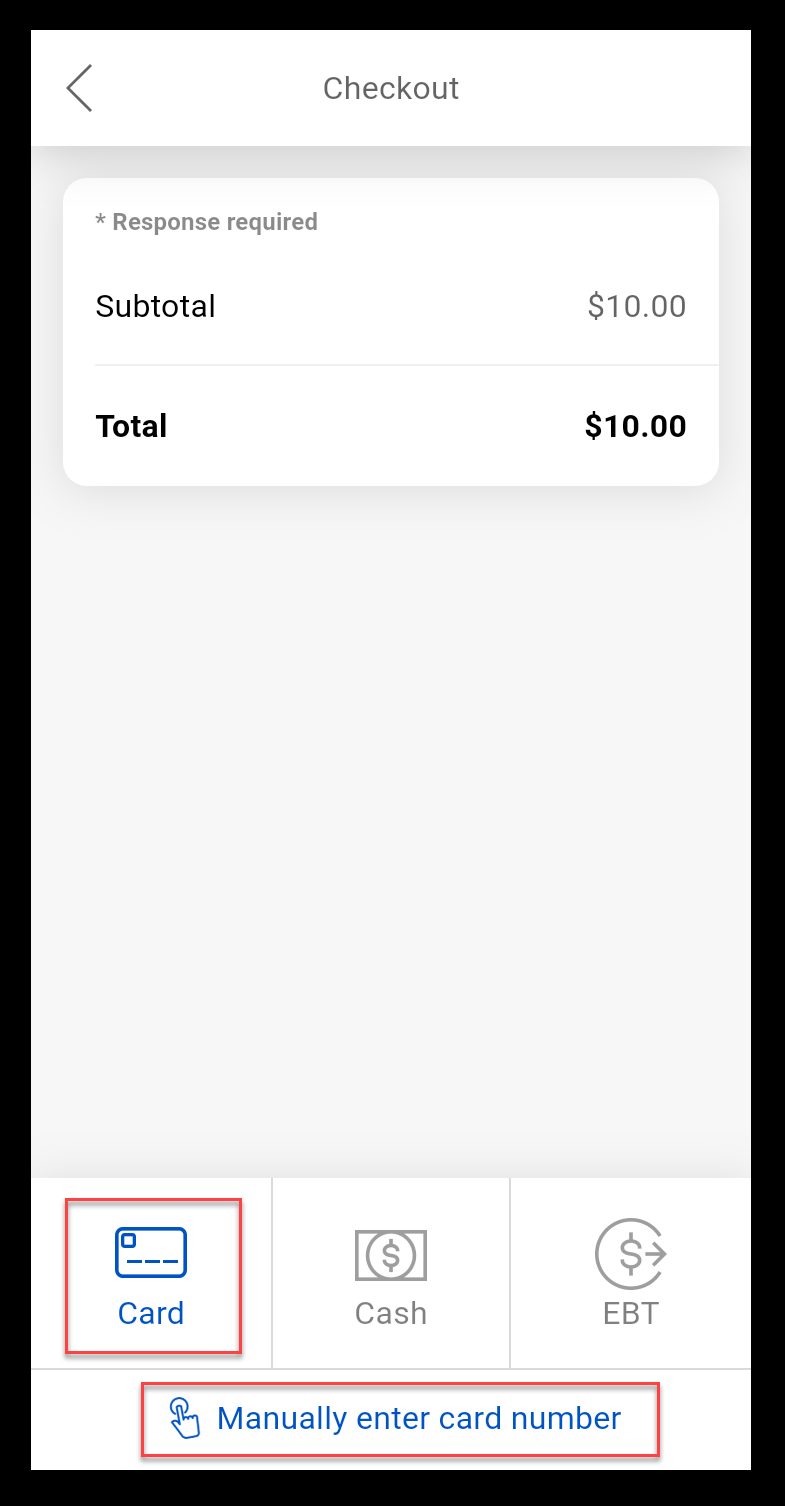
- Tap Card or Manually enter card number if the card is not available.
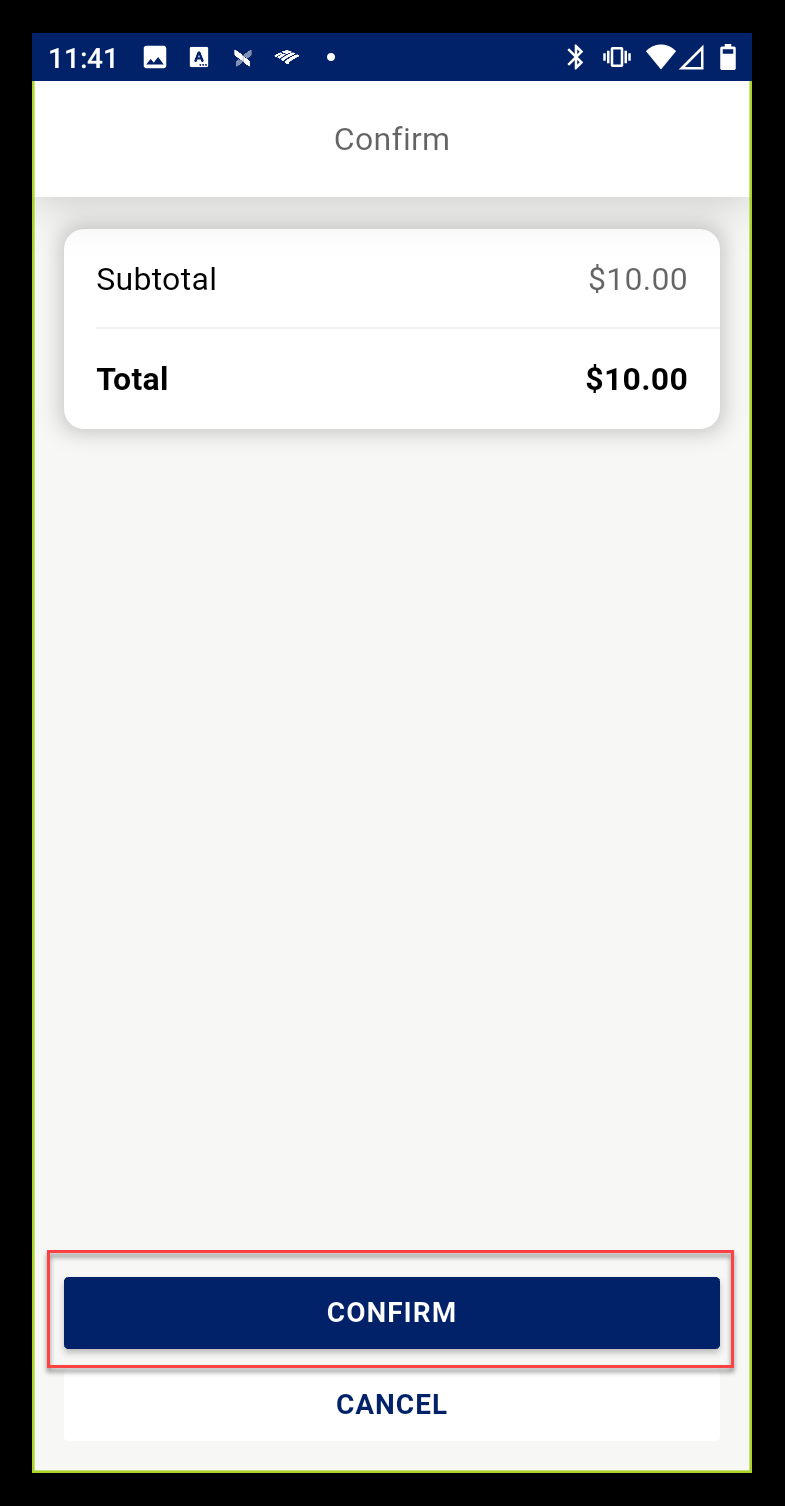
- Confirm that the amount is correct, then tap Confirm.
- Tap/insert/swipe the card or enter the card information manually.
- When the refund is complete, choose a receipt option or tap No Receipt to return to the main page.