Point of Sale Solution QR Code Ordering and Payment
Description
What's in this article?
Allow customer to browse your menu, place orders, and pay at the table using their smartphone to scan a QR code. Ordering at the table and making a payment from the receipt can help reduce delays and improve service efficiency.
Order using QR code at table
QR code ordering allows guests to scan a QR code at their table, browse your online menu, and place orders directly from their mobile device.
Before enabling QR Code Ordering, ensure the following prerequisites are complete:
- Table Layouts are enabled in Global Settings.
- Sections and tables have been created using Table Layout on the Point of Sale app.
- Your Online Store menu is configured and published.
NOTE:
The QR Code ordering experience uses your online store menu. Any items available for QR code ordering must be configured within the online store menu.
To set up QR code ordering
- Set up your online store.
- Configure your table layout to create the tables.
- Generate and download your QR codes:
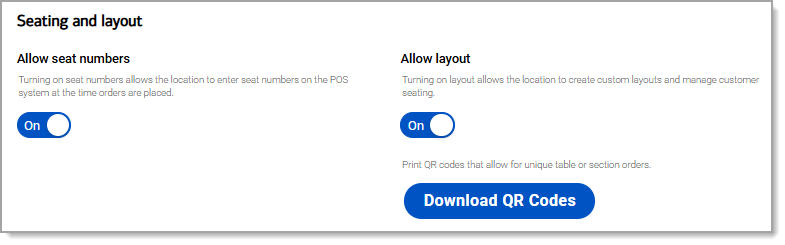
- In Point of Sale Back Office, go to Global Settings > Seating and Layout.
- Select Download QR Codes.
- Save and print the generated QR codes.
- Place each QR code at its corresponding table.
- Activate tables for QR Code Ordering
- On the Orders screen, open the Table Layout view.
- Press and hold the table you want to activate. The table will be moved into a Held status.
IMPORTANT! A table must be in Held status before it can accept orders through QR code ordering.
- Guests scan the QR code at their table using their mobile device.
- The QR code opens your online ordering menu.
- Guests select items and submit their order.
Pay through QR code
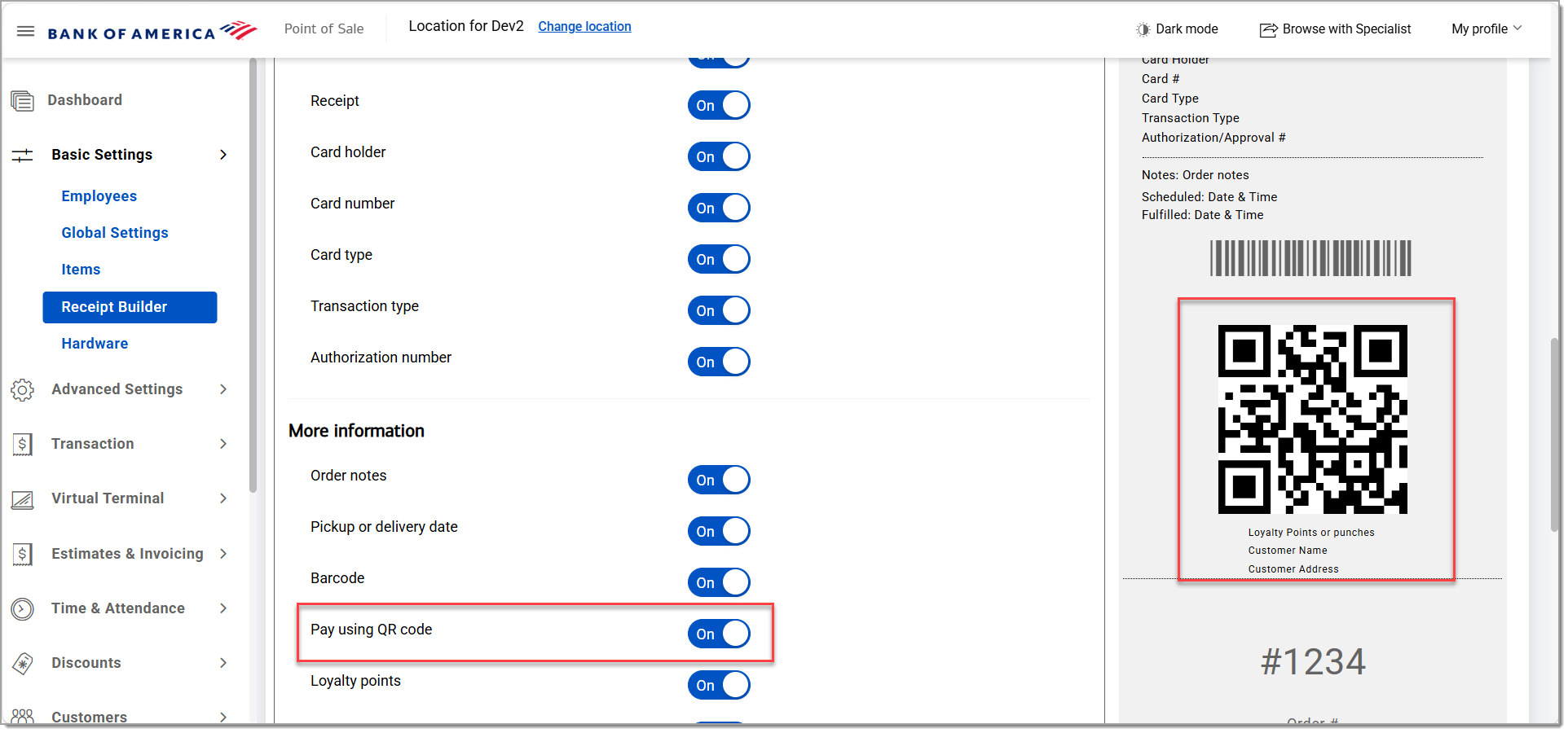
If you are using the Pro software plan, you can enable QR code payments from the customer ticket. When you print the check for the customer, a QR code prints at the bottom of the receipt. Your customer scans the QR code to pay for the ticket.
To set up QR code payment
In Receipt Builder, enable Pay using QR code in the More Information section.