Card Reader D135 Setup for MobilePOS
Description
What's in this article?
The Card Reader D135 is a portable device used with the Bank of America's Mobile Point of Sale Solution to take a credit card payment.
NOTE:
If you are using the D135 as a payment device for the Point of Sale Solution, refer to Card Reader D135 Setup for Point of Sale Solution for setup information.
What's in the box?
Your Mobile Card Reader D135 comes with a USB Type-C charging cable and an optional charging base.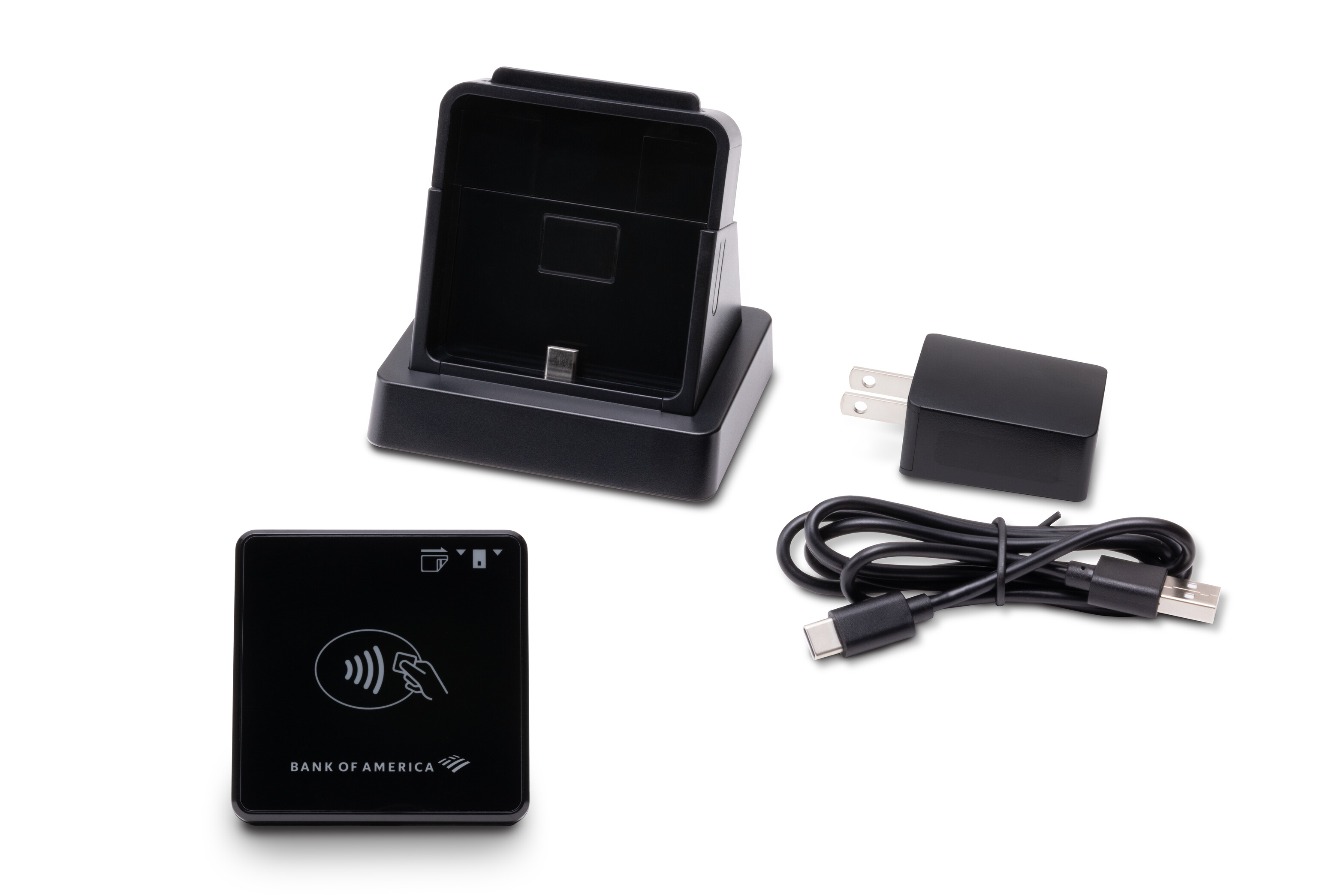
1 Power up
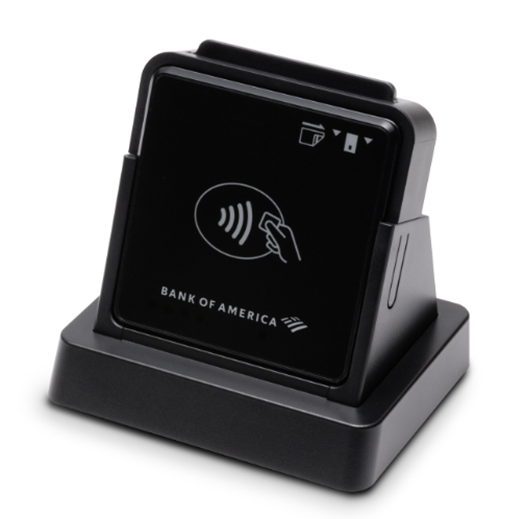
The Card Reader D135 arrives powered down. Connect the Card Reader D135 Charging Base to power using the provided cable. The Card Reader D135 then slides into the Charging Base. Press firmly down to ensure connection for charging and communication. The Card Reader may also be charged by plugging the power cord directly into the Card Reader. Before use, fully charge the Card Reader.
When the blinking red indicator light changes to a solid green, the Card Reader is fully charged. Once charged, hold down the Power button on the side until it beeps, then release. Power down the Card Reader the same way.
2 Pair the Mobile Card Reader D135 with your device
Your Mobile Card Reader D135 must be fully charged before attempting to pair it with your phone or tablet. We recommend using the optional Charging Base.
Take a card payment
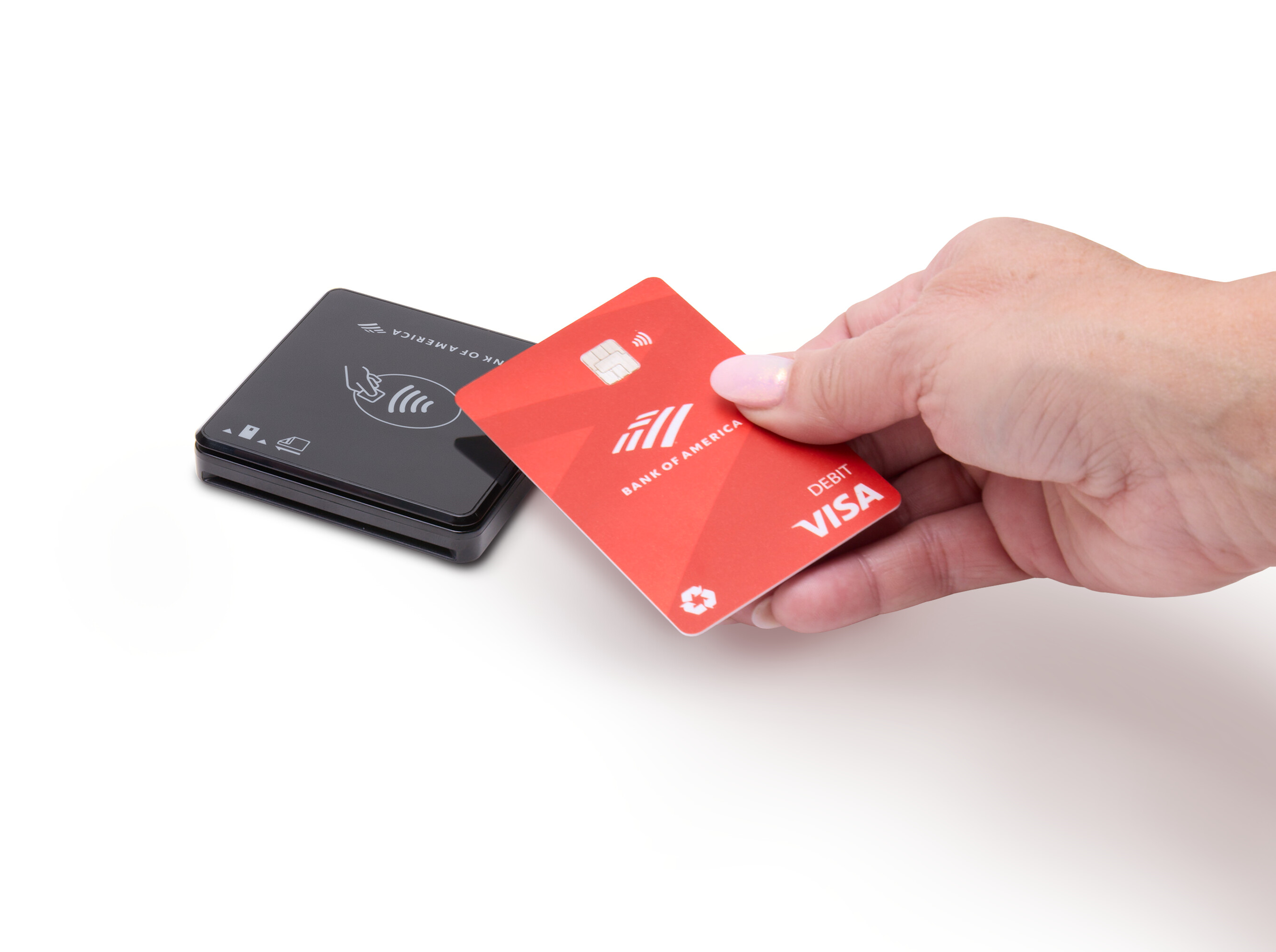
The Card Reader D135 accepts chipped card insertions or contactless taps. Your customers can also swipe their cards or use a mobile or digital wallet on a device to make a payment.
Smart Chip
Magnetic Stripe
Contactless
Mobile/Digital
Insert the card chip-side first and chip face up. When prompted, remove the card. 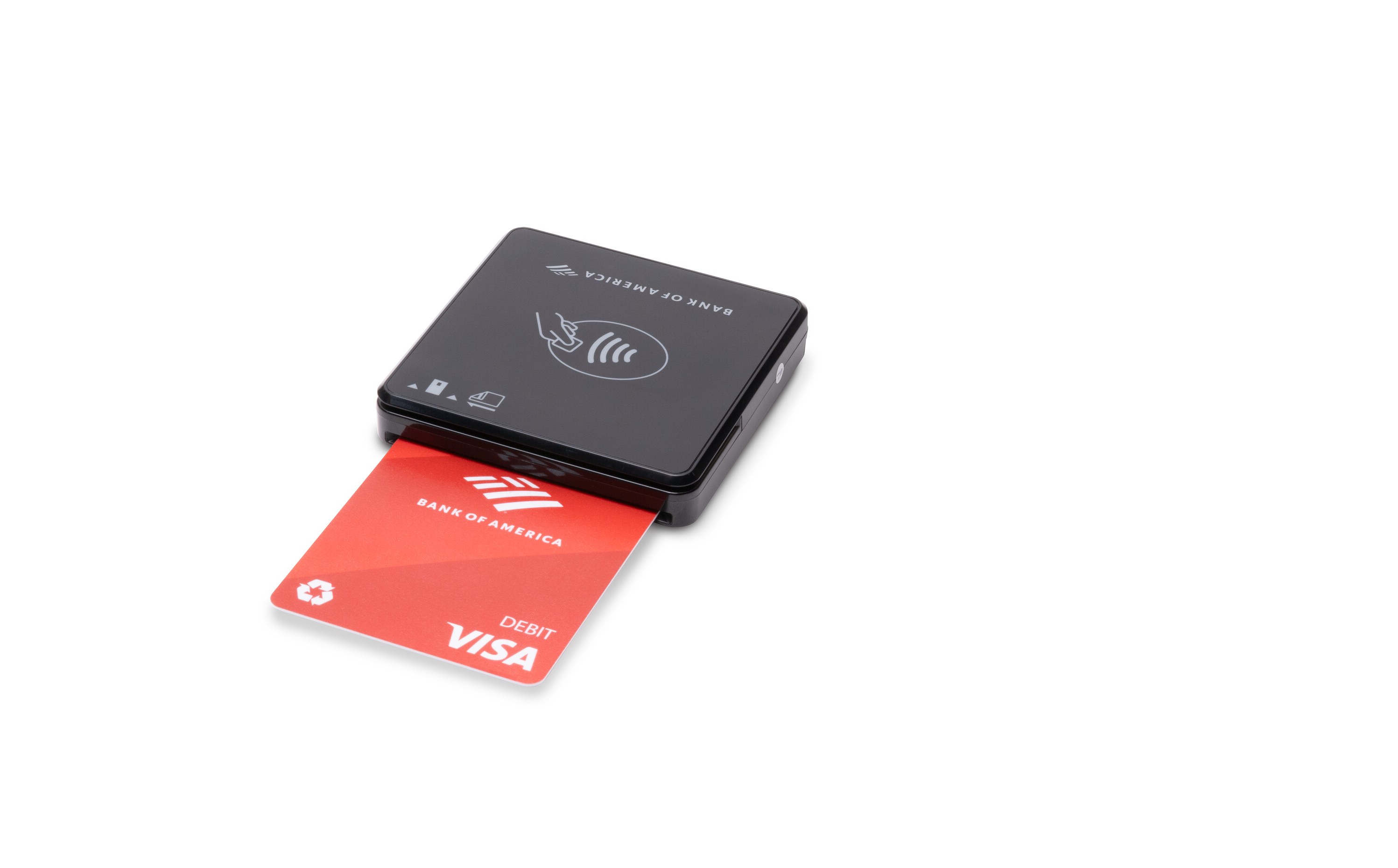
Swipe the card through the magnetic stripe reader with the strip toward the bottom of the terminal.
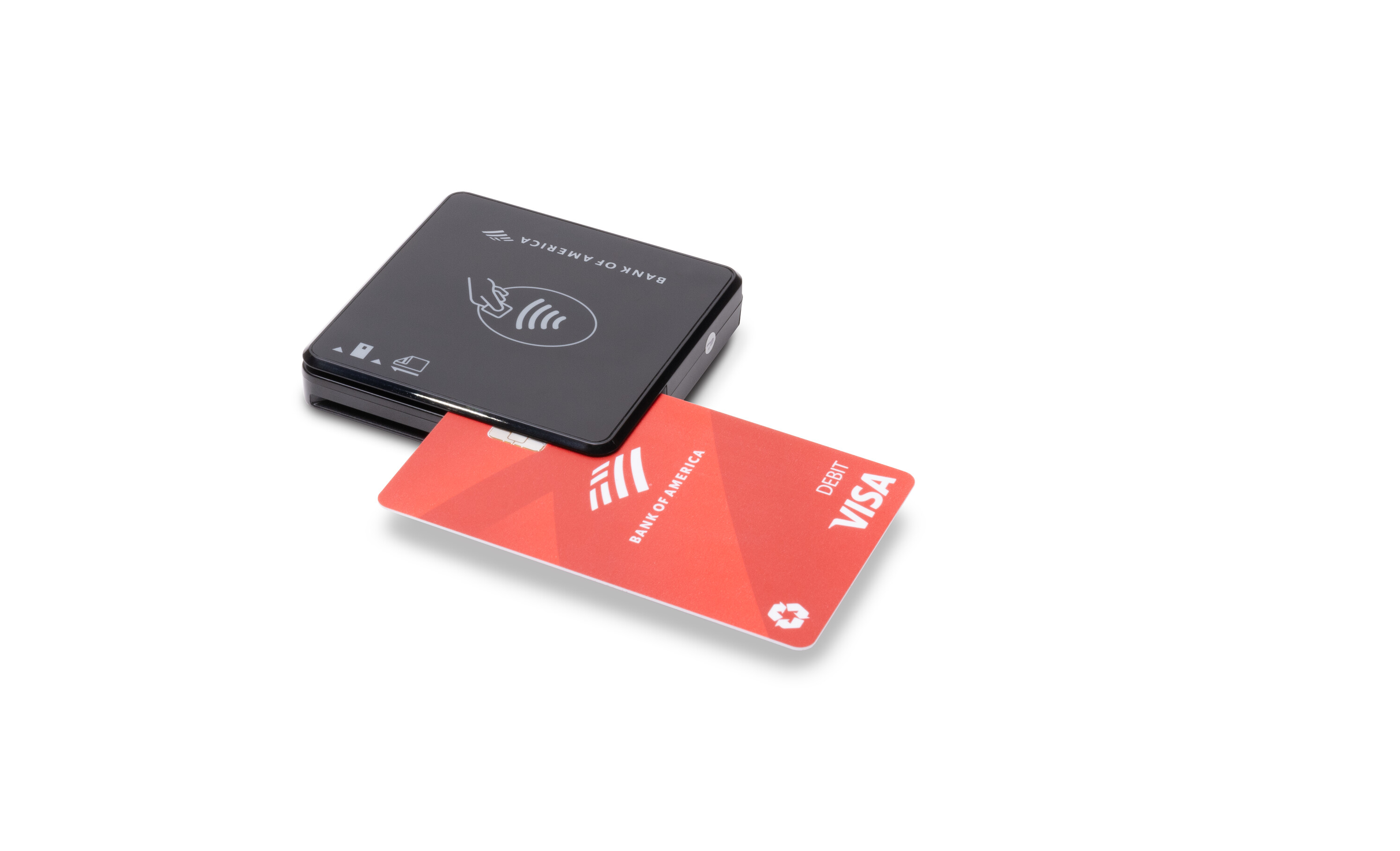
Tap or hold the card within two inches of the top of the terminal.
Hold the mobile phone/device within two inches of the top of the terminal. the customer will then need to approve the payment on their phone/device. 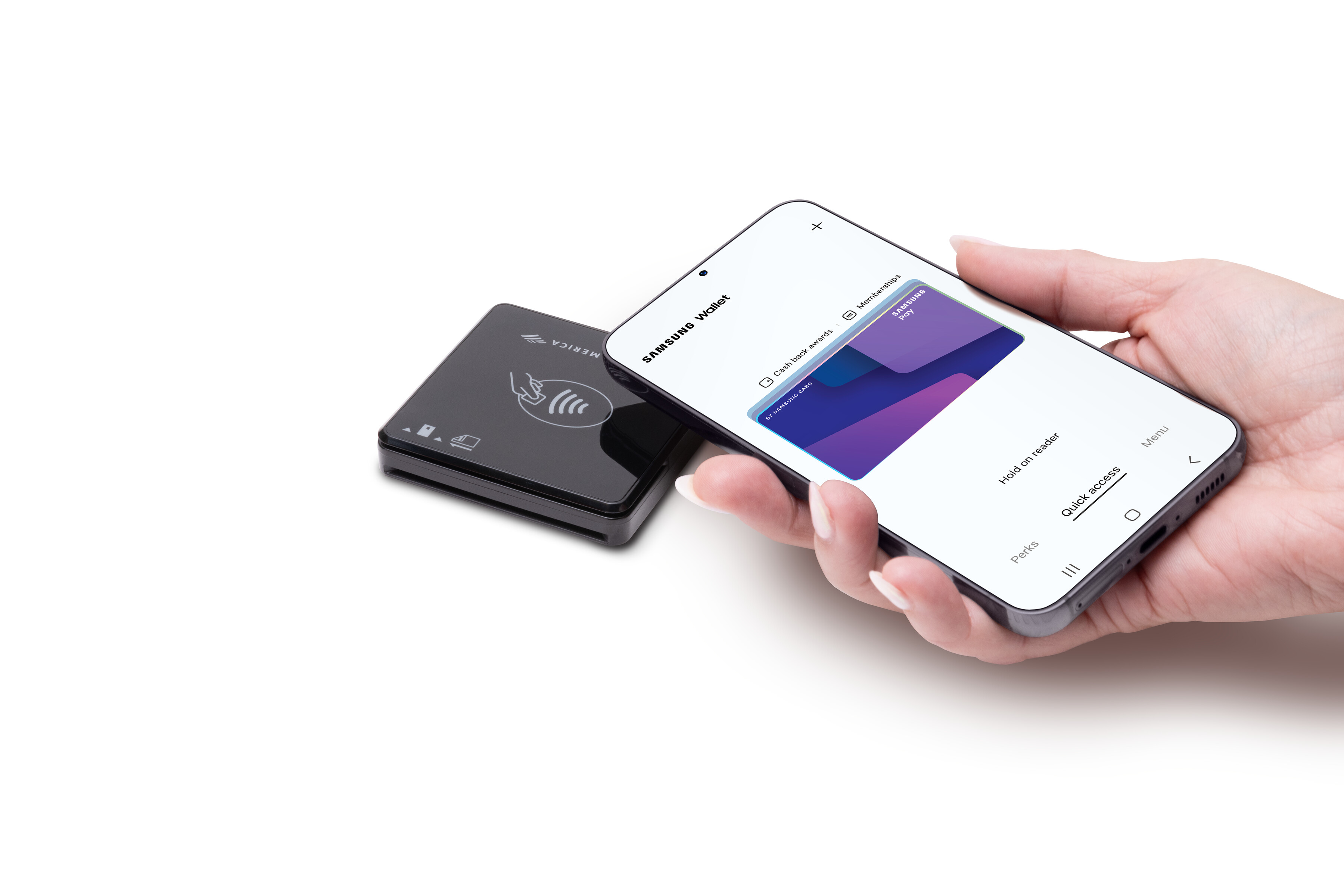
Terminal Care
For care guidelines, cleaning recommendations and other best practices, see Terminal Care.