Getting Started with Point of Sale Solution Starter, Growth or Pro Software Plans
Description
What's in this article?
Congratulations on choosing Point of Sale solution! A Merchant Activations and Training agent will assist you with the setup of your account; however, we encourage you to complete the following tasks ahead of your required activation and training calls so we can make the most efficient use of your time.
You’ll receive a welcome call from 833.344.2324 to schedule activation and training for you and your employees. During the welcome call, we'll also help you designate other users that are authorized to call in on your behalf for support. Ensure that you have a laptop available and locate your merchant ID (MID) number for your activation call.
NOTE:
If you are using Basics Software Plan, use the Getting Started with Point of Sale Solution Basics Plan instead.
1 Log in to your Merchant Services account in online banking
Your Merchant Services account requires enrollment in Business Advantage 360, our small business online banking. Access your statements, protect your account with PCI Assist, and monitor for any potential disputes/chargebacks from your online banking Merchant Services account. Learn more about accessing Merchant Services in online banking.
2 Log in to Point of Sale Solution Back Office
The Point of Sale solution has a web-based back office, which gives businesses the power to run their business from anywhere by accessing up-to-the-minute data from any browser. Please check your email account for an email from “Bank of America…" with your login credentials. This email includes the enrollment link and your username.
To log in to Point of Sale Solution Back Office for the first time
- Click the link in your Finish Enrollment email.
TIP! If you did not receive your enrollment email, click here.
- Type in your username, which you will find in your email, and create a password.
- When prompted to complete a two-factor authentication, enter the code sent to the email you provided on file.
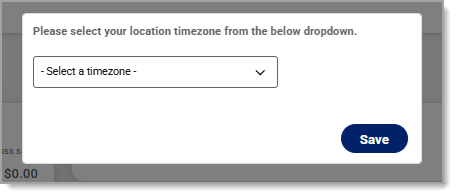
- Log in to the Back Office and complete the prompt to set up your location time zone. You can change the time zone in the future, if needed.
You are now logged into the Back Office. For additional login assistance, check out Point of Sale Solution Back Office Login.
3 Set up Back Office
When logged into the Point of Sale Solution Back Office, get familiar with the system and complete some basic setup tasks:
- Take a tour of Point of Sale Solution Back Office and find your location ID. You will need this to log in to the Point of Sale Solution App.
- Set up your employees.
- Build your receipt.
- Add printer types for your printer(s) and KDS devices in Point of Sale Solution Back Office. Printers include external printers or printers that are integrated into your point of sale.
- Add a test product to your inventory. If you will be using a kitchen printer or KDS, assign a test item to the appropriate printer. A test item in your inventory will help you confirm that setup is working correctly.
TIP!
Our Activations team will assist with loading your menu or inventory. After your welcome call, send your inventory in Word, Excel, or PDF format to menubuild@bofa.com. Put your business name and merchant ID number in the subject line. Your inventory should include the category, item name, price, and any modifiers or variations. If your online inventory is different than your physical store inventory, send an inventory for both.
4 Set up your hardware and connect to internet
When your hardware arrives, you will need to know your network name and password. Remember to connect your devices to the same network to ensure that they communicate. Depending on the hardware you selected, installation will vary. Refer to the hardware setup guides to learn about the device, how to set it up and configure it, and how to take a card payment.
- Set up your devices and connect your devices to Wi-Fi or Ethernet. Device and peripheral setup guides for Point of Sale Solution.
- Login to the Point of Sale Solution App using your Point of Sale Solution Back Office login credentials and the location ID.
- Take a tour of the Point of Sale App.
5 Test a transaction
You are ready to test a transaction. Create an order on your Point of Sale Solution App for your test item.